Feature Summary
When you need to create, edit, and beautify tables in a WPS Docs document, the Table Tools provide full-process support from insertion to layout, helping you efficiently produce professional data presentation documents. The Table Tools cover the following core capabilities:
- Multiple insertion methods: Supports quick insertion, custom rows and columns, freehand drawing, text-to-table, and other creation methods
- Flexible editing functions: Structural editing capabilities such as row/column insertion and deletion, merging and splitting, diagonal headers, and eraser
- Professional formatting and beautification: Built-in table styles, borders and shading, alignment, and other appearance adjustment functions
- Advanced processing capabilities: Header row repetition, cross-page row breaking, sorting and calculation, table-text conversion, and other advanced functions
Feature Description
| Feature Dimension | Description |
|---|---|
| Membership Restrictions | No membership restrictions; available to all users |
| Version Restrictions | No version restrictions |
Operation Steps
Basic Editing
Selecting Table Objects
| Selection Object | Operation Method |
|---|---|
| Single Cell | Move the mouse to the left side of the cell, and click when the pointer changes to a black arrow |
| Contiguous Range | Click and drag from the starting cell, or select the starting cell and then press Shift and click the ending cell |
| Non-contiguous Range | Hold down Control and click the desired cells/rows/columns in sequence |
| Entire Row | Move the mouse to the left side of the row, and click when the pointer changes to a right-pointing arrow |
| Entire Column | Move the mouse to the top of the column, and click when the pointer changes to a downward-pointing arrow |
| Entire Table | Click the cross icon at the top-left corner of the table, or use the shortcut Control+A |
Adjusting Row Height and Column Width
Feature Entry
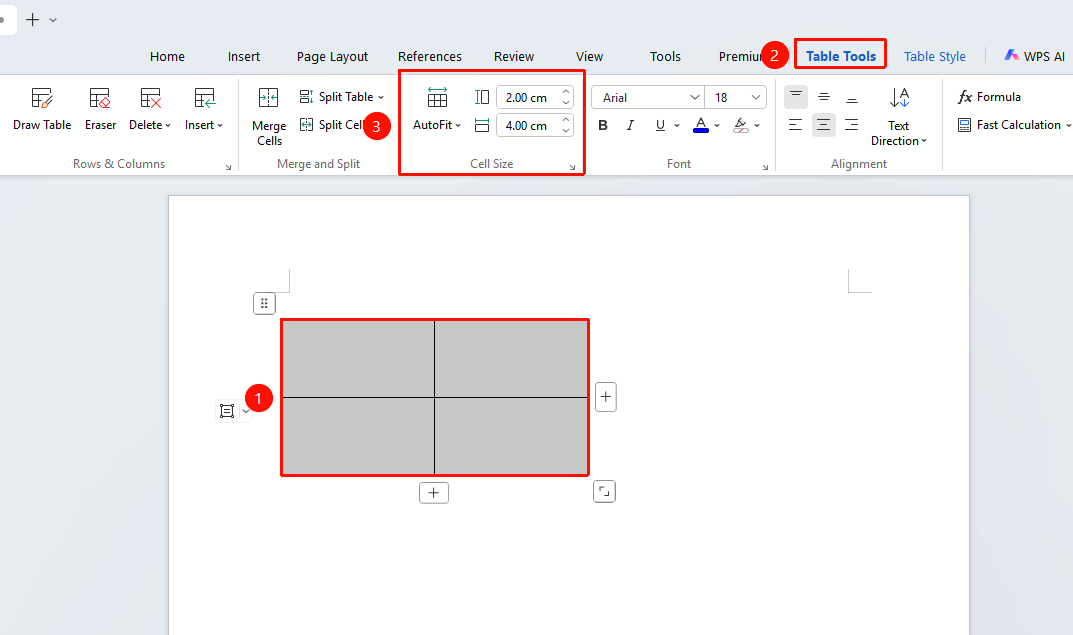
After selecting the table, drag the border lines, or set them in the "Table Tools" tab
Operation Steps:
- Manual adjustment: Drag the row/column border lines of the table
- Precise setting: After selecting a cell, enter the exact value in the "Table Tools" tab
- Auto adjustment: "Table Tools" → "AutoFit" → "AutoFit to Contents" or "AutoFit to Window"
Inserting and Deleting Rows and Columns
Feature Entry
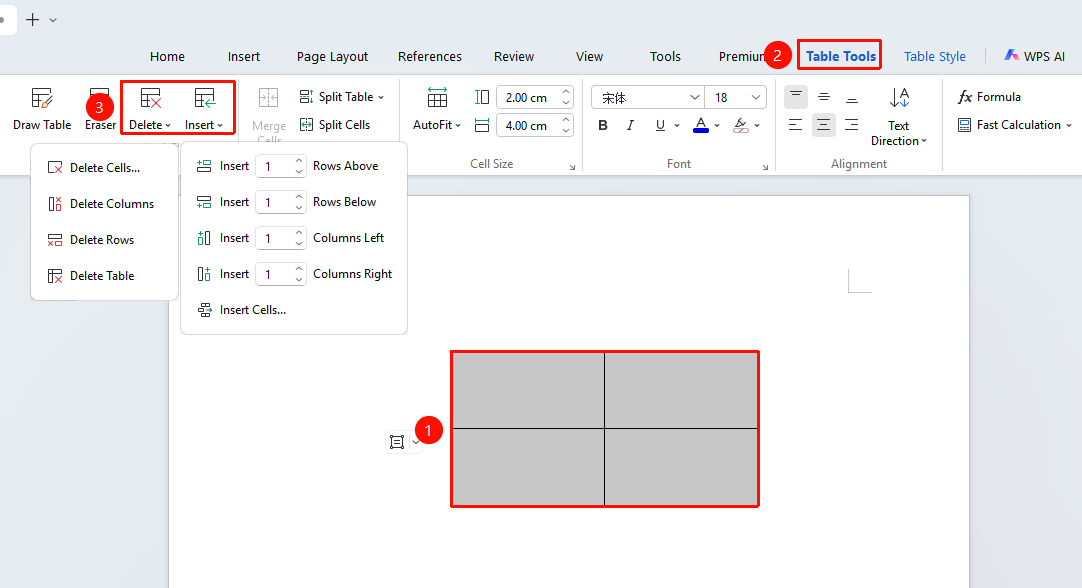
After selecting the table → "Table Tools" tab → "Insert" / "Delete Cells"
Operation Steps:
- Insert Row: Select a cell at the target location, invoke the "Table Tools" tab → "Insert" → "Insert Rows Above" / "Insert Rows Below"
- Insert Column: Select a cell at the target location, invoke the "Table Tools" tab → "Insert" → "Insert Columns to the Left" / "Insert Columns to the Right"
- Insert Multiple Rows/Columns: Select a cell at the target location, invoke the "Table Tools" tab → "Insert" → modify the desired number of rows/columns → "Insert Rows/Columns"
- Delete: Select the unwanted table content, click "Delete" in the "Table Tools" tab → "Delete Rows" / "Delete Columns" / "Cells" / "Table"
Merging and Splitting Cells
Feature Entry
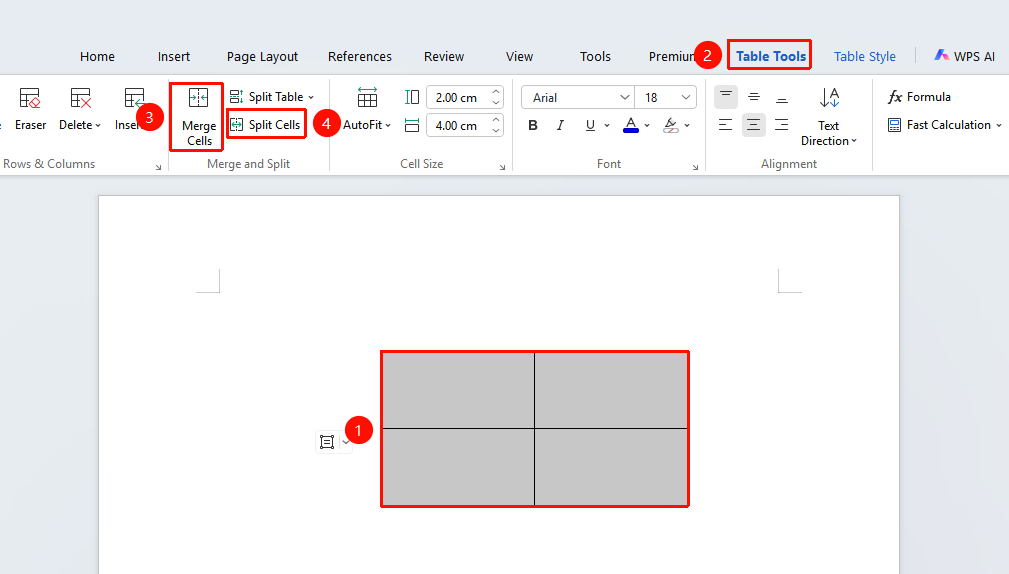
"Table Tools" tab → "Merge Cells" / "Split Cells"
- Merge Cells: Select multiple cells to be merged, click "Table Tools" tab → "Merge Cells"
- Split Cells: Select the merged cell, click "Table Tools" tab → "Split Cells", and enter the number of rows and columns to split into
Advanced Features
Header Row Repetition
Feature Entry
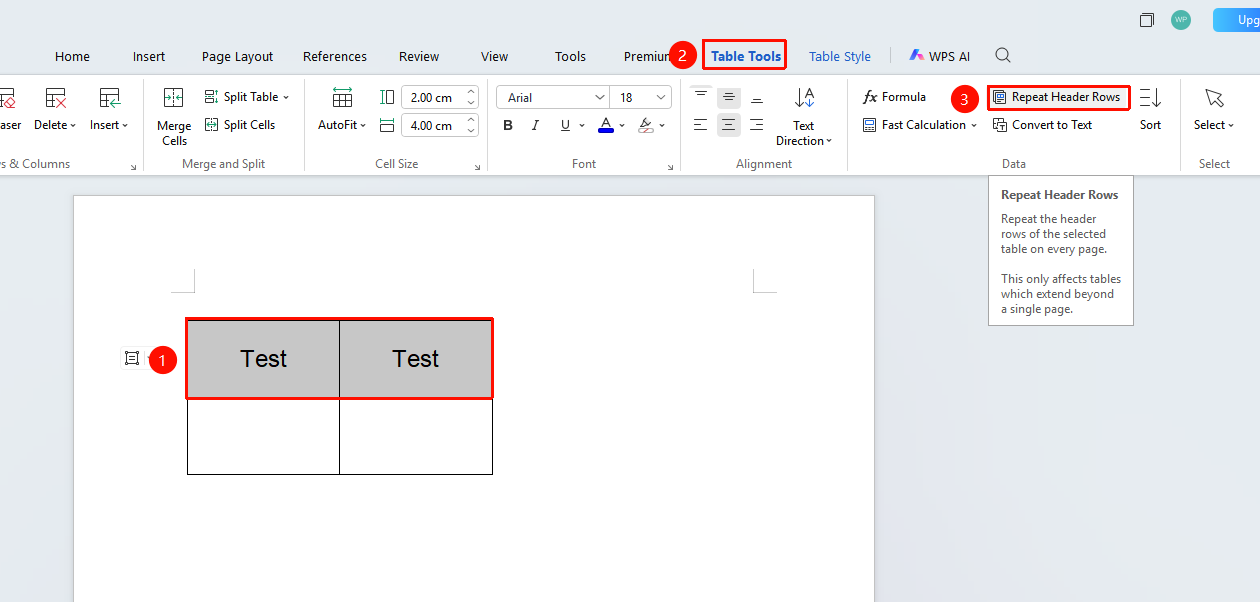
"Table Tools" tab → "Repeat Header Rows"
- Select the row to be used as the header (usually the first row)
- Click the Table Tools tab
- Check "Repeat Header Rows"
- The header will automatically appear at the top of each page when the table spans multiple pages
Cross-Page Row Breaking
Feature Entry
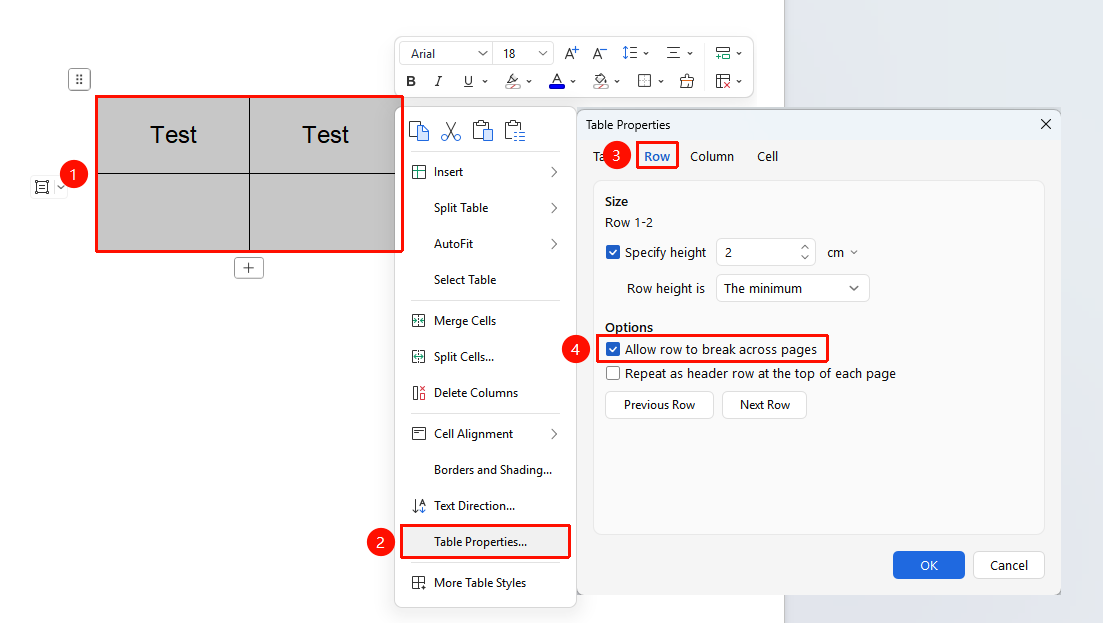
Right-click menu → "Table Properties" option → "Row" tab → "Allow row to break across pages"
1.Select the table, right-click and choose "Table Properties"
2.Switch to the Row tab
- Check "Allow row to break across pages"
- Click OK to apply
Formula Calculation in Tables
Feature Entry
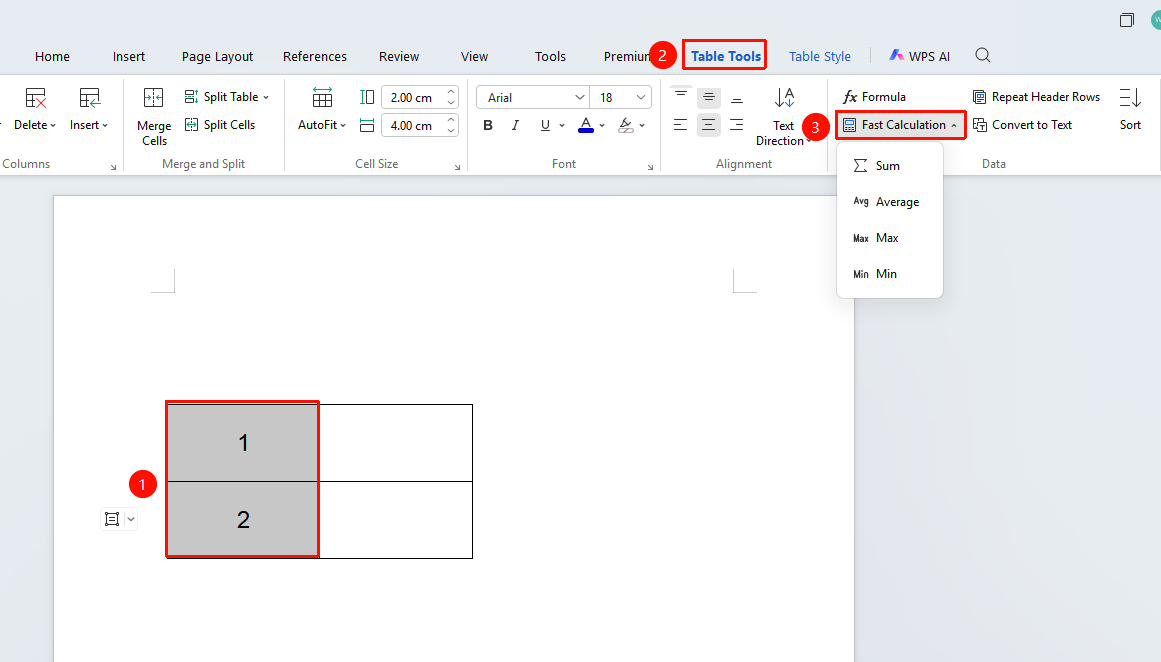
"Table Tools" tab → "Calculation" drop-down menu
- Select the table you want to calculat
- Click the Table Tools tab
- Click the Calculation button (Sum, Average, and so on.)
Convert Table to Text
Feature Entry
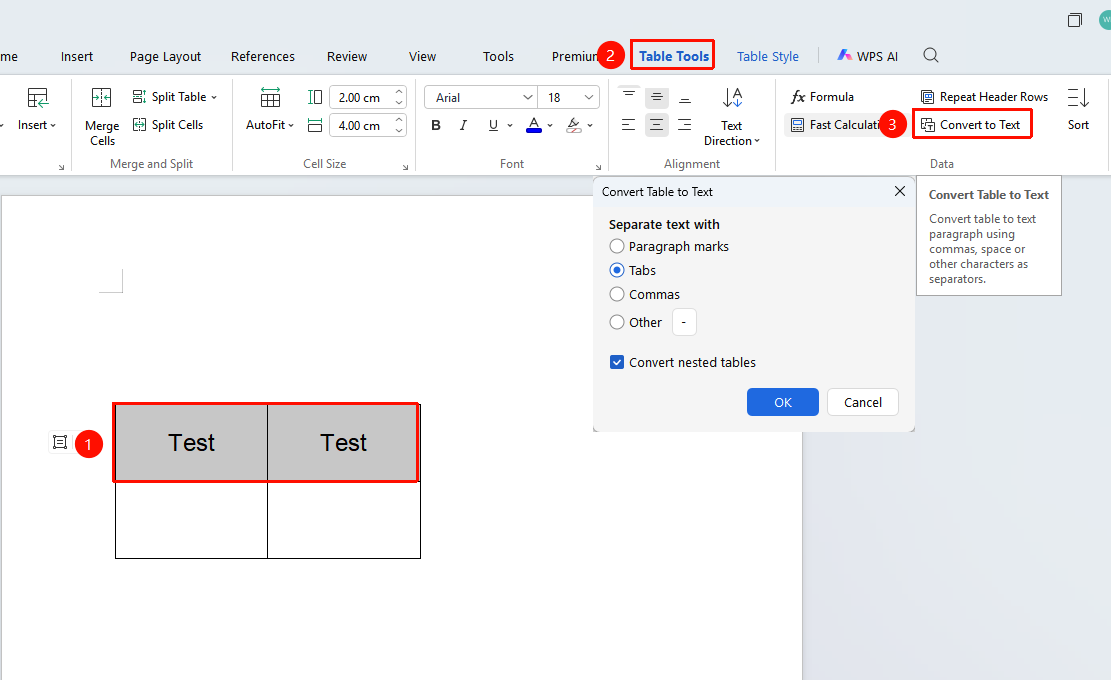
"Table Tools" tab → "Convert Table to Text"
- Select the table you want to convert
- Click the Table Tools tab
- Click the "Convert Table to Text" button
- Choose a text separator (Tab, Comma, Paragraph mark, and so on.)
- Click OK to complete the conversion
Eraser Function
Feature Entry
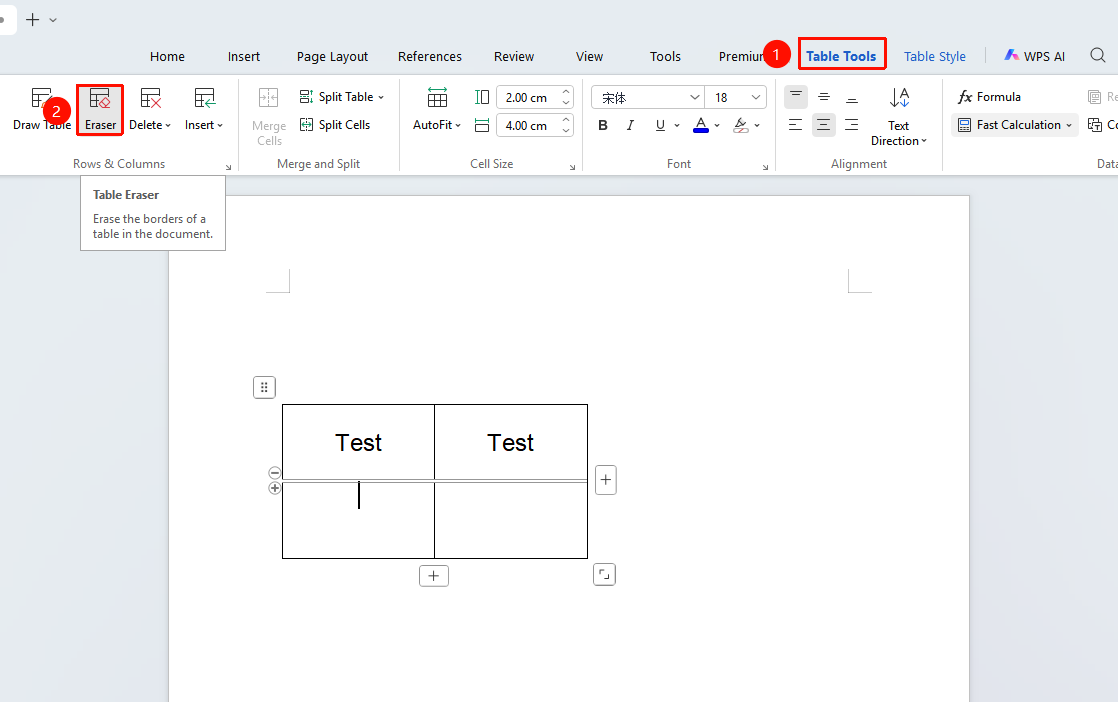
"Table Tools" tab → "Eraser" button
- Position the cursor within the cell
- Click the Table Tools tab
- Click the Eraser button
- The mouse pointer changes to an eraser shape
- Click the left mouse button to set the starting point, drag to delete the table border lines you want to remove, and release the left button to complete the erasure
- Click the Eraser button again or press Esc to exit
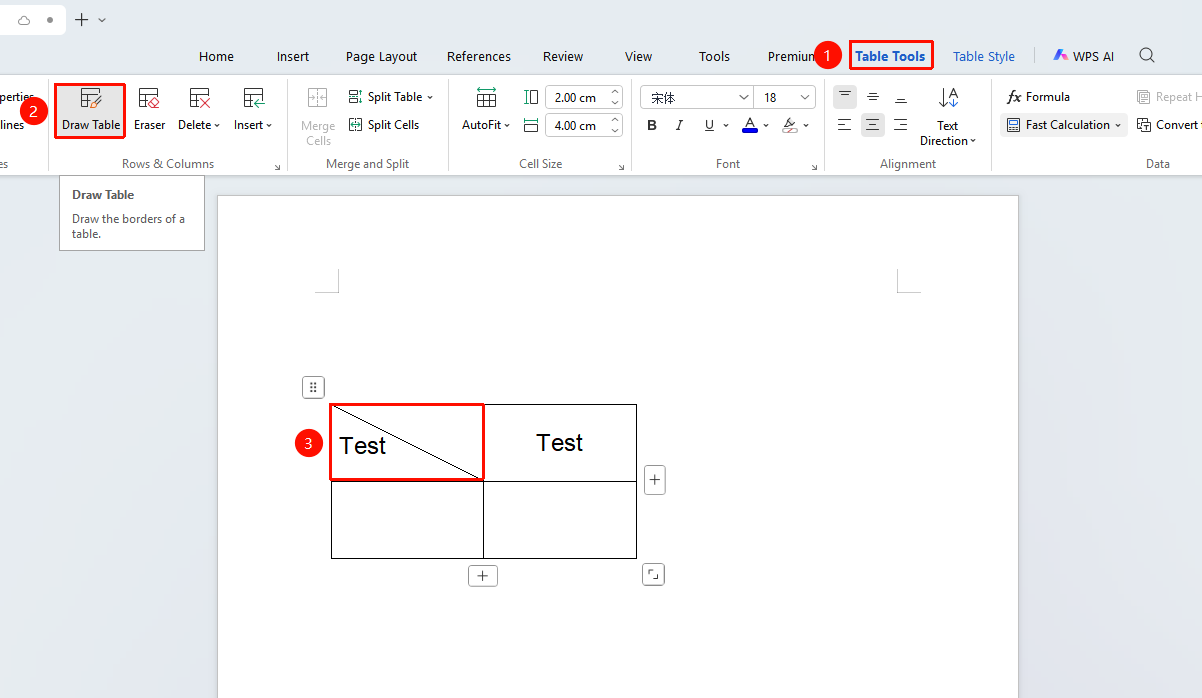
Draw Diagonal Line
Feature Entry
"Table Tools" tab → "Draw Table" option
- Position the cursor within the cell
- Click the Table Tools tab
- Click the "Draw Table" option
- Draw a diagonal line inside the cell
- A diagonal line appears in the cell, and you can then enter content in the areas separated by the diagonal line
Frequently Asked Questions
Q1: The inserted table content is not fully displayed
- Solution: After selecting the table, click "Table Tools" tab → "AutoFit" → "AutoFit to Contents"
Q2: Table content extends beyond the page to the next page, as if hidden behind the page
- Solution: Right-click → "Table Properties" → "Row" → Check "Allow row to break across pages"
Q3: An undeletable blank page appears after the table
- Solution: The document requires an empty paragraph after the table. Right-click → "Paragraph", and set the line spacing to "Exactly: 1 pt"
Q4: Tables on different pages need to display the same header row
- Solution: Select the header row, click "Table Tools" → "Repeat Header Rows", and the same header will automatically appear on other pages
Q5: When copying content from Excel to a document, table borders are not retained, only the content
- Solution: First paste the content with the table, then select the table → "Table Tools" → "Convert Table to Text"
Q6: In a Word table, some text in each row is not displayed due to row height settings. How to batch adjust?
- Solution: After selecting the table, right-click "Table Properties", then select "Row", check "Specify height", set "Row height is" to "At least", and click "OK".
Notes
- Cross-page tables: For long tables, it is recommended to enable the "Repeat Header Rows" function for easier reading
- Table properties: Settings in Table Properties affect the overall layout; it is recommended to preview the effect before making changes
- Formula calculation: Formulas within tables support basic operations; for complex calculations, it is recommended to use WPS Spreadsheets
- Text conversion: Before converting text to a table, ensure there are clear delimiters (Tab, Comma, Space, etc.)
- Eraser usage: The Eraser function can only delete border lines, not cell content
- Style application: After applying a table style, cell formatting can still be adjusted individually
- Save compatibility: Documents using advanced features may display abnormally in older software versions; it is recommended to save in a newer format