Feature Summary
After inserting a table in WPS Docs, if you want to quickly beautify the table appearance and unify the document layout style, the "Table Style" feature provides you with a rich set of preset styles and customization capabilities, helping you apply professional designs with one click and enhance the visual effect and reading experience of your document.
- Preset Style Library: Provides various themed styles such as light, dark, and header row styles, applicable with one click
- Custom Styles: Supports independent settings for fonts, borders, and shading for elements like header rows, summary rows, and striped rows
Feature Description
| Feature Dimension | Description |
|---|---|
| Membership Restriction | Basic preset styles are free to use; some paid styles require membership activation |
| Version Restriction | No version restrictions |
Operation Steps
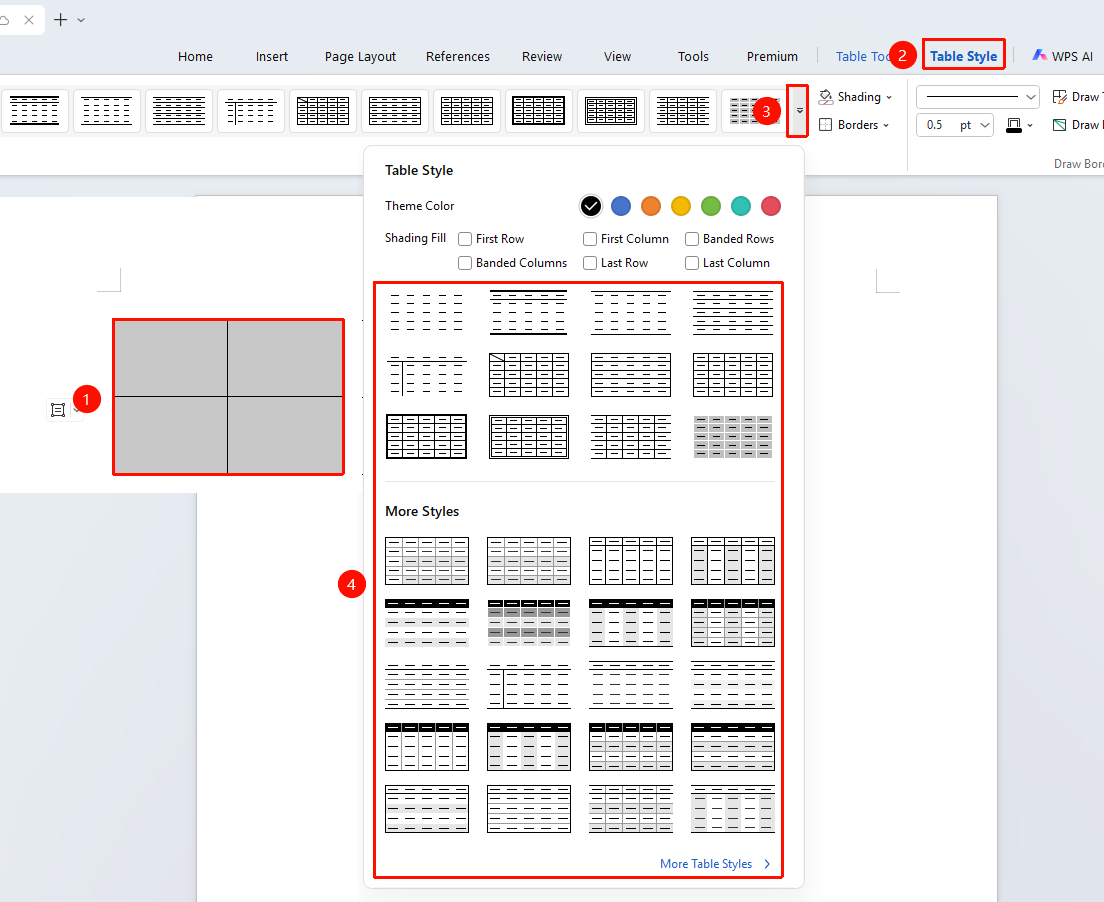
1. Applying Preset Table Styles
Some paid preset templates within this feature require membership activation to use.
Feature entry point: Select table → "Table Style"
Operation steps:
- Click the select-all marker in the upper-left corner of the table (or drag to select the entire table)
- Switch to the "Table Style" tab
- Browse preset styles in the "Table Style" group; hover the mouse for a live preview
- Click the target style to apply it with one click
- Click the style set dropdown menu to view more preset styles; click "More Table Styles" to open the right-side "Task Pane" > "Beautification Assistant", where you can access more templates and paid templates
2. Changing Preset Table Styles
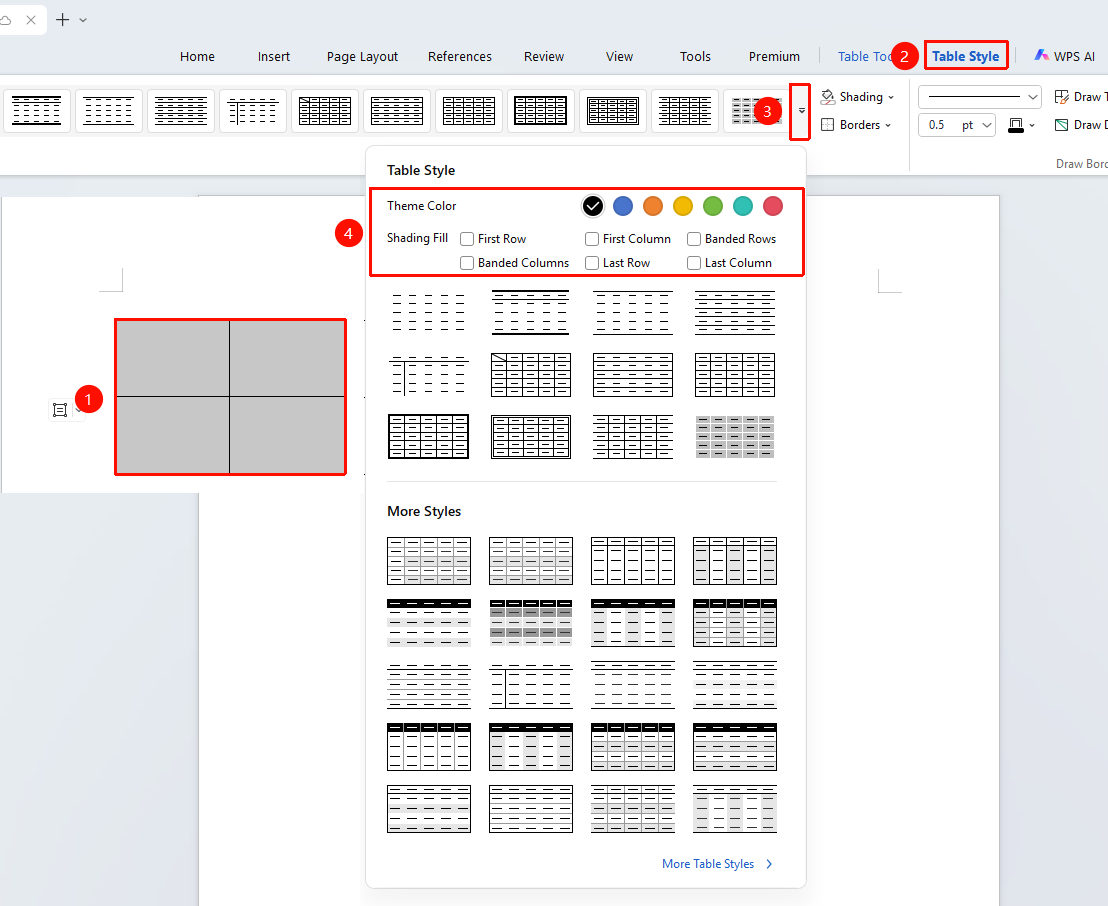
Feature entry point: "Table Style" tab → dropdown menu to change preset styles
Operation steps:
- Select the table range whose style you want to change
- Switch to the "Table Style" tab
- Click the style set dropdown menu to customize styles
- Click to change "Theme Colors", check the "Shading Fill" range, and the preset style will update its settings
- Click the desired style to apply it
3. Fine-Tuning Table Borders and Shading
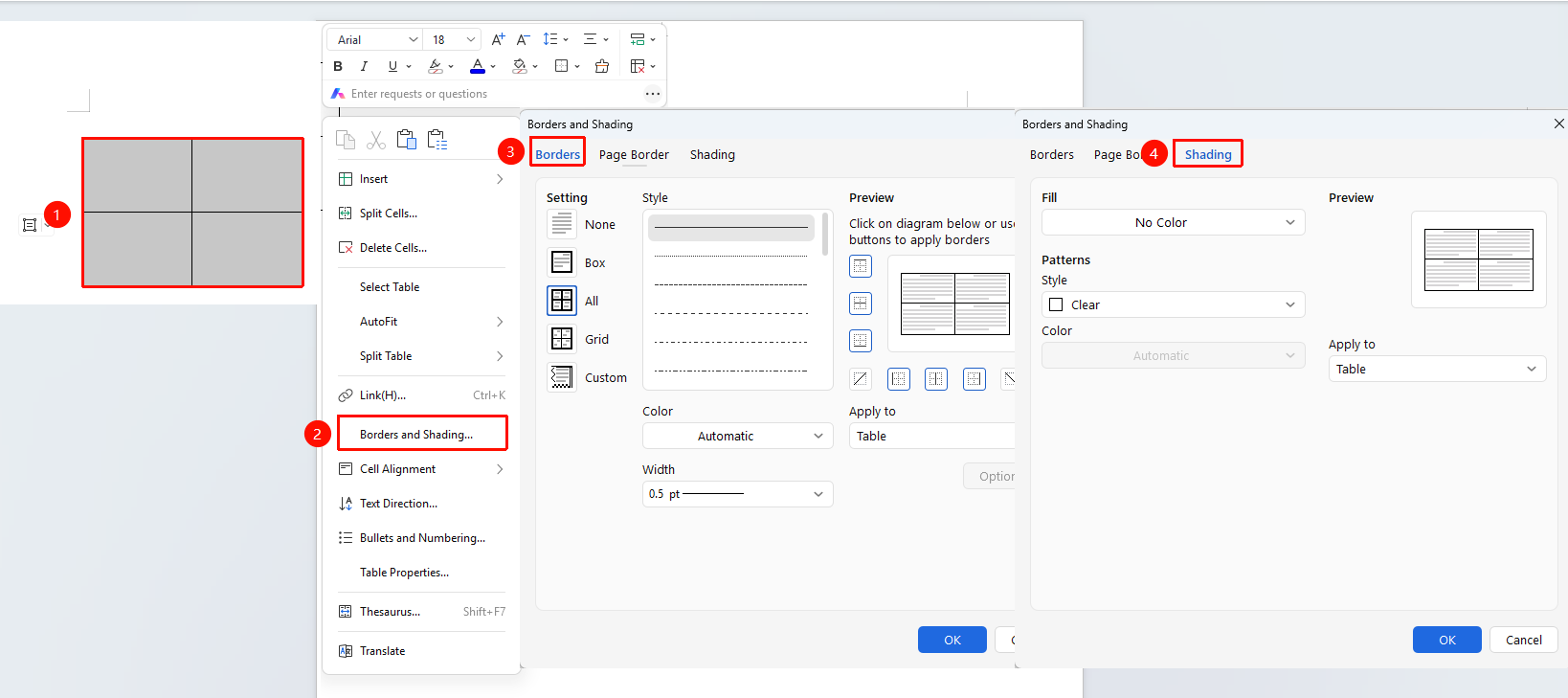
Feature entry point: Select table/cell → Right-click munu → "Borders and Shading"
Operation steps:
- Select the table or specific cells you need to adjust
- Right-click and select "Borders and Shading" tab
- You can set separately:
- Borders: Line style (solid, dashed, double, etc.), color, width (point size)
- Shading: Solid color fill, pattern fill
- Apply to: Entire table, current cell, specific border lines
- Click "OK" to apply
Fine-tuning tip: Hold down the Alt key and drag a border line to precisely fine-tune the position of a single border line without affecting other border lines.
4. Drawing Diagonal Table Headers
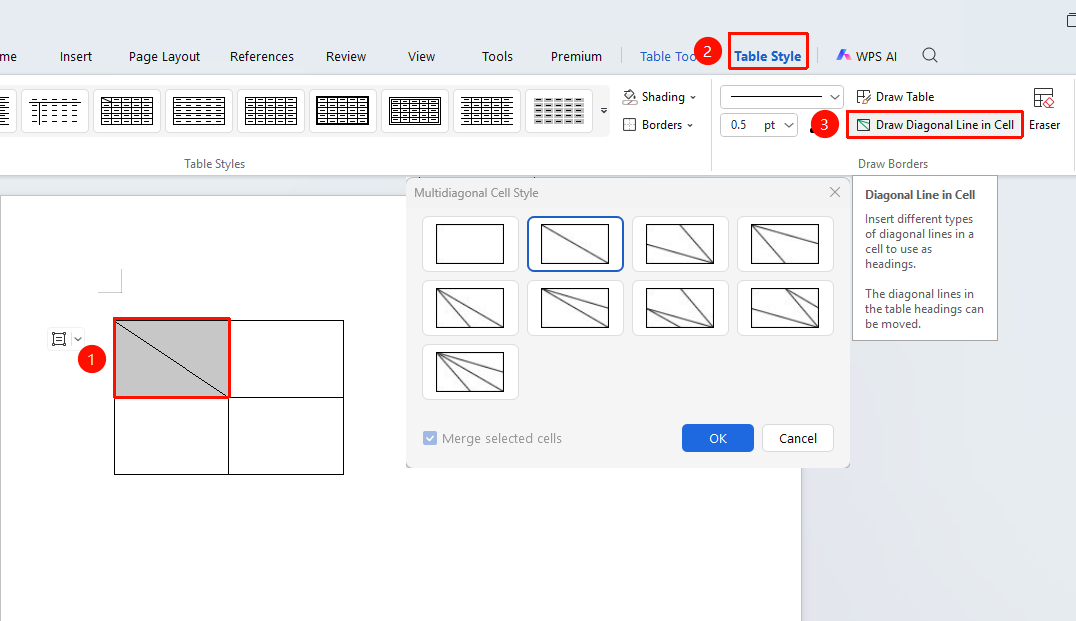
Feature entry point: Select cell → "Table Style" tab → "Diagonal Header"
Operation steps:
- Select the cell where you want to add a diagonal header (usually the first cell in the upper-left corner)
- Click the "Table Style" tab → "Diagonal Header"
- In the pop-up diagonal style selection box, choose the desired diagonal style (single diagonal, double diagonal, etc.)
- Click OK to complete the setting
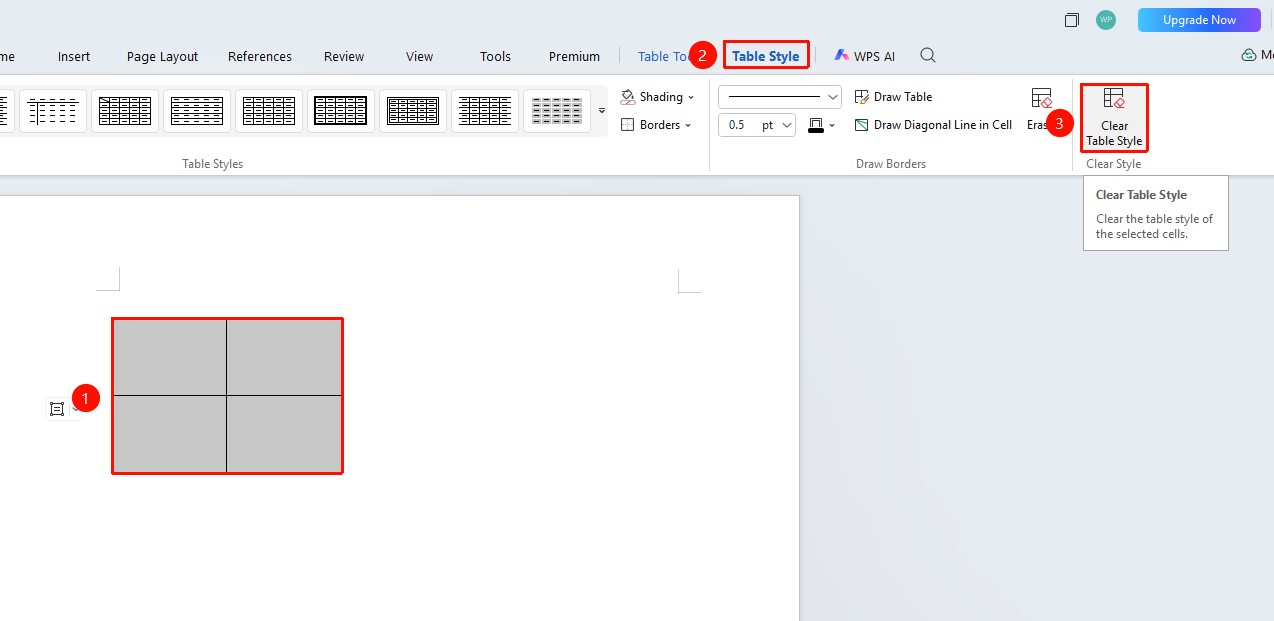
5. Clearing Table Styles
Feature entry point: Select table range → "Table Style" tab → "Clear Table Style"
Operation steps:
- Select the table range whose formatting you want to clear
- Switch to the "Table Style" tab
- Click "Clear Table Style" to remove all styles contained in the table and restore it to a transparent table
Frequently Asked Questions
Question 1: After applying a table style, all content is squeezed into one cell
- Solution: The delimiter was selected incorrectly. Check the delimiter actually used in the text and re-select the correct delimiter type. For Chinese commas, you need to select "Other Characters" and manually enter it.
Question 2: What should I do if modifying borders/shading has no effect?- Solution: Check whether the application range is correct. You need to select the entire target table/cell range before applying settings; selecting only part of the content will modify only that part. Also ensure the document format is .docx and that WPS is the latest version.
Question 3: How to enter text in a diagonal header?
- Method 1: In the cell, first enter the upper-right text, press Space, then enter the lower-left text, and adjust the position using line breaks and spaces;
- Method 2: Click "Insert" → "Text Box", enter the corresponding text separately, set the text box to "No Outline", and then move it to the appropriate position.
Question 4: Inserted images in a table do not display or display incompletely
- Solution: Adjust the row height to fit the image size and check "Allow row to break across pages"; when there are many images, insert them in batches to avoid display anomalies caused by loading all at once.
Notes
Document format: It is recommended to save in .docx format for optimal compatibility