Feature Summary
The Design Mode feature is used to edit and configure content controls in a document, making it easy for users to create forms or template documents with interactive elements.
Feature Description
| Feature Dimension | Description |
|---|---|
| Membership Restriction | No membership restriction; available to all users |
| Version Restriction | Not supported on WPS versions for mobile devices |
Steps
Entering Design Mode
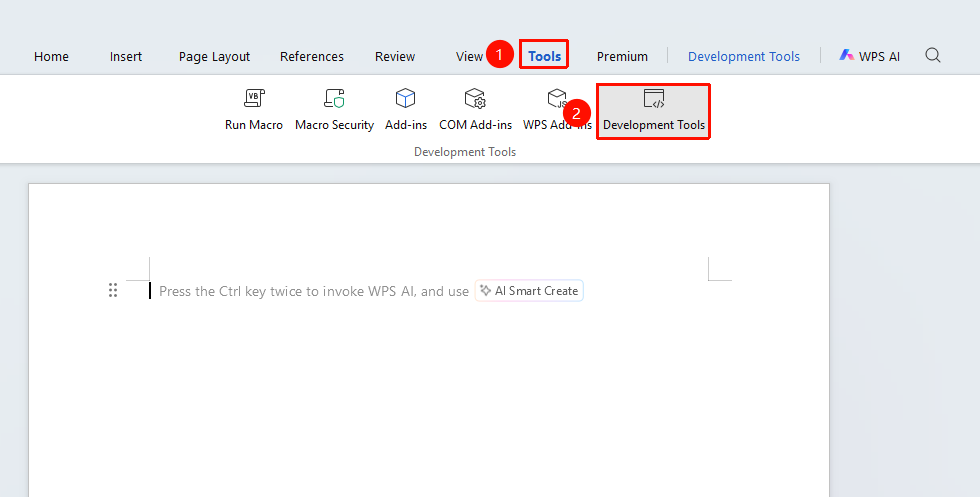
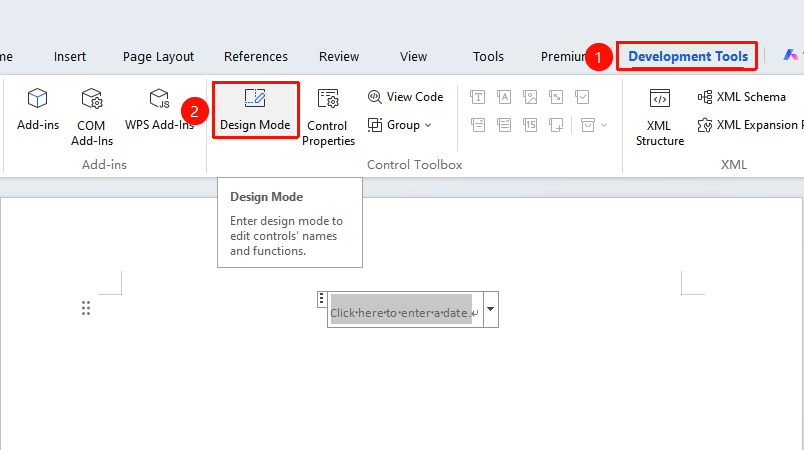
Feature Entry: "Tools" tab → "Developer Tools" button → "Developer Tools" tab → "Design Mode"
- Click the "Tools" tab at the top, locate and click the "Developer Tools" button to bring up the "Developer Tools" tab at the top
- Click the "Developer Tools" tab on the ribbon
- Click the "Design Mode" button
- Once in Design Mode, you can edit content controls
Editing Controls in Design Mode
Feature Entry: "Developer Tools" tab → "Design Mode"
- Click "Design Mode" from "Developer Tools" tab
- Enter Design Mode
- Select the content control you need to edit
- Modify the control's properties and settings
FAQ
Q1: What is the difference between content controls in Design Mode and normal text?
- Solution: In Design Mode, you can set control properties such as placeholder text and locking, which is not possible with normal text.
Notes
- In Design Mode, you can add, delete, and modify content controls
- After exiting Design Mode, the controls will be in use mode
- It is recommended to exit Design Mode after completing the design