Feature Summary
The hyperlink feature allows you to link text, images, or shapes in a document to web pages, local files, other locations within the document, or email addresses, enabling quick jumps and navigation to enhance document interactivity and readability.
Feature Description
| Feature Dimension | Description |
|---|---|
| Membership Restrictions | No membership restrictions; available to all users |
| Version Restrictions | No version restrictions |
Operation Steps
Insert Hyperlink
Feature Entry
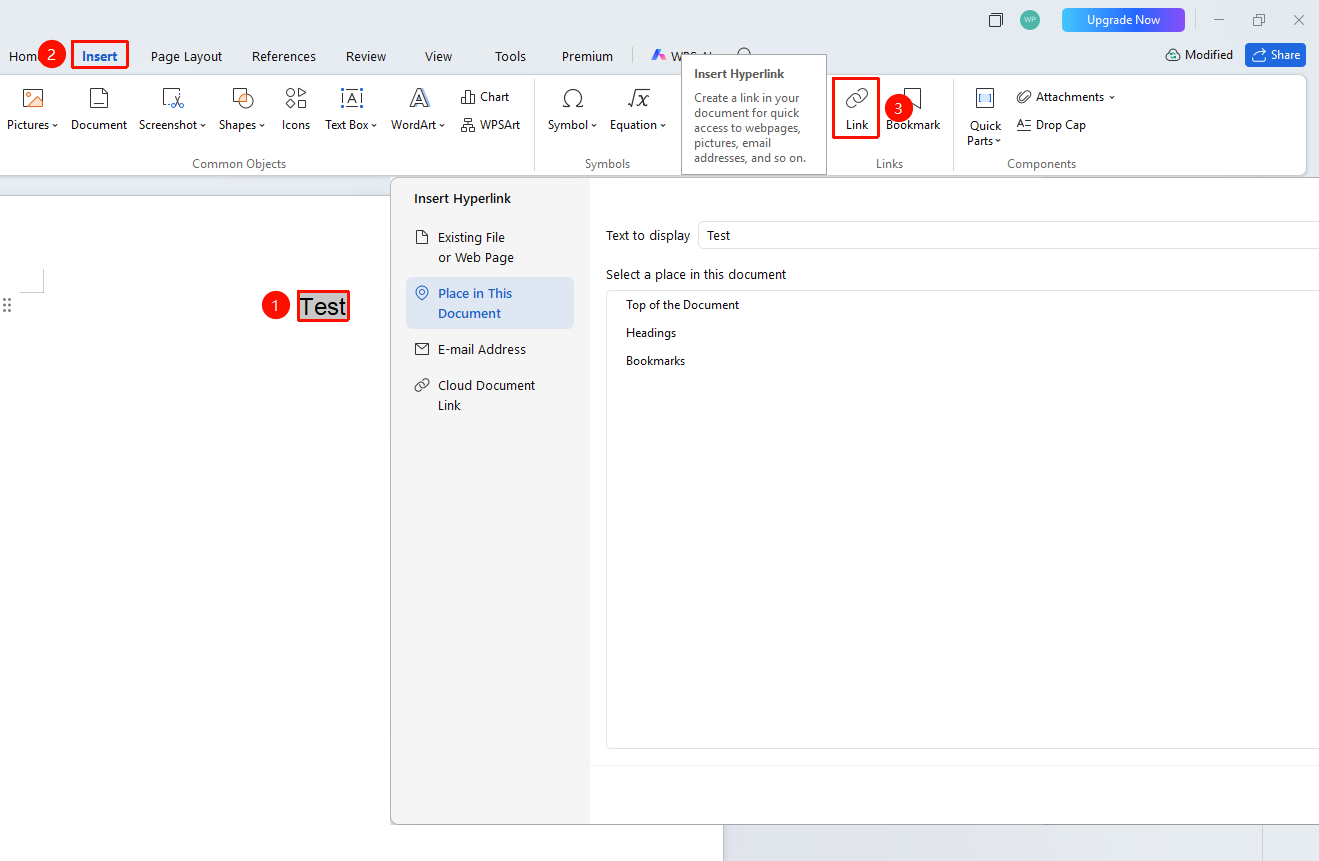
"Insert" tab → "Hyperlink" option
- Select the text, image, or shape you want to set as a hyperlink (or place the cursor at the target location where you want to insert the hyperlink)
- Click the Insert tab in the top menu bar, locate and click the "Hyperlink" button
- In the pop-up dialog box, select the link type on the left:
| Link Type | Operation Description |
|---|---|
| Existing File or Web Page | Enter the webpage URL, or click "Browse" to select a local file |
| Place in This Document | Select a pre-set heading or bookmark to jump within the document |
| Email Address | Enter the email address and subject; click to quickly send an email |
| Cloud Document Link | Select a file in WPS Cloud to quickly open the cloud file |
- After configuring the hyperlink content, click the OK button to complete the setup
Shortcut for Hyperlink Setup: Press
Ctrl+Kto quickly bring up the hyperlink dialog box
Insert Hyperlink via Right-Click
Feature Entry
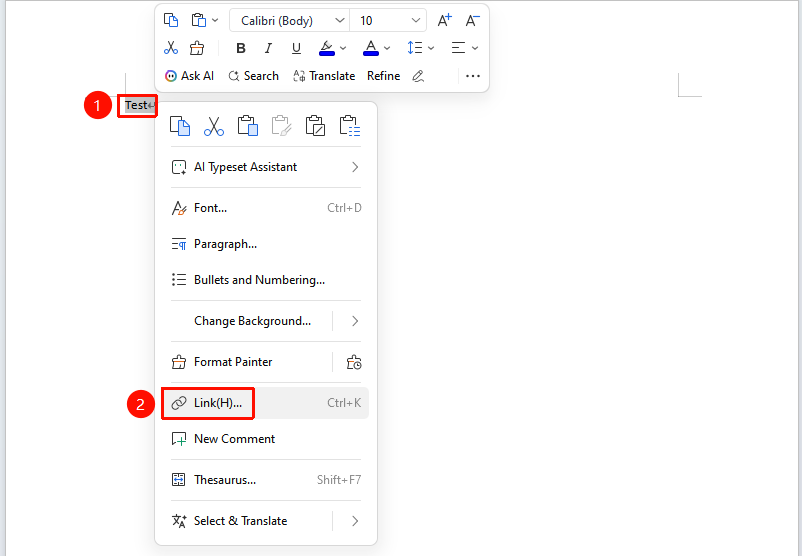
Right-click on a blank area, "Right-Click" menu → "Hyperlink" option
- Select the text, image, or shape you want to set as a hyperlink, or place the cursor at the target location where you want to insert the hyperlink
- Right-click the selected text (or click on a blank area) to bring up the right-click menu list
- Click the "Hyperlink" option
- After configuring the hyperlink content, click the OK button to complete the setup
Manage Hyperlinks via Right-Click
Feature Entry
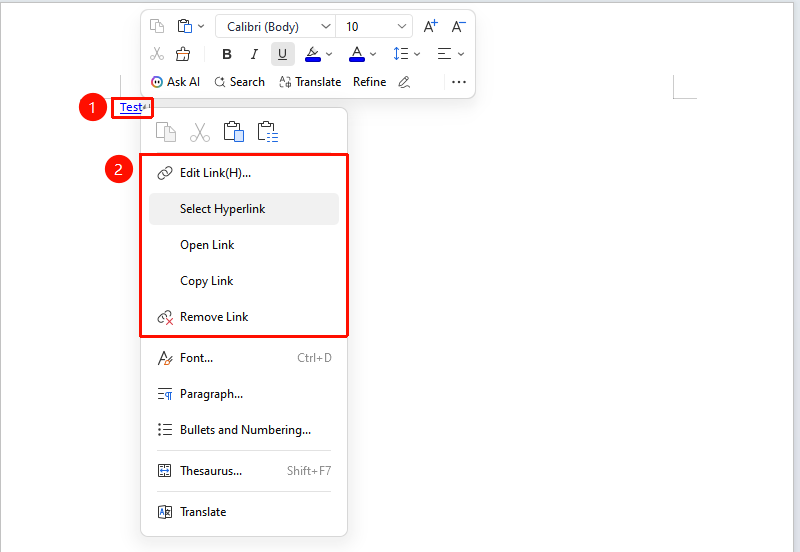
Right-click the hyperlink content → brings up the "Right-Click" menu
| Function Option | Operation Description |
|---|---|
| Edit Hyperlink | Reconfigure the hyperlink content |
| Select Hyperlink | Quickly select the hyperlinked text, image, or shape |
| Open Hyperlink | Open the linked content |
| Copy Hyperlink | Copy the link address |
| Remove Hyperlink | One-click removal of the set hyperlink |
Frequently Asked Questions
Q1: Clicking a hyperlink does not jump or jumps abnormally
- Solution: Hold down the
Ctrlkey and click the hyperlink to jump normally. If linking to a local file, ensure the file path is correct and the file exists.
Q2: The default opening method for webpage hyperlinks is not the WPS built-in browser
- Solution: Webpage hyperlinks will open in the system's default browser by default. Currently, it cannot be set to open in the WPS built-in browser.
Q3: How to batch add the same hyperlink to multiple objects
- Solution: First set the hyperlink for the first object, right-click that object and select "Copy", then hold down
Ctrland select all other objects you want to add the link to in sequence, right-click and select "Paste Special → Formatted Text (RTF)" to batch synchronize the link.
Notes
- Hold down
Ctrland click a hyperlink to test whether it jumps normally - For intra-document jumps, heading styles or bookmarks must be set up in advance
- Removing a hyperlink only removes the link function; it does not delete the original text content