Feature Summary
The border and shading feature allows you to add decorative border lines and background fill effects to text, paragraphs, pages, or tables, helping to beautify documents, highlight key content, or distinguish different sections and paragraphs.
Feature Description
| Feature Dimension | Description |
|---|---|
| Membership Restriction | Basic borders and shading are free to use; some artistic border styles require a membership |
| Version Restriction | WPS Office 2019 and later versions |
Operation Steps
Setting Borders
Feature Entry
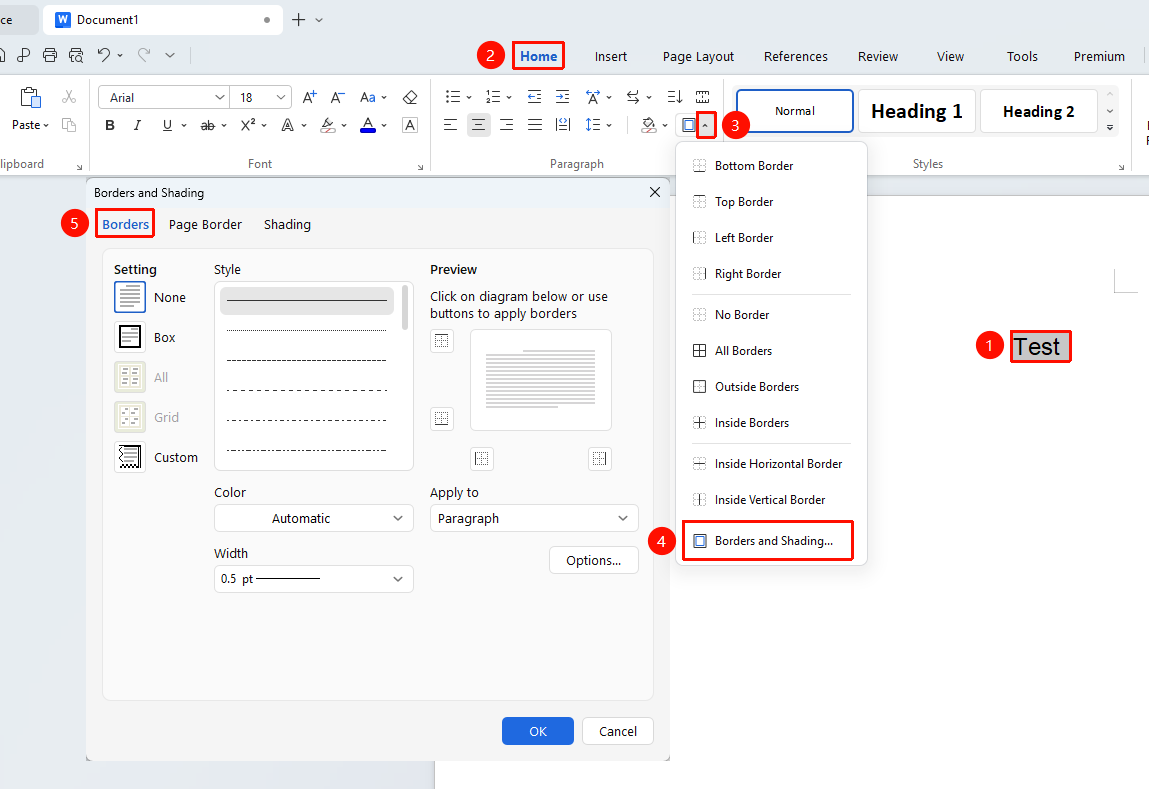
Select the text or paragraph you want to set a border for, then click the "Home" tab → "Border" option
- Select the text or paragraph you want to set
- Click the Home tab on the top menu bar
- Find the Border button and click the dropdown arrow on the right side of the button
- Select Borders and Shading from the dropdown list to open the settings dialog box
- Switch to the "Border" tab:
- Choose a preset style on the left (Box, None, Custom, etc.)
- Set the Style (solid line, dashed line, double line, etc.)
- Choose a Color
- Set the Width
- In the lower right corner, choose "Text" or "Paragraph" for Apply to
Tip: When the application scope is "Paragraph", you can click "Options" to adjust the spacing between the border and the body text
- Click OK to apply
Shading Color
Feature Entry
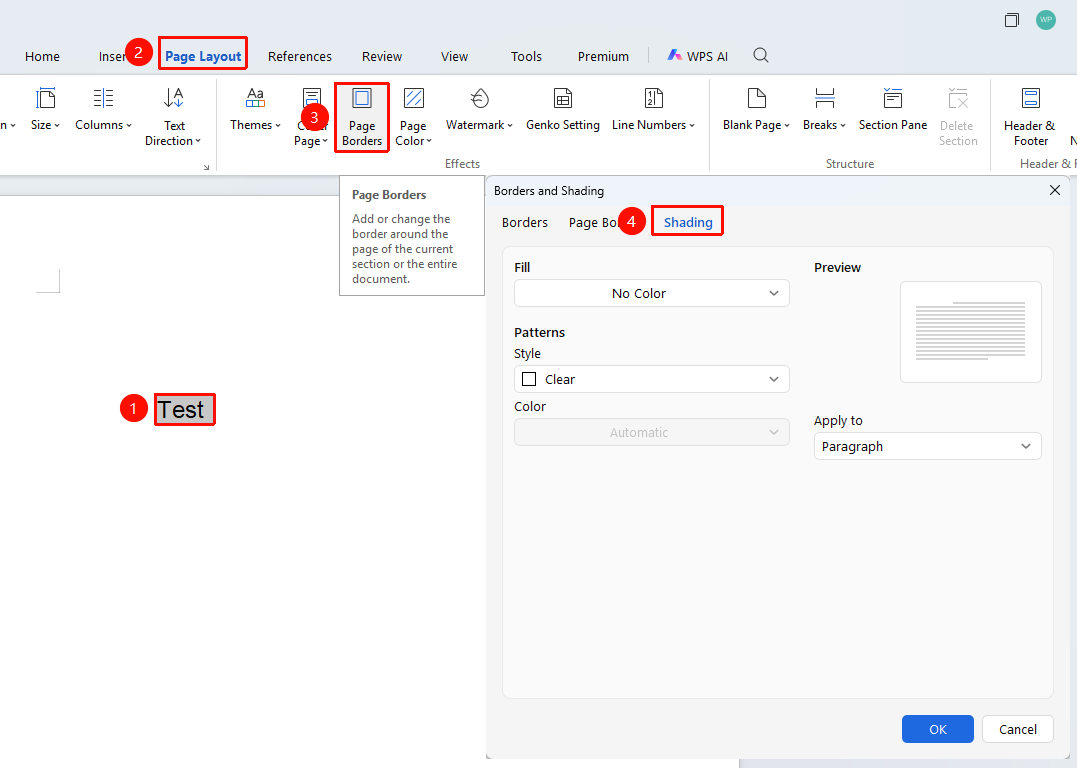
Select the text or paragraph you want to set shading for, then go to the "Page" tab → "Page Borders" button → "Shading" tab
- Select the text or paragraph you want to set shading for
- Click the Page tab
- Click the Page Borders button
- In the pop-up dialog box, switch to the "Shading" tab
- Select the desired color from the Fill dropdown menu
- You can choose a "Style" under Patterns (optional)
- Choose "Text" or "Paragraph" from the Apply to dropdown menu
- Click OK to complete the setting
Clearing Character Shading/Shading Color
Feature Entry
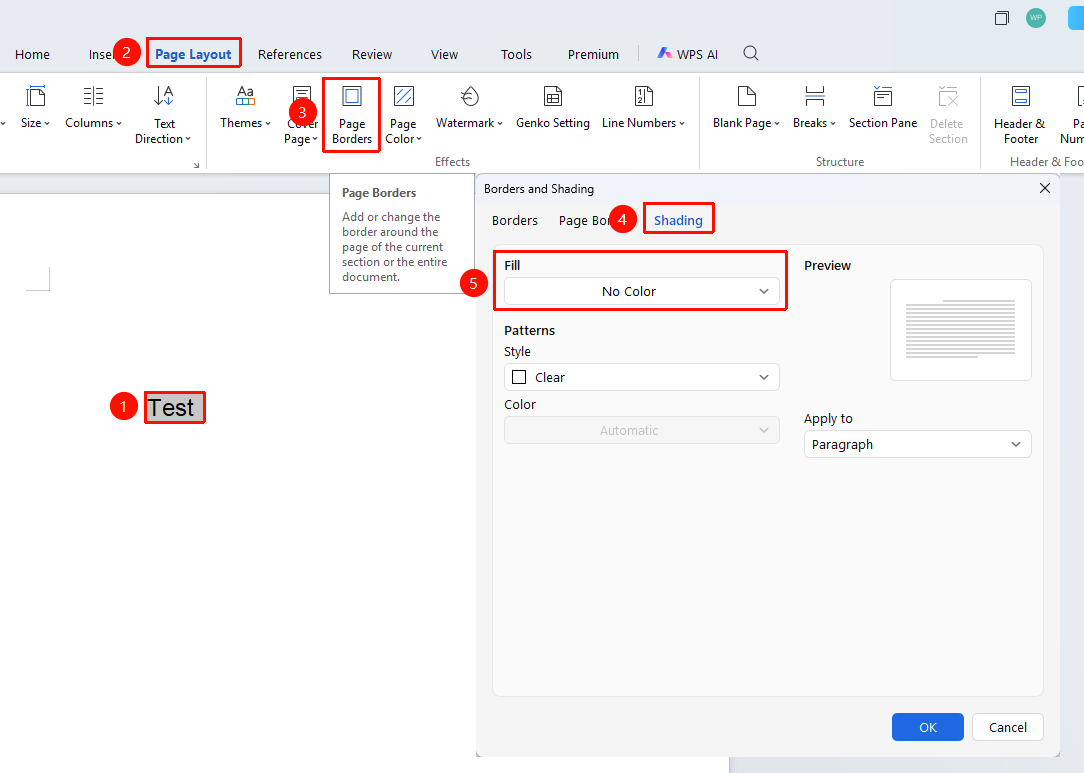
Select the text with shading applied, then go to the "Page" tab → "Page Borders" option → "Shading" tab
- Select the text with shading applied
- Click the Page tab, then select the Page Borders option
- In the pop-up Borders and Shading dialog box, select the Shading tab
- Under the Fill option, select "No Color"
- Click OK
Page Borders
Feature Entry
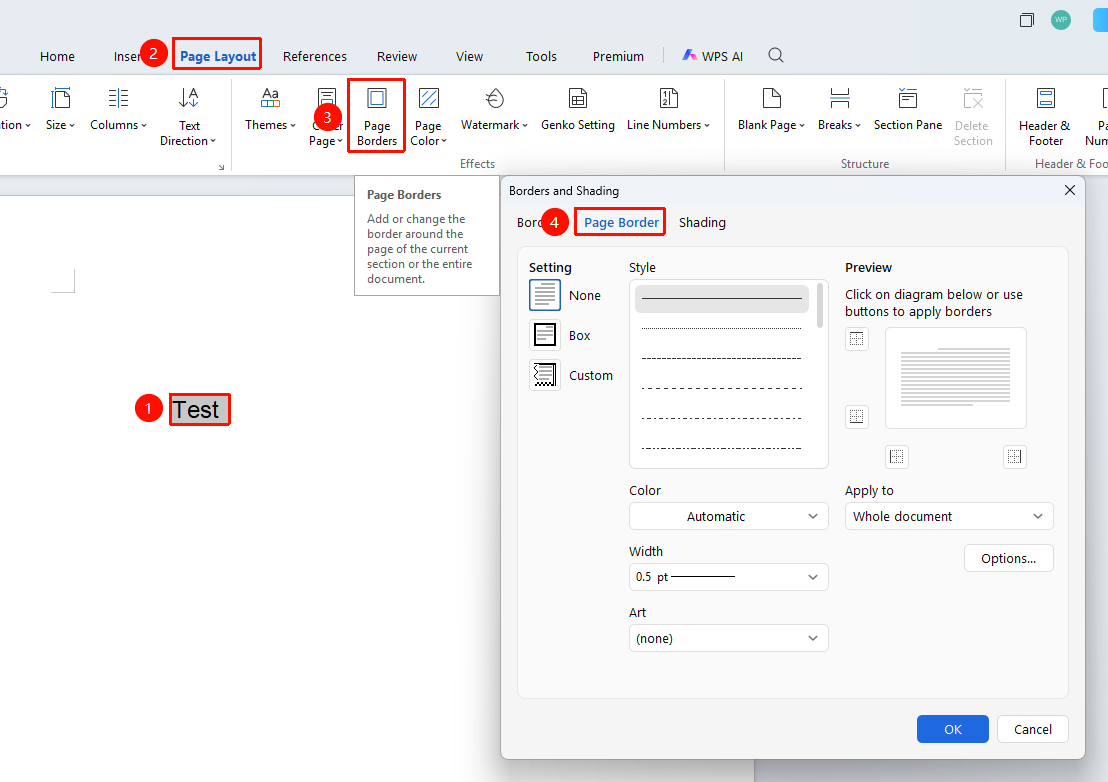
"Page" tab → "Page Borders" option
- Click the Page tab on the top menu bar
- Select Page Borders to automatically open the "Borders and Shading" dialog box
- Switch to the "Page Border" tab:
- Choose a preset style
- Customize the line style, color, and width
- For decorative borders, select a special style from the Art dropdown menu
- Choose the scope of application under Apply to (Whole document / This section, etc.)
- You can click Options to adjust the spacing between the border and the page/text
- After previewing and confirming the effect, click OK
Table/Cell Borders and Shading
Feature Entry
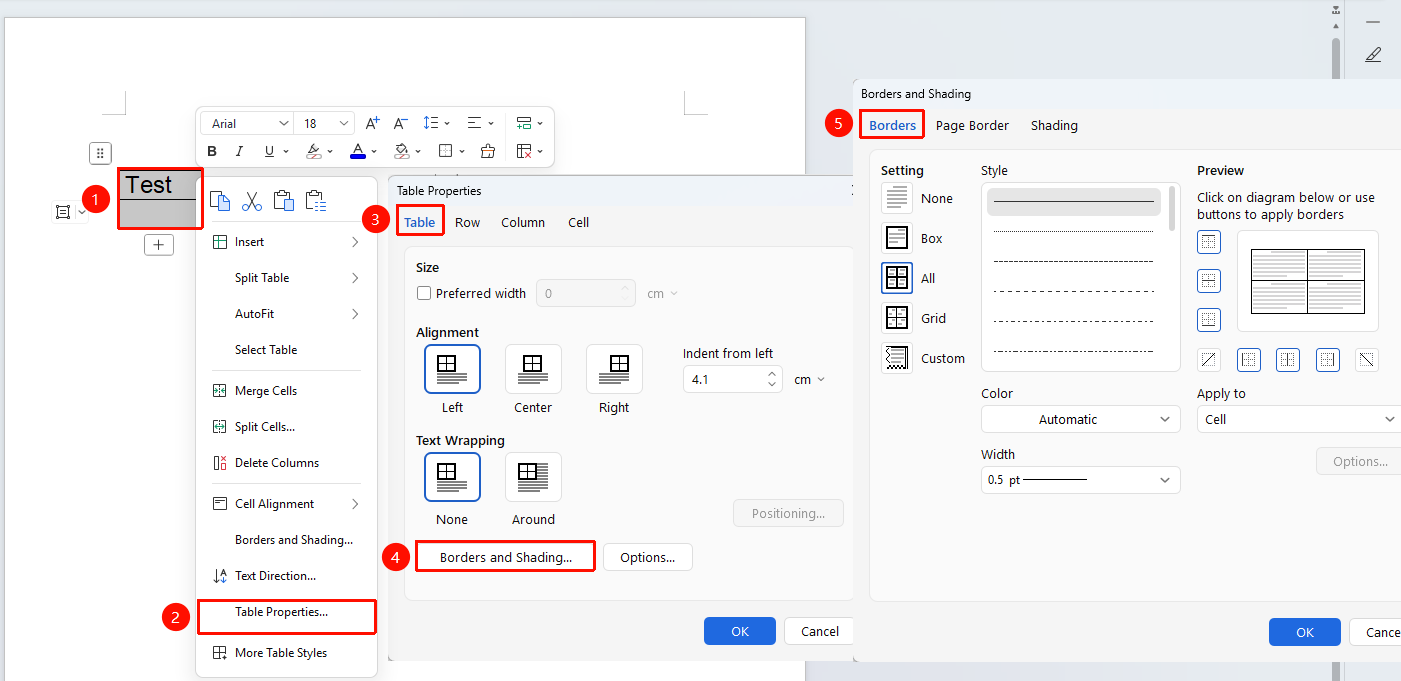
Select the table or cells you want to adjust, then right-click menu → "Table Properties" option → "Table" tab → "Borders and Shading" option
- Select the table or specific cells you want to set
- Right-click the selected area and choose Table Properties
- Switch to the Table tab and click the "Borders and Shading" option
- Choose a preset style
- Customize the line style, color, and width
- After previewing and confirming the effect, click OK
Quick Operation Tips| Operation | Method |
|------|------|
| Quickly add a single-side border | After selecting the content, click "Home" → "Borders", and directly choose the top/bottom/left/right border line |
| Remove border | Open the dialog box, and select "None" for borders |
| Remove shading | Open the dialog box, and select "No Color" for shading fill |
FAQ
Q1: How to remove border lines on a page?**
- Solution: Click "Page Layout" → "Page Borders", and select "None" in the settings.
Q2: What is the difference between applying borders and shading to text vs. paragraphs?**
- Solution: When applied to "Text", the border follows the text content; when applied to "Paragraph", the border covers the entire paragraph width.
Q3: How to set different borders for different pages?**
- Solution: Insert section breaks between pages, then set different page borders for each section separately.
Notes
- The effects of borders applied to text and paragraphs are different. Please choose the correct application scope based on your needs.
- Table border settings take priority over table styles and will override the original style.