Feature Summary
The Repeating Section Content Control is used to create document sections that can be added repeatedly. Users can dynamically add or delete identical sections, making it suitable for checklists, lists, and similar scenarios.
Feature Description
| Feature Dimension | Description |
|---|---|
| Membership Restriction | No membership restriction |
| Version Restriction | No version restriction |
Operation Steps
Inserting a Repeating Section Content Control
Feature Entry
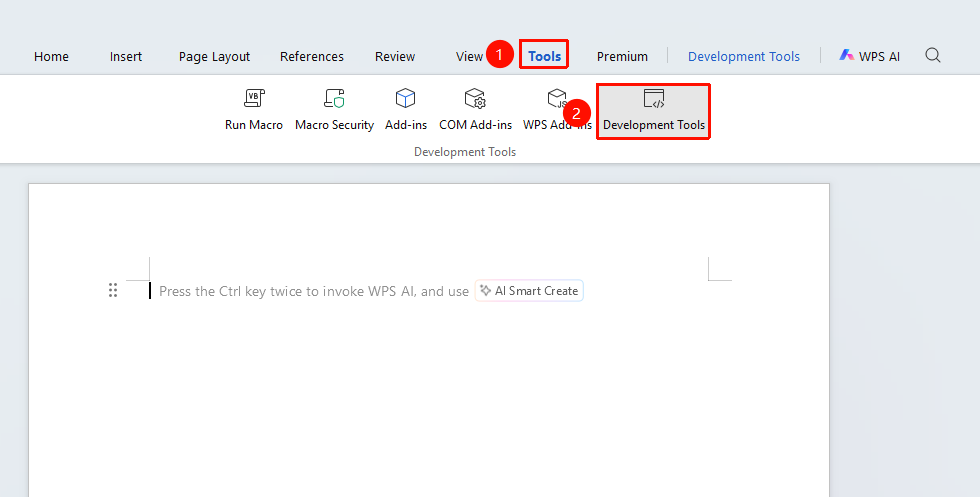
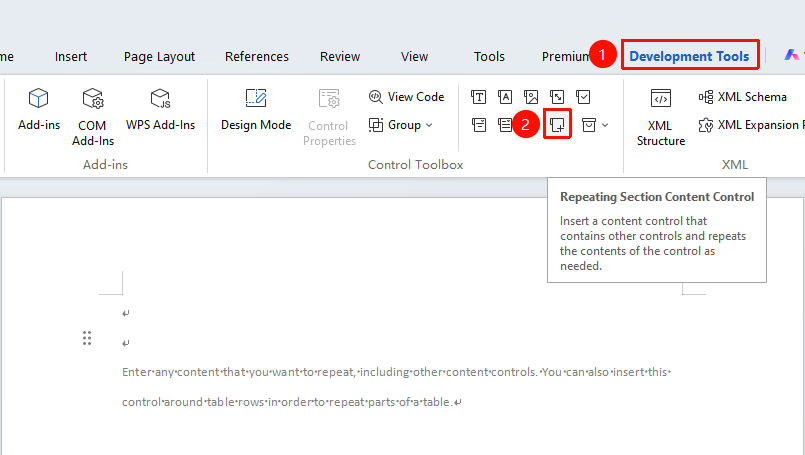
"Tools" tab → "Developer Tools" button → "Developer Tools" tab → "Repeating Section Content Control"
- Place the cursor where you want to insert the control
- Click the "Tools" tab at the top, locate and click the "Developer Tools" button to bring up the "Developer Tools" tab at the top
- Click the "Repeating Section Content Control" button
- The control will be inserted into the document
Adding Content to a Repeating Section
Feature Entry
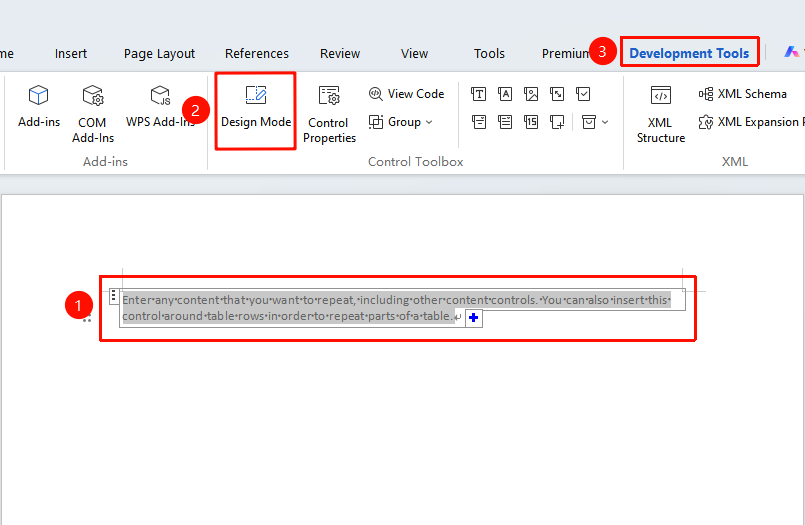
"Developer Tools" tab → "Design Mode"
- Click the "Tools" tab at the top, locate and click the "Design Mode" button to enter Design Mode
- Add the content controls or text you want to repeat within the repeating section
- Set the layout and formatting of the section
- Exit Design Mode
Using the Repeating Section
Feature Entry
Click the add button of the repeating section
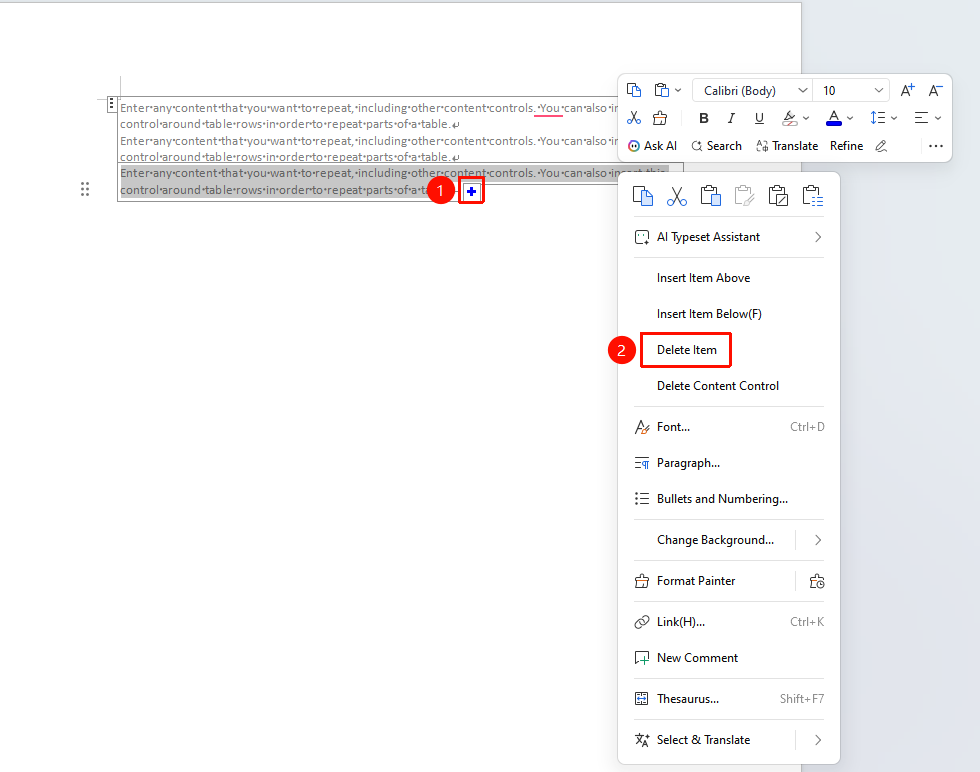
- Click the 「+」 button on the repeating section to add a new section
- Deleting a section: Right-click the unwanted section and select "Delete Item"
- Fill in the content in each section
FAQ
Q1: How do I add or delete a repeating section?
- Solution:
- Add: After exiting Design Mode, use the 「+」 button on the section.
- Delete: Right-click the unwanted section and select "Delete Item".
Q2: How do I set the content within a repeating section?
- Solution: Exit Design Mode, and add various content controls or fixed text within the section.
Notes
- A repeating section can contain multiple content controls
- Suitable for forms that require dynamically adding or removing items
- The content of each section is independent of the others