Feature Summary
The spacing and line spacing feature is used to adjust the distance between lines within a paragraph and the blank space before and after paragraphs, making document layout more comfortable and aesthetically pleasing, and enhancing the reading experience.
Feature Description
| Feature Dimension | Description |
|---|---|
| Membership Restriction | No membership restriction; all users can use it |
| Version Restriction | Supported in all versions of WPS Office |
Operation Steps
Setting Line Spacing
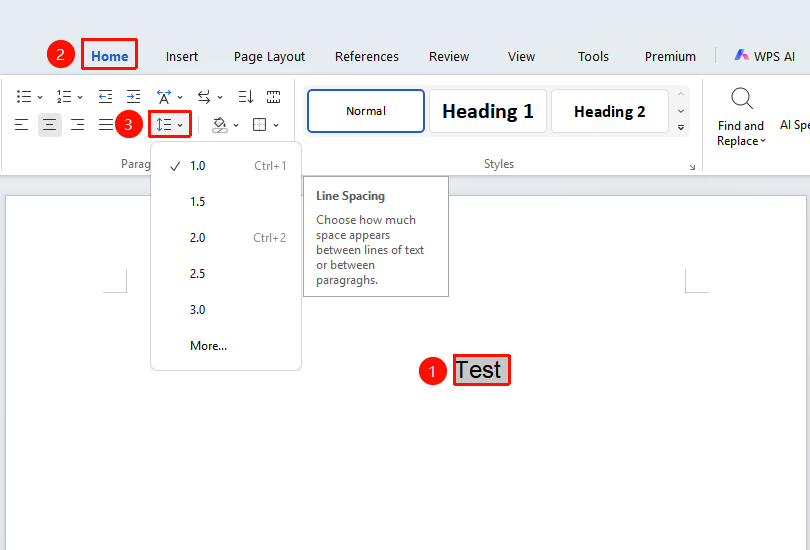
Feature Entry: "Home" tab → "Paragraph" → Line Spacing button
- Select the paragraph to adjust
- Click the "Home" tab
- In the "Paragraph" function group, click the Line Spacing button
- Select a preset line spacing:
- 1.0 line spacing
- 1.5 line spacing
- 2.0 line spacing
- 2.5 line spacing
- 3.0 line spacing
- Or click "Other" for custom settings
Setting Line Spacing via the Paragraph Dialog Box
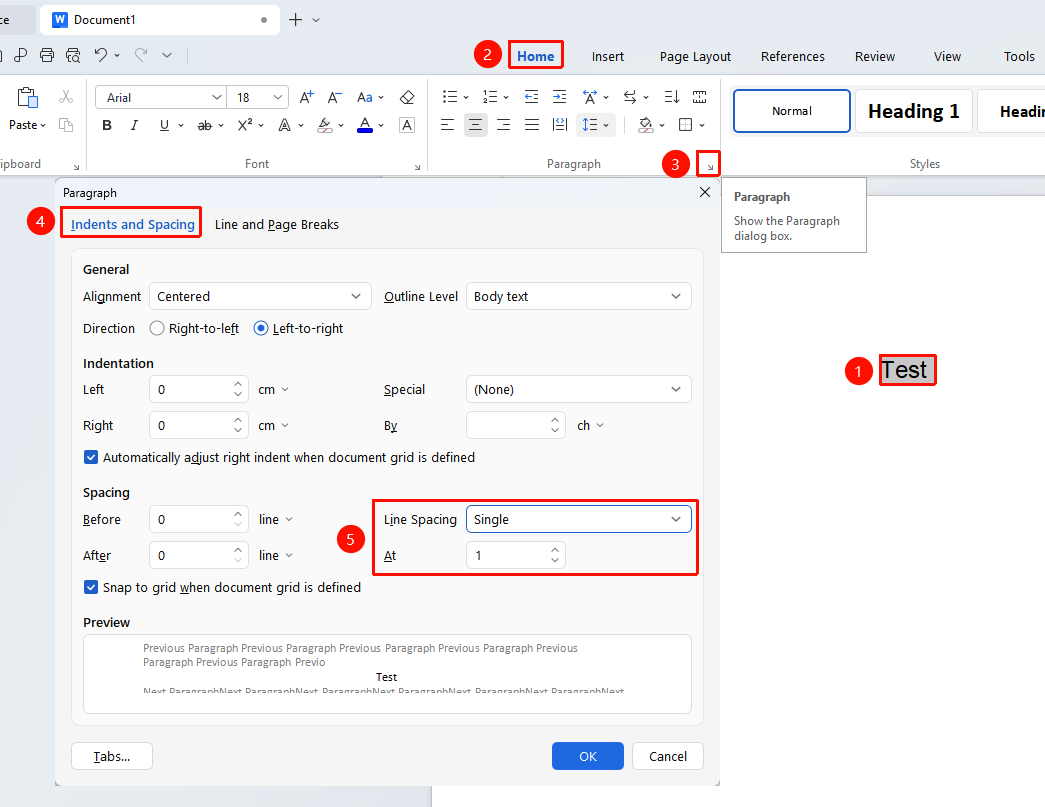
Feature Entry: "Home" tab → "Paragraph" → Expand button
- Select the paragraph to adjust
- Click the "Home" tab
- In the "Paragraph" function group, click the expand button in the lower right corner
- Set line spacing in the "Indents and Spacing" tab:
- Single
- 1.5 lines
- Double
- At least: Set the minimum line height
- Exactly: Set a fixed line height
- Multiple: Custom multiple
- Click "OK" to apply
Setting Paragraph Spacing
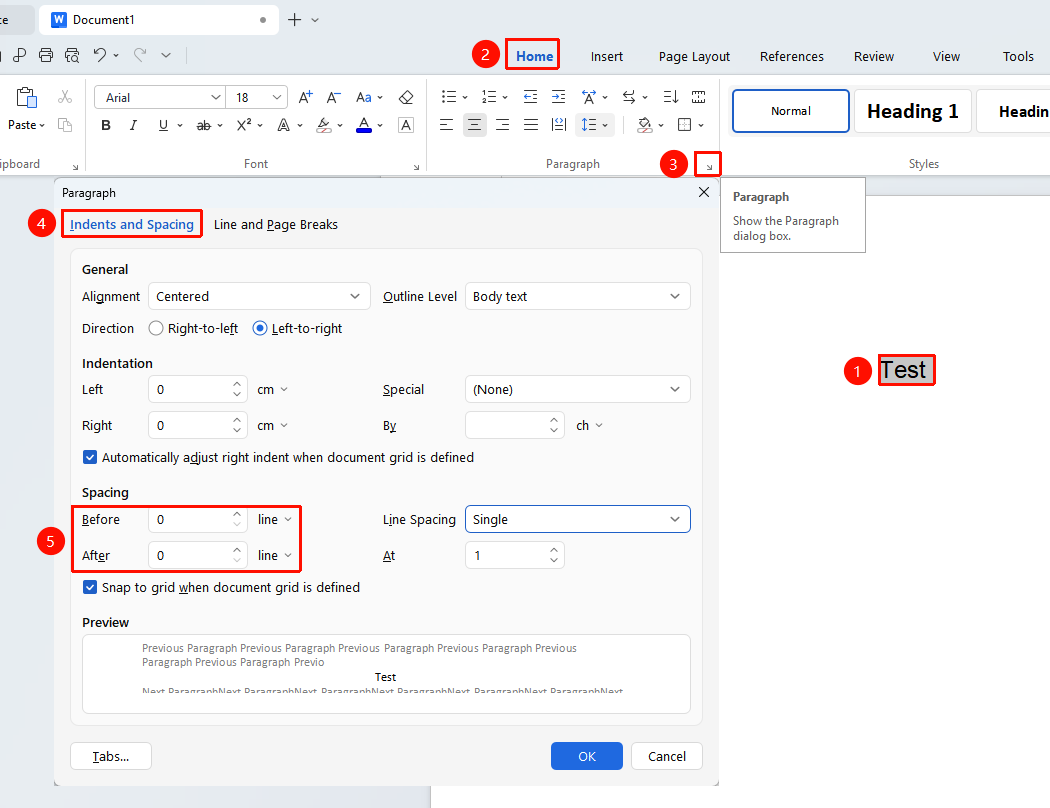
Feature Entry: "Home" tab → "Paragraph" → Expand button
- Select the paragraph to adjust
- Click the "Home" tab
- In the "Paragraph" function group, click the expand button in the lower right corner
- Set in the "Indents and Spacing" tab:
- Before: Set the spacing above the paragraph
- After: Set the spacing below the paragraph
- Enter a value or use the spinner buttons to adjust
- Click "OK" to apply
Frequently Asked Questions
Question 1: Text is truncated after setting line spacing?
- Solution: If using Exactly line spacing, try switching to At least or Multiple line spacing.
Question 2: Paragraph spacing does not take effect?
- Solution: Check if it conflicts with the spacing settings of the previous or next paragraph; the system will use the larger value.
Question 3: How to set 1.25 line spacing?
- Solution: Open the Paragraph dialog box, select "Multiple" for line spacing, and enter "1.25" in the value setting.
Notes
- Line spacing affects the distance between lines within a paragraph
- Paragraph spacing affects the distance between paragraphs
- Exactly line spacing may cause large font text to be truncated
- It is recommended to use 1.5 or 1.25 line spacing for body text