Feature Summary
The attachment feature allows you to embed other files into a WPS Writer document, supporting display as an icon or directly showing file content, facilitating document integration and data management.
Feature Description
| Feature Dimension | Description |
|---|---|
| Membership Restriction | No membership restriction; available to all users |
| Version Restriction | No version restriction |
Operation Steps
I. Insert Attachment
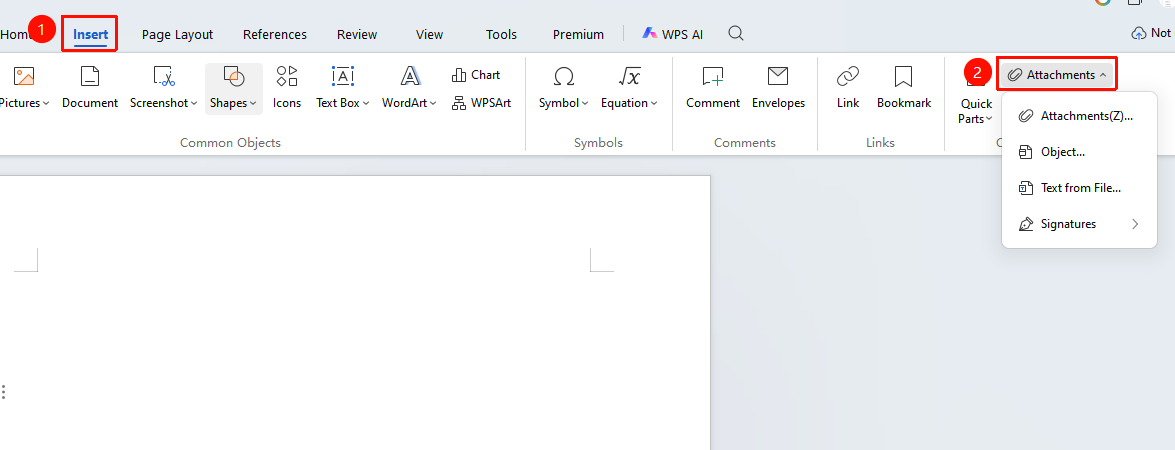
Feature entry: "Insert" tab → "Attachment"
- Place the cursor where you want to insert the attachment
- Click the "Insert" tab on the top menu bar
- Click the "Attachment" button
- Select the insertion method:
- Attachment (Z): Displayed as a file icon; local files/cloud documents can be inserted
- Object (J): Directly displays file content (e.g., first page of a PDF)
- Text from File (F): Imports file content as text
- Signature: Inserts a signature as an image
II. Differences Between the Four Insertion Methods
| Insertion Method | Display Effect | Applicable Scenario |
|---|---|---|
| Attachment | Displays a file icon; double-click to open | When you need to preserve the original file format |
| Object | Displays a preview of the file content | When you need to view the attachment content directly |
| Text from File | Inserts the content as text | When only the text content is needed |
| Signature | Inserts a signature as an image | When you need to add a personal signature |
III. Opening and Editing Attachments
- Double-click the attachment icon or object preview
- The system will invoke WPS to open the attachment for editing
- The edited content will be saved within the document without affecting the original file
IV. Deleting Attachments
- Select the attachment icon or object
- Press the Delete key to remove it
Frequently Asked Questions
Question 1: The inserted object cannot launch the source application
- Solution:
- Check whether a program corresponding to the format (e.g., PDF reader, CAD drawing tool) is installed on the computer;
- Click "WPS" → "Settings" → "Configuration and Repair Tool" → "Advanced" → "Compatibility Settings", and check "WPS Office compatible with third-party systems and software".
Question 2: Attachment cannot be opened after insertion
- Solution: Verify whether the attachment file format is supported, or try re-inserting it.
Question 3: Prompt says unable to insert a file that is currently open when inserting an attachment
- Solution: Check whether WPS or another application is currently occupying and opening this file.
Notes
- Attachments are embedded into the document, which will increase the document file size
- When double-clicking an attachment to edit it, changes are saved within the document and do not affect the original file
- It is recommended not to insert overly large attachment files to avoid affecting the document opening speed
- Attachments support most common file formats (text, spreadsheet, PDF, image, etc.)