Feature Summary
When you need to add uniform titles, company logos, dates, or other information to the top or bottom of every page in a document, the header and footer feature can help you achieve this quickly. With headers and footers, you can:
- Add fixed content to the top (header) or bottom (footer) of the document
- Insert automatically updating page numbers
- Set different headers and footers for different pages
- Add decorative elements such as header lines and watermarks
- Automatically display chapter names in the header
Feature Description
| Feature Dimension | Description |
|---|---|
| Membership Restriction | No membership restriction; available to all users |
| Version Restriction | No version restriction |
Operation Steps
1. Inserting Headers and Footers
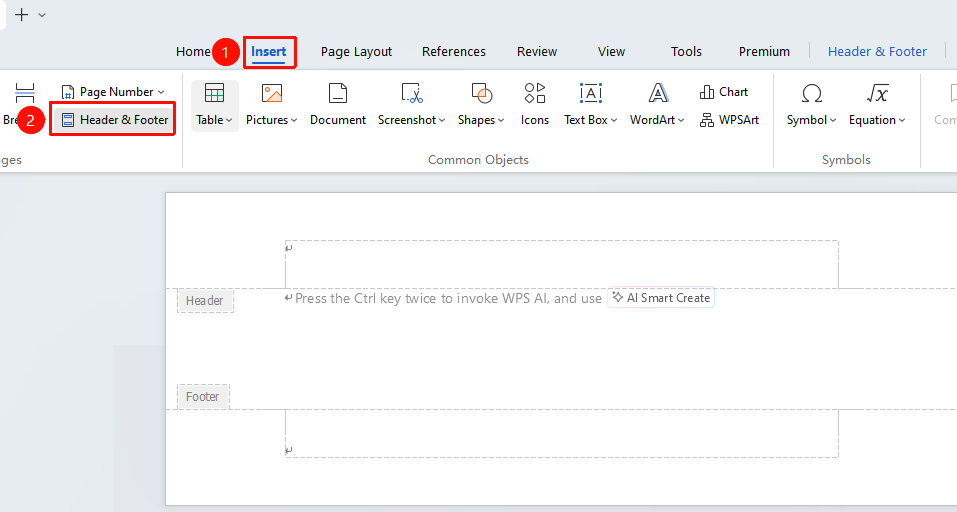
Feature entry: "Insert" tab → "Header and Footer"
- Click the "Insert" tab
- Click the "Header and Footer" button
- Editing areas will appear at the top and bottom of the document, with the cursor automatically positioned in the header
- Enter the desired content in the header or footer area
- Double-click the document body area to exit editing mode
2. Setting a Different First Page
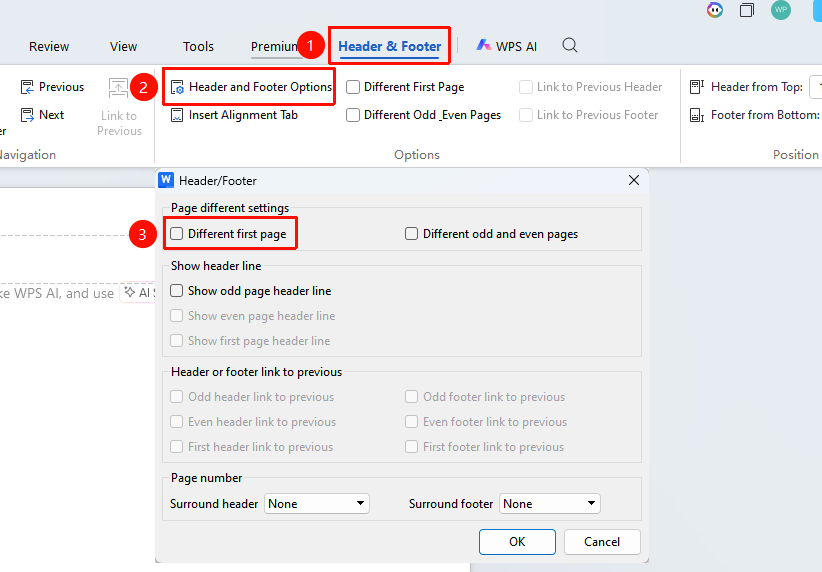
Feature entry: "Header and Footer Options" → "Different First Page"
Applicable scenario: The cover page does not require header and footer content
- Enter header and footer editing mode
- Click the "Header and Footer" options button
- Check "Different First Page"
- The header and footer on the first page can now be edited separately or left blank
3. Setting Different Odd and Even Pages
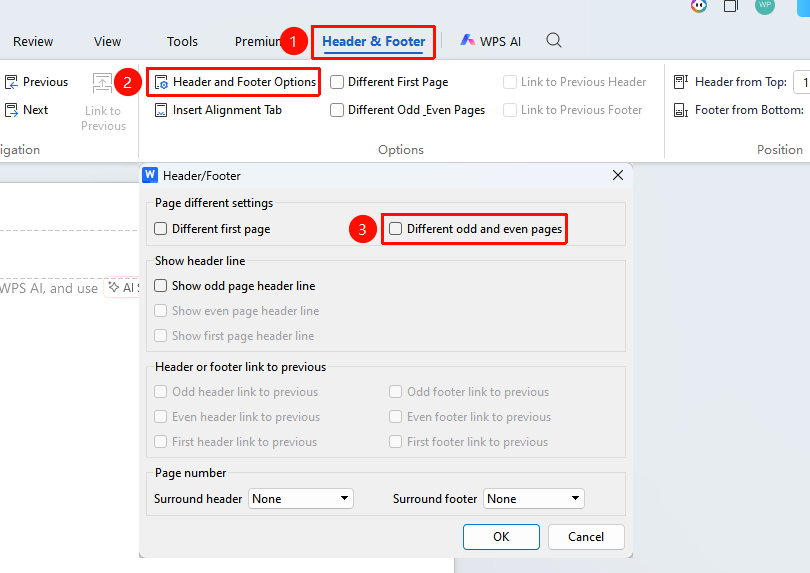
Feature entry: "Header and Footer Options" → "Different Odd and Even Pages"
Applicable scenario: When printing double-sided, the header and footer positions on odd and even pages need to be mirrored
- Enter header and footer editing mode
- Click the "Header and Footer Options" button
- Check "Different Odd and Even Pages"
- Set the header and footer content for odd and even pages separately
4. Setting Different Headers and Footers for Different Pages
Feature entry: "Page Layout" tab → "Breaks" → "Next Page Section Break"
Applicable scenario: Different chapters of the document require different headers and footers
- Position the cursor where you want to create a new section
- Click the "Page Layout" tab
- Select "Breaks" → "Next Page Section Break"
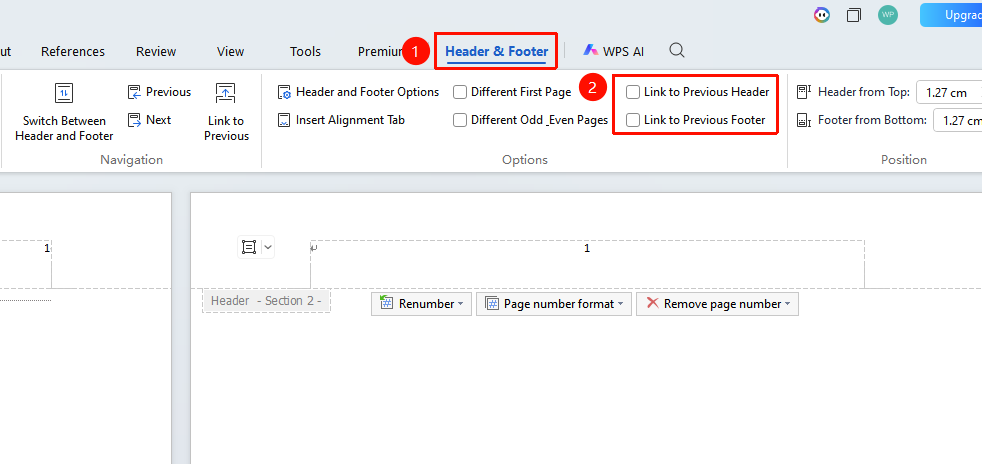
- Enter the header and footer editing mode for the new section
- Uncheck the "Link to Previous" button to break the link with the previous section
- You can now set independent header and footer content for the new section
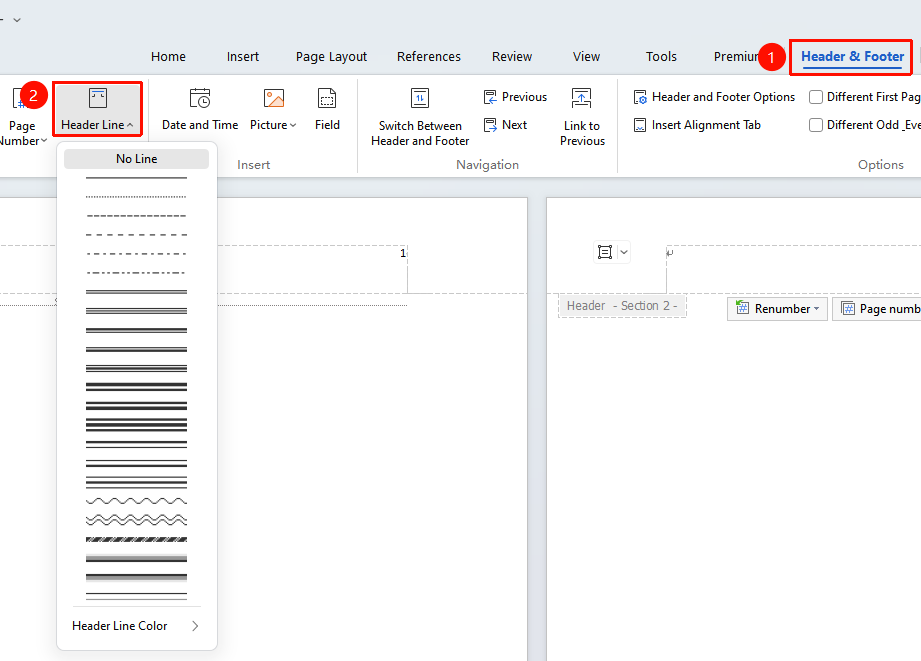
5. Setting Header Lines
Feature entry: "Header and Footer" → "Header Line"
- Enter header and footer editing mode
- Click the "Header Line" button on the ribbon
- Select the desired line style
- You can set the line type and color
Deleting header lines: - Enter header and footer editing mode
- Click the "Header Line" dropdown button
- Select "Delete Line"
6. Setting Header and Footer Distance
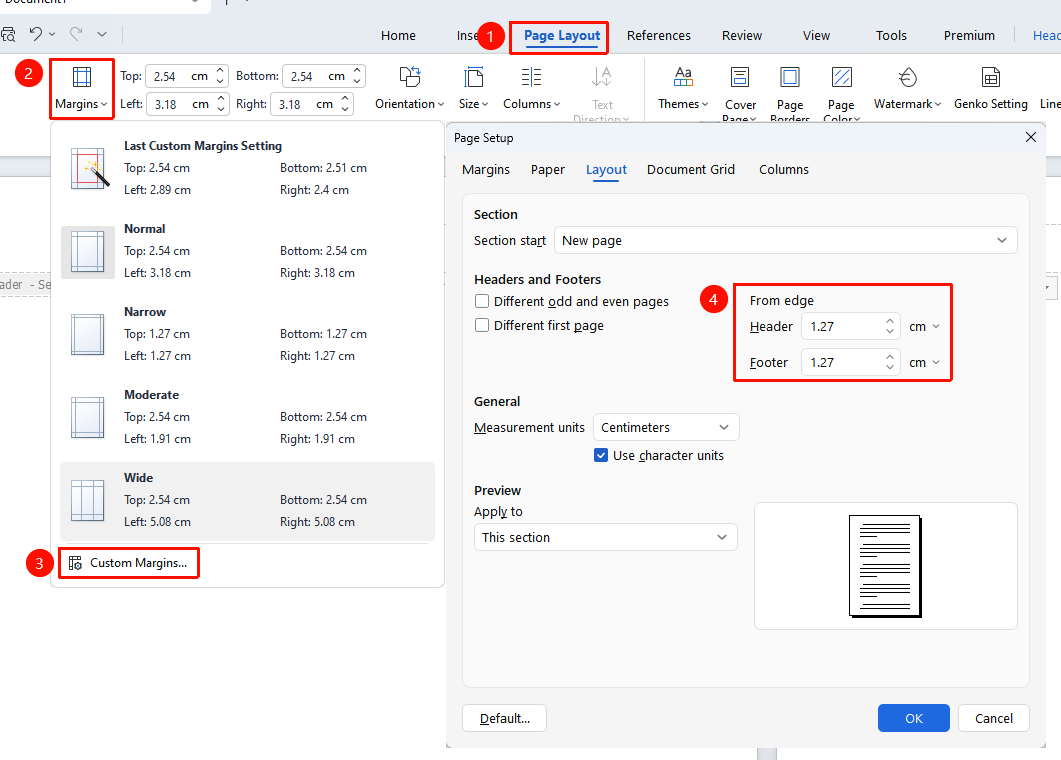
Feature entry: "Page" → "Margins" → "Custom Margins"
- Click the "Page" tab
- Select "Margins" → "Custom Margins"
- In the "Layout" options, set:
- Header distance from top
- Footer distance from bottom
- Click "OK" to apply
7. Inserting a Logo or Image in the Header1. Enter header editing mode
- Click the "Insert" tab → "Pictures"
- Select a local image or a cloud image
- Adjust the image size and position
- The image will automatically appear in the same position on every page
Frequently Asked Questions
Q1: The "Different First Page" setting does not take effect
- Solution: Ensure the document has 2 or more pages; check if the "Different First Page" option is correctly selected; edit the header and footer content for the first page and other pages separately
Q2: Header content in different sections affects each other
- Solution: Double-click to enter the header/footer editing mode for the new section, click to deselect "Link to Previous" to independently edit the content of the current section
Q3: Headers and footers suddenly disappear
- Solution: Double-click the top or bottom edge area of the page to restore the display; check if the view mode is "Print Layout"; if the page margins have been adjusted, restore the default page margins
Q4: Extra blank pages appear when printing
- Solution: Check if the "Different Odd & Even Pages" function is mistakenly enabled, double-click the header or footer to enter editing mode, and deselect "Different Odd & Even Pages" to resolve the issue
Q5: Headers or footers cannot be selected or modified
- Solution: Double-click the header area to enter editing mode; if the document is protected, click "Review" → "Restrict Editing" to remove protection; for read-only documents, save as a new file before editing
Notes
- Importance of section breaks: To set different headers and footers on different pages, you must use section breaks to divide the document into multiple sections; otherwise, the headers and footers on all pages will be linked
- Link to Previous button: After creating a new section, it inherits the header and footer from the previous section by default; you need to manually unlink "Link to Previous" to set them independently
- Source of the header line: The header line may come from the "Header Line" feature, page borders, or a manually inserted line; confirm the source before deleting
- Image text wrapping: After inserting an image into the header, if you need to adjust its position, change the image text wrapping style to "In Front of Text"
- Page number update: For page numbers inserted using field codes (e.g., Roman numerals), press F9 to update the field display
- Print settings: If background colors or images in headers and footers do not print, check "Print background colors and images" in the print options
- Double-click the header/footer area to quickly switch to the "Header & Footer" tab, where you can quickly set header/footer margins, switch between header and footer, and perform other operations.