Feature Summary
When you need to add page numbers to a document for printing, binding, or navigation, the page number feature in WPS Docs helps you quickly insert page numbers, with support for custom styles, starting numbers, and section settings, making your document's page numbering layout more professional and standardized.
- Quick Page Number Insertion: Supports various positions such as top of page, bottom of page, and page margins
- Custom Page Number Format: Supports multiple styles including Arabic numerals, Roman numerals, and Chinese numerals
- Flexible Starting Page Number: Custom starting number to meet different layout requirements
- Independent Section Page Numbers: Supports starting numbering from a specified page, with cover/toc pages not displaying page numbers
Feature Description
| Feature Dimension | Description |
|---|---|
| Membership Restriction | No membership restriction; available to all users |
| Version Restriction | No version restriction |
Operation Steps
I. Basic Page Number Insertion
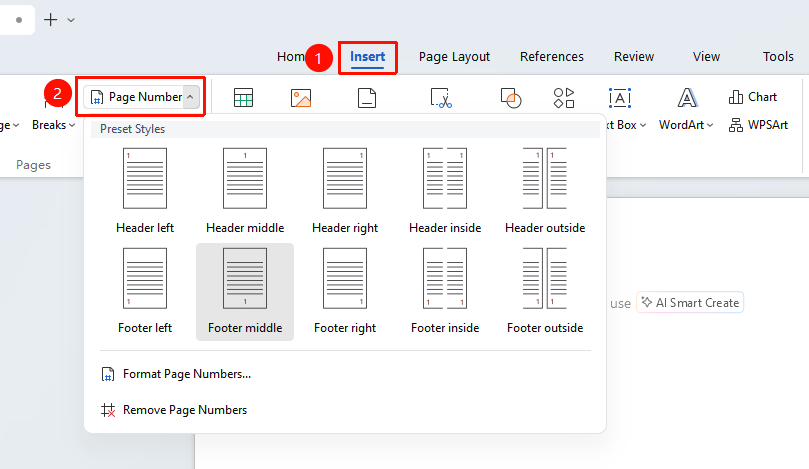
Feature entry point: "Insert" tab → "Page Number"
- Open the WPS Writer document where you need to add page numbers
- Click the "Insert" tab in the top menu bar
- Find and click the "Page Number" button in the ribbon
- Select a preset page number style to automatically generate continuous page numbers
- Double-click the document body area to exit header/footer editing
II. Custom Page Number Format
- After inserting page numbers, double-click the page number area to enter header/footer editing mode
- Select the inserted page number
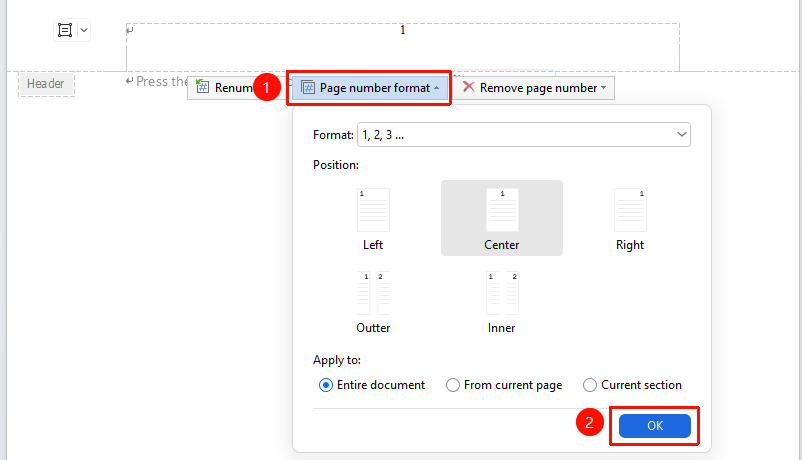
- Click the page number settings button to open the page number settings dialog
- In the dialog, you can modify the following options:
- Number style: Arabic numerals (1,2,3), Roman numerals (I, II, III), Chinese numerals (一, 二, 三), etc.
- Starting page number: Customize the starting number for the first page of the document
- Apply to: Whole document, This section, This page and forward
- Click OK after completing settings to apply
III. Quickly Modify/Delete Headers and Footers
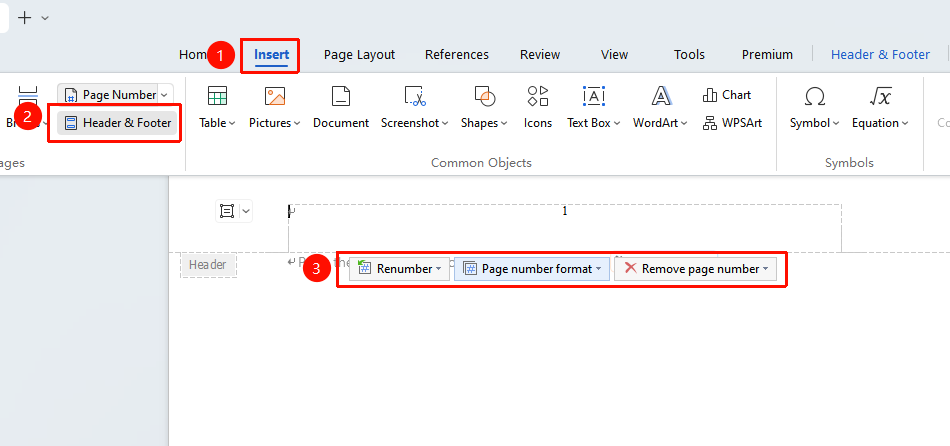
Feature entry point: "Insert" tab → "Header & Footer"
- Click "Header & Footer" in the "Insert" tab
- After entering editing mode, you can directly modify header and footer content
- Double-click the body area to exit editing
FAQ
Q1: How to make page numbers start from the second page?
- Solution: Click on the second page, insert a page number, click the page number, enter the starting page number, and select "This page and forward" for the apply range.
Q2: How to set different page number formats (e.g., Roman numerals for the cover, Arabic numerals for the body)?
- Solution: Insert a "Next Page Section Break" at the position where you need to switch formats, cancel the "Link to Previous" link, and then set the page number format for each section separately.
Q3: What should I do if page numbers are incorrect or duplicated?
- Solution: Check if there are redundant section breaks in the document, ensure that the "Link to Previous" links between sections are correctly canceled, and then reset the page numbers.
Q4: How to delete a page number on a specific page without affecting other pages?- Solution: Set this page as a separate section (insert section breaks before and after it), unlink "Same as Previous," and then delete the page number for that section.
Q5: Why are page numbers not printed when I print the document?
- Solution:
- Before printing, open Print Preview and check whether the page numbers appear in the preview.
- If the print preview looks correct, try switching to a different printer or check for/update the printer driver.
Notes
- Inserting section breaks is the key step for implementing section-based page numbering; always insert a section break before the page that requires independent page numbering.
- After unlinking "Same as Previous," the headers and footers of each section can be set independently without affecting each other.
- When modifying the page number format, make sure you have selected the page number field code and not plain text.
- You can check the page number display in Print Preview to ensure it meets expectations.