Feature Summary
When you need to add visual hierarchy and logical order to list content in your document, the Bullets and Numbering feature helps you quickly add bullet marks or numerical numbering to paragraphs, making the document structure clearer and reading more efficient.
- One-click bullet addition, supporting multiple preset styles (dots, squares, arrows, and so on.)
- Flexible numerical numbering system, supporting multiple numbering formats (1.2.3., I. II. III., (1)(2)(3), and so on.)
- Custom bullets and numbering formats to meet personalized layout needs
- Multi-level list support for easily building complex document hierarchical structures
Feature Description
| Feature Dimension | Description |
|---|---|
| Membership Restriction | Some features require a membership subscription |
| Version Restriction | No version restriction; supported in all versions of WPS Docs |
Operation Steps
Quick Add via Tab
Feature Entry
"Home" tab → "Bullets" button
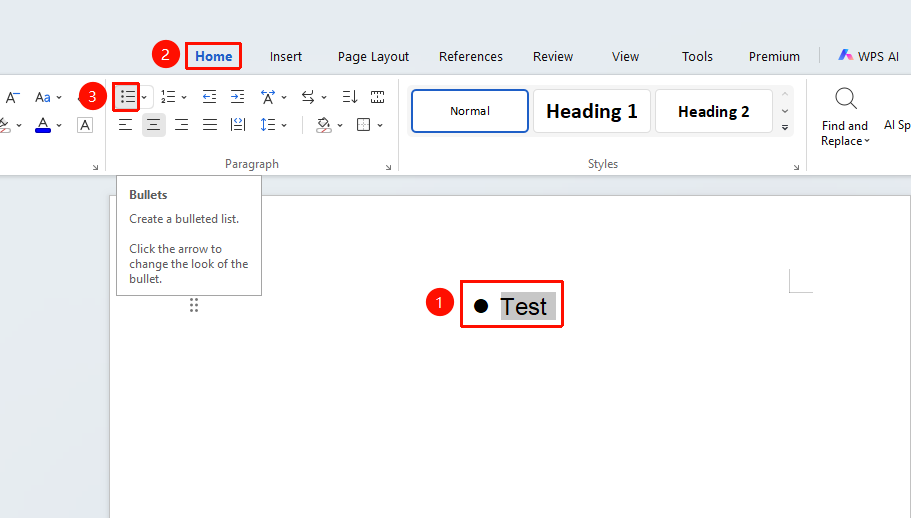
- Select the paragraphs to which you want to add bullets
- Click the Home tab in the top menu bar
- Click the "Bullets" button
- Click the button to directly apply the default dot style
Custom Bullets
Feature Entry
"Home" tab → "Bullets" dropdown menu → "Custom Bullets"
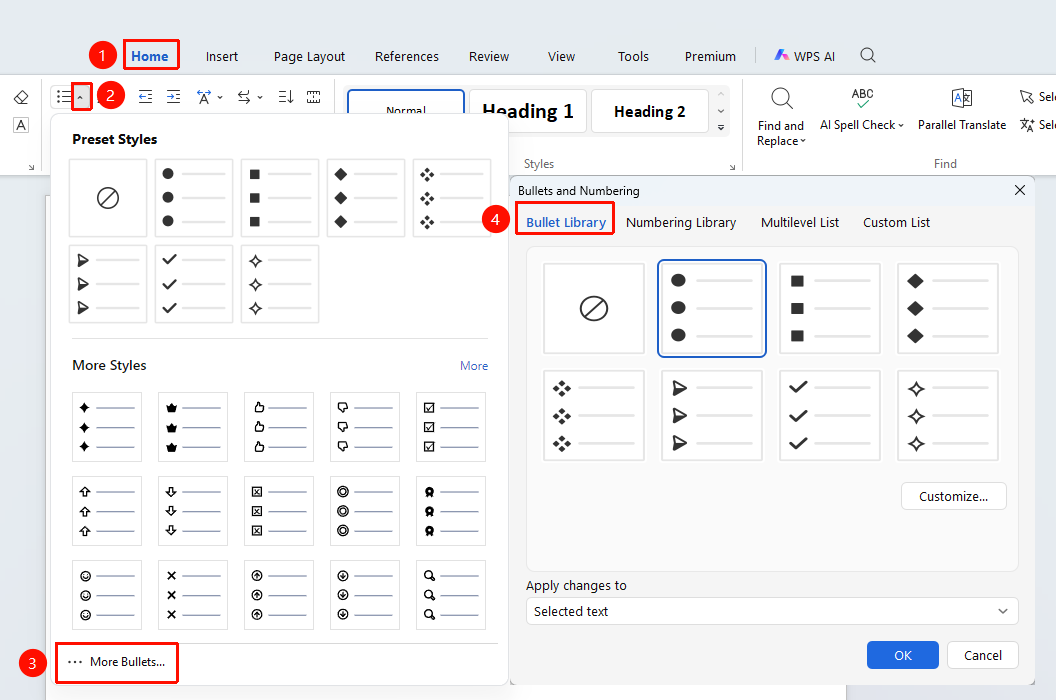
- Click the Home tab
- Open the Bullets dropdown menu
- Click "Custom Bullets" to enter the custom menu
- After selecting a bullet style, click the "Custom" option (you can choose symbol, font, and so on.)
- In Apply to, select the scope of application
- Click OK to complete the application
Numbering
Feature Entry
"Home" tab → "Numbering" button
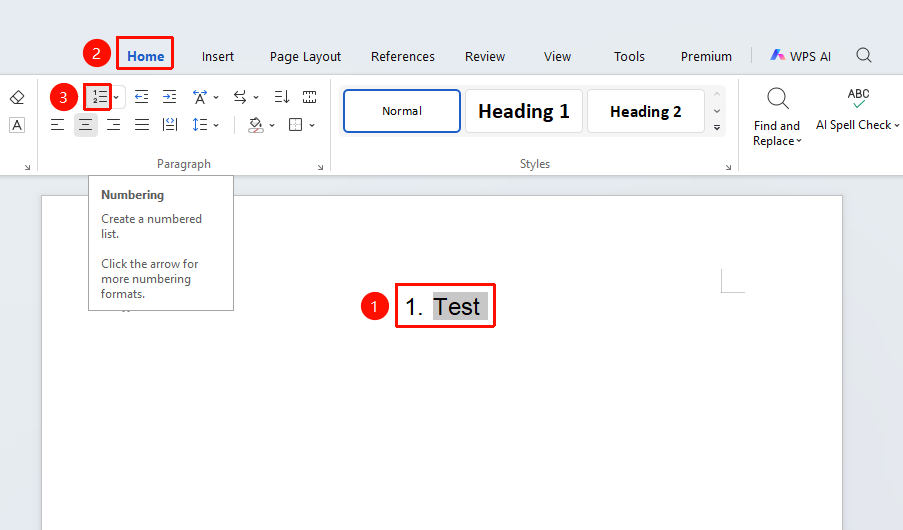
- Select the paragraphs to which you want to add numbering
- Click the Home tab
- Click the "Numbering" button
- Select the desired numbering style
Custom Numbering
Feature Entry
"Home" tab → dropdown menu next to the "Numbering" button → "more Numberin" option
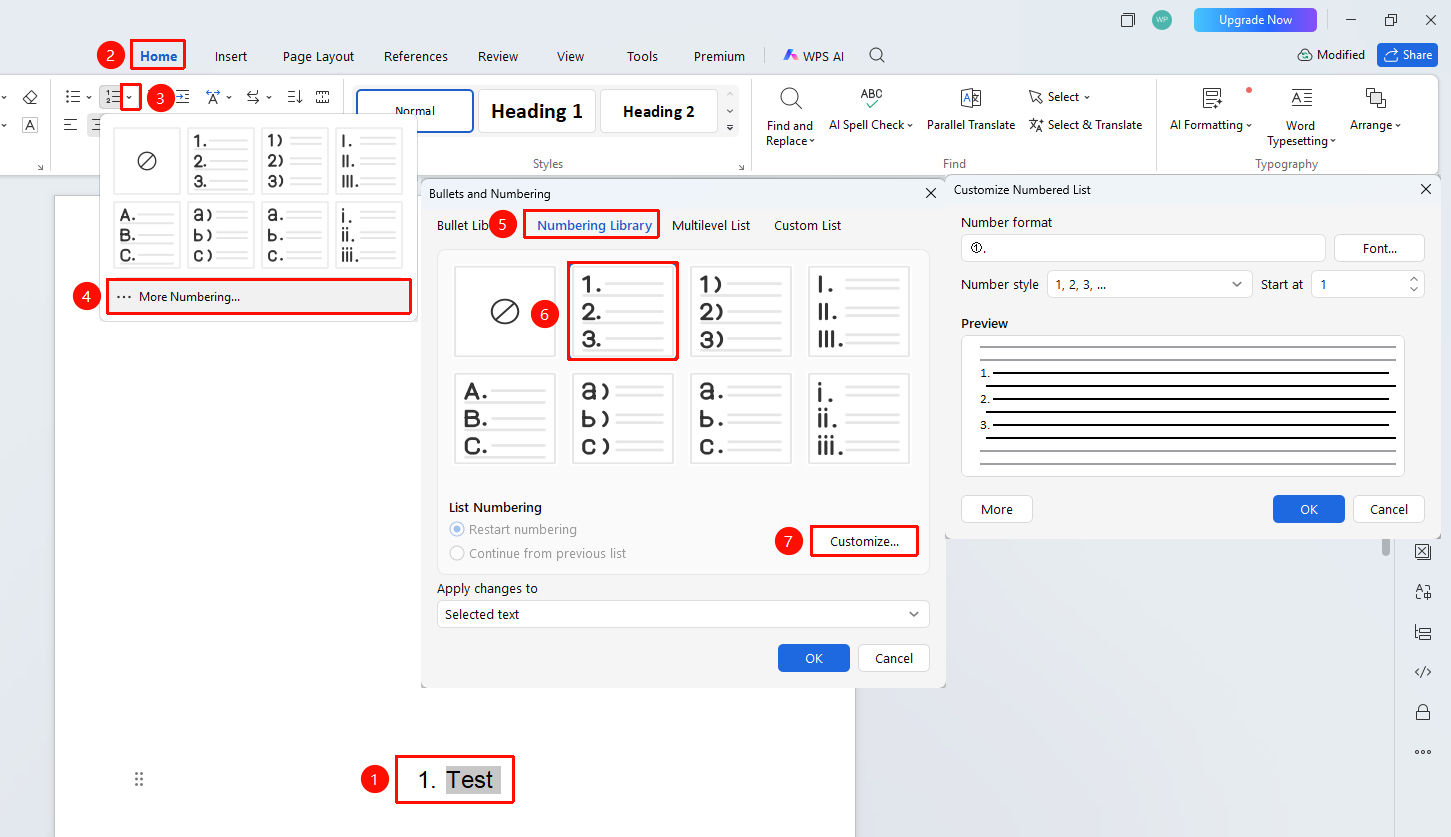
- Select the paragraphs to which you want to add numbering
- Click the Home tab
- Click the dropdown menu next to the Numbering button
- Click the more Numbering option
- After selecting any numbering style, click the Custom button to modify the numbering content, style, and font
- Click the "Advanced" option to adjust numbering position and text position
- Click OK after completing the settings
Custom Multi-level Numbering
Feature Entry
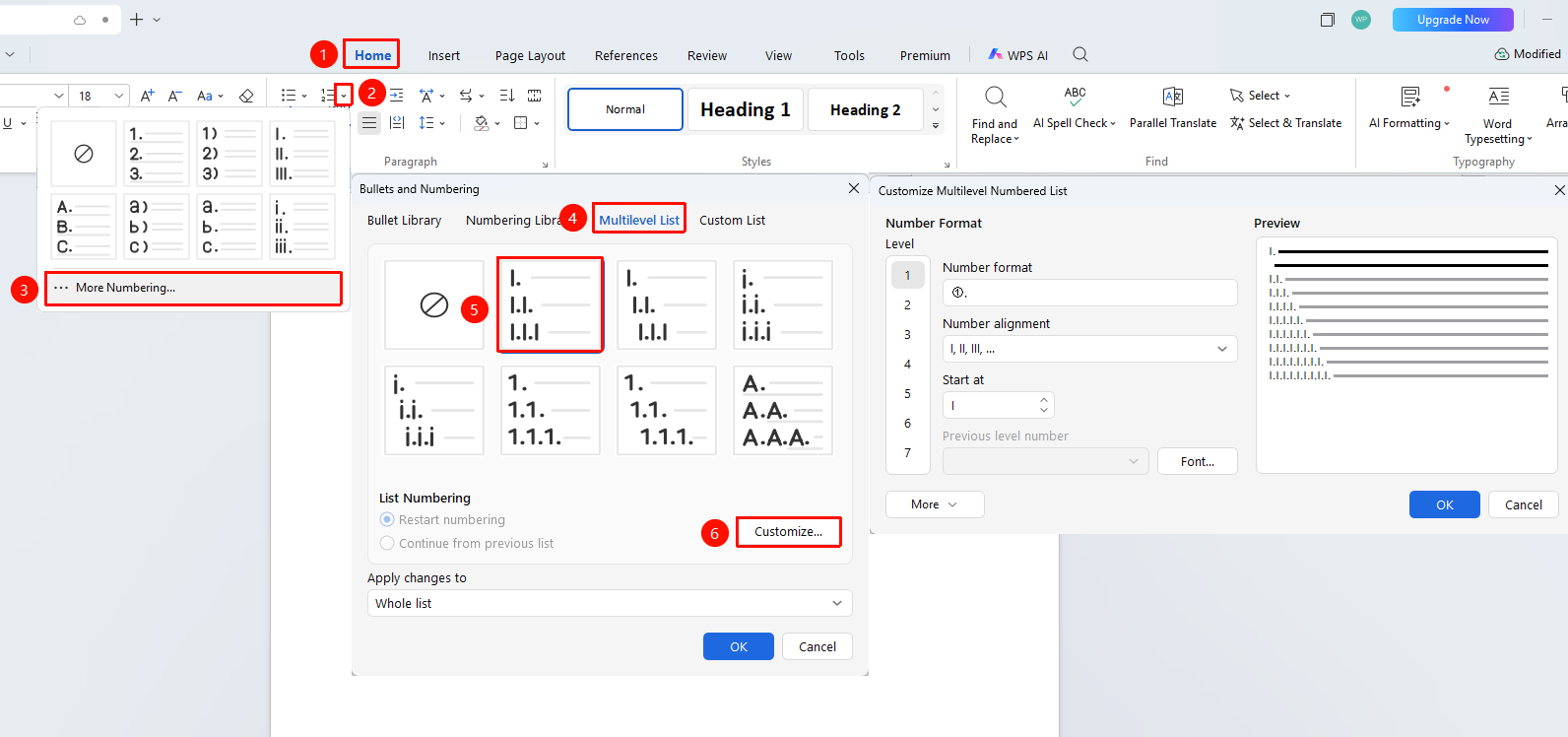
"Home" tab → dropdown menu next to the "Numbering" button → "more Numberin" option → "Multi-level Numbering" option
- Click the Home tab
- Click the dropdown menu next to the Numbering button
- Click the more Numberin option
- Select the "Multi-level Numbering" option
- After selecting a style, click "Custom"
- Set the "Numbering Style", "Numbering Style", "Font", etc. as needed
- Click OK after completing the settings
FAQ
Q1: What should I do if bullets automatically turn into circled numbers after insertion?
- Solution: This is caused by missing Wingdings or Symbol fonts on the system. Please install these two fonts and restart your computer before using the feature again.
Q2: Numbering cannot start from a value other than 1?
- Solution: Right-click the numbering, select "Start Numbering", and enter the target value. If you need to continue numbering from a previous document, select "Continue Numbering".
Q3: How to remove added bullets or numbering?
- Solution: Click the corresponding bullets or numbering button to remove them.
Notes- When copying and pasting content with bullets/numbering, the formatting will be retained; if not needed, you can paste as plain text.
- When using special fonts (such as Wingdings) as bullets in a document, ensure the recipient has the same font installed on their computer before sharing, otherwise it may display incorrectly.