Feature Summary
The Phonetic Guide feature provides tools designed specifically for Chinese characters, such as character annotation and enclosed characters, to meet the special text requirements of Chinese content.
Feature Description
| Feature Dimension | Description |
|---|---|
| Membership Restriction | No membership restriction |
| Version Restriction | No version restriction |
Operation Steps
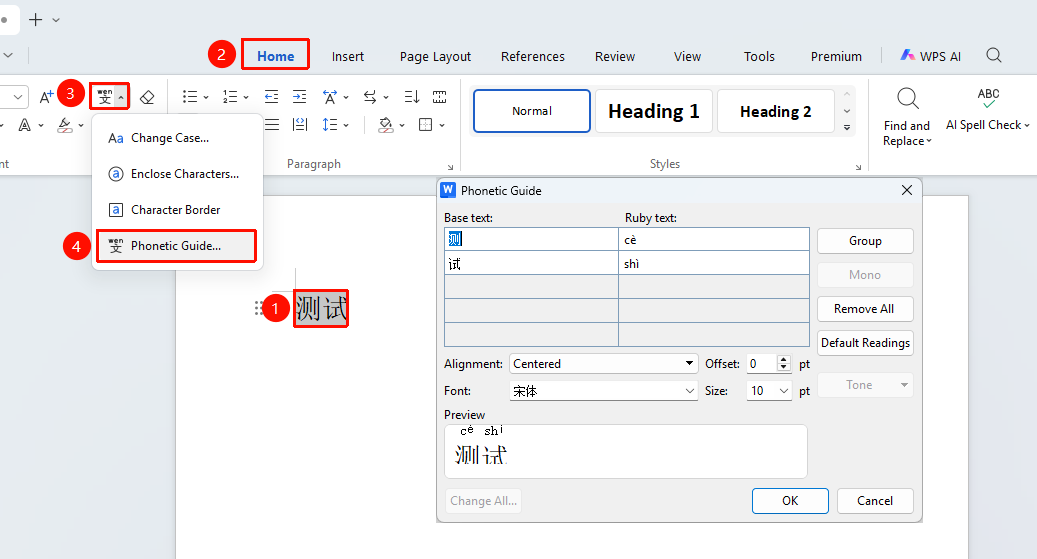
Phonetic Guide
Feature Entry "Home" tab → "Font" group → "Phonetic Guide" option
- Select the text to which you want to add pinyin
- Click the Home tab on the ribbon, and in the Font group, click Phonetic Guide
- In the pop-up window, you can set:
- Pinyin alignment (Center, Left, Right)
- Font, font size
- Offset
- Click "OK" to finish adding
Enclosed Characters
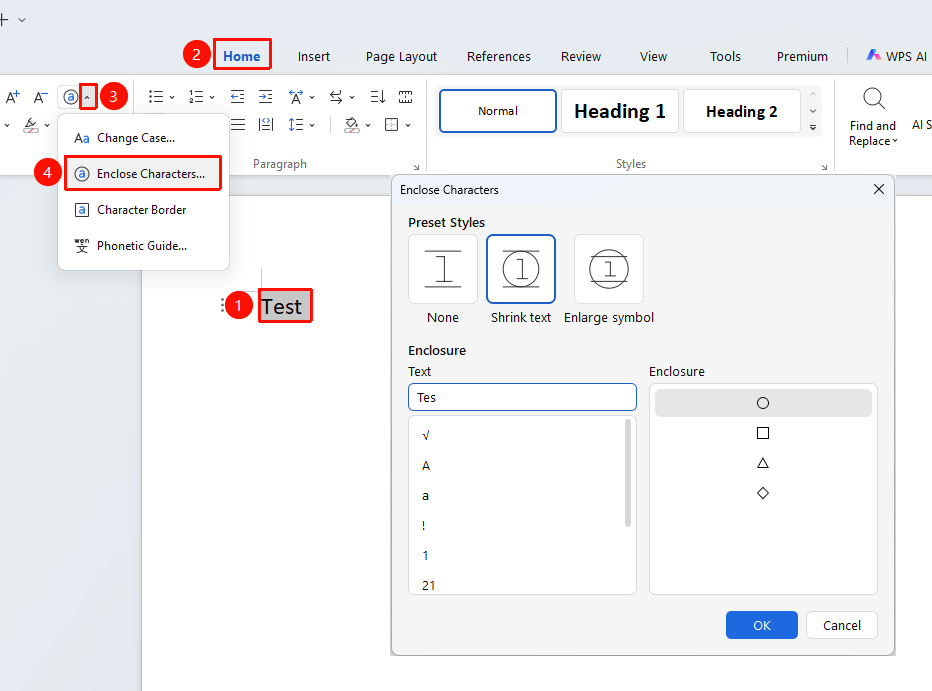
Feature Entry "Home" tab → Drop-down arrow to the right of the "Phonetic Guide" option → "Enclosed Characters" option
- Select the text to which you want to add a circle
- Click the Home tab
- Click the drop-down arrow to the right of the Phonetic Guide option
- Click the "Enclosed Characters" option
- In the pop-up dialog box, select:
- Enclosure style (○ Circle, □ Square, ◇ Diamond, △ Triangle)
- Shrink text or enlarge enclosure
- Click OK to complete the setting
Character Border
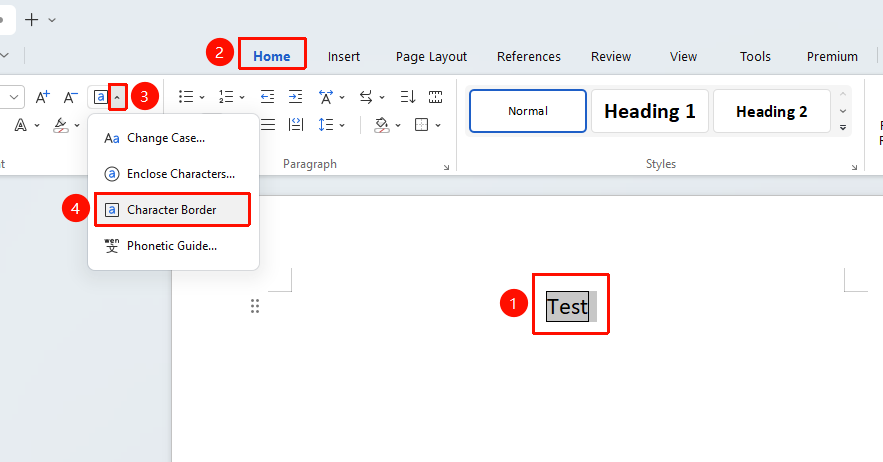
Feature Entry "Home" tab → Drop-down arrow to the right of the "Phonetic Guide" option → "Character Border" option
- Select the text to which you want to add a border
- Click the Home tab
- Click the drop-down arrow to the right of the Phonetic Guide option
- Click the "Character Border" option to add the border
Change Case
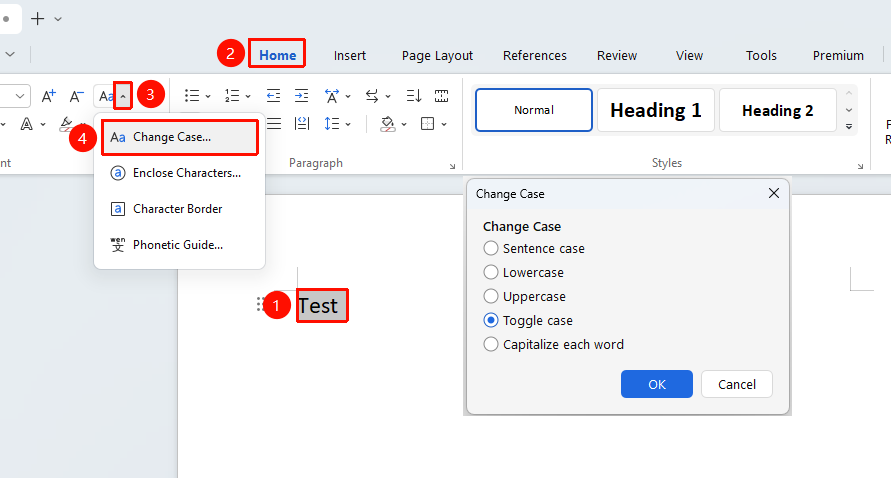
Feature Entry "Home" tab → Drop-down arrow to the right of the "Phonetic Guide" option → "Change Case" option
- Select the text for which you want to change the case
- Click the Home tab
- Click the drop-down arrow to the right of the Phonetic Guide option
- Click the "Change Case" option to open the Change Case dialog box
- Click OK to complete the setting
Frequently Asked Questions
Q1: What should I do if enclosed characters display as square boxes?
- Solution: The Wingdings or Symbol font may be missing. Install the corresponding font and restart WPS to display them correctly.