Feature Summary
WPS Docs provides professional typesetting and arrangement features. The typesetting feature can organize paragraph formatting, set indentation and alignment with one click; the arrangement feature supports text wrapping, alignment, rotation, grouping, and layer adjustment for objects such as pictures and shapes, achieving efficient mixed text-and-image layout effects.
Feature Description
| Feature Dimension | Description |
|---|---|
| Membership Restriction | Some features require a membership. |
| Version Restriction | WPS Office 2019 and later versions |
Operation Steps
Typesetting Features
Paragraph Organizing
Feature Entry
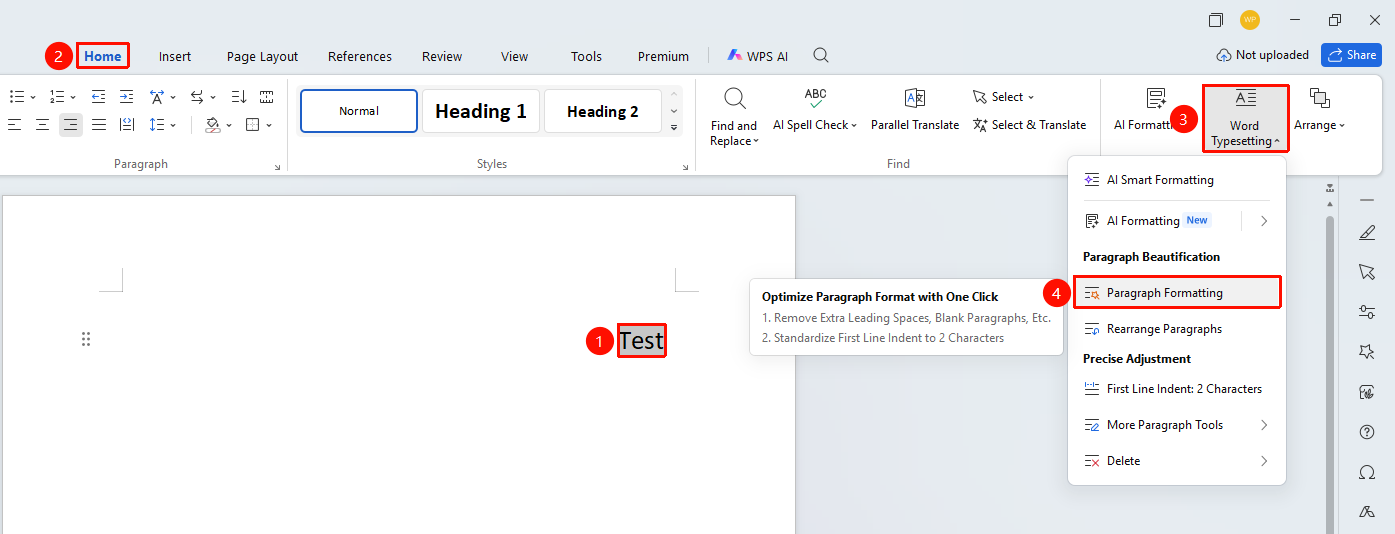
"Home" tab → "Typesetting" dropdown menu → "Paragraph Organizing" option
- Select the paragraph(s) to be organized
- Click the Home tab → Typesetting dropdown menu → select the "Paragraph Organizing" option in sequence
- The system automatically removes redundant empty paragraphs, optimizes paragraph spacing, and completes one-click organizing
Paragraph Rearrangement
Feature Entry
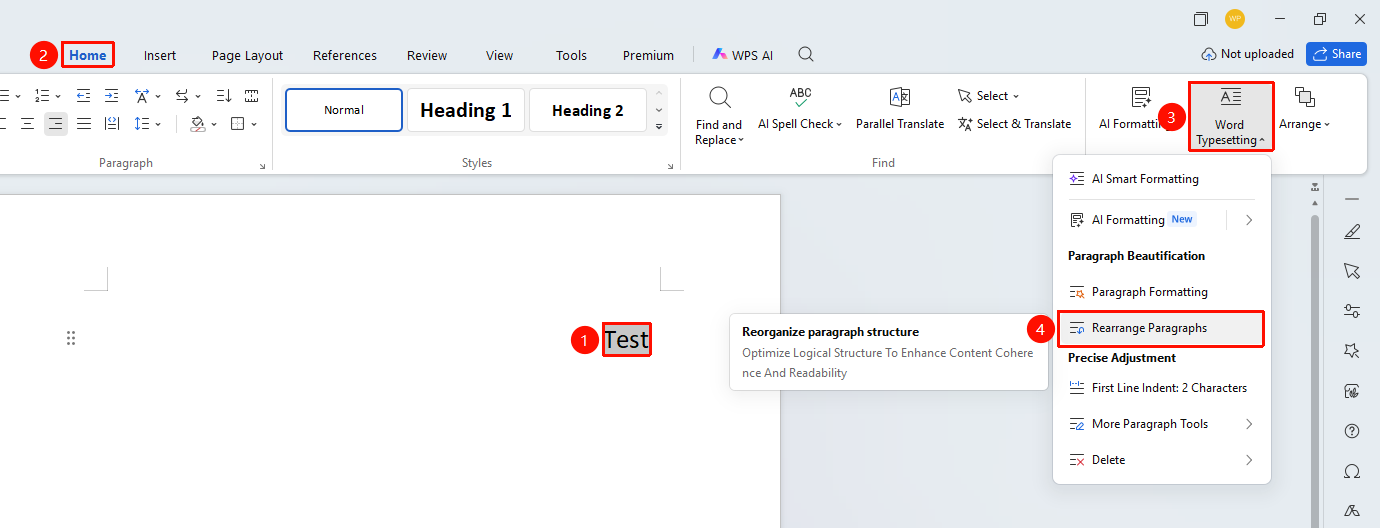
"Home" tab → "Typesetting" dropdown menu → "Paragraph Rearrangement" option
- Select the paragraph(s) to be operated on
- Click the Home tab → Typesetting dropdown menu → select the "Paragraph Rearrangement" option in sequence
- The system automatically adjusts the paragraph format according to the document content and completes the rearrangement
First-Line Indent by 2 Characters
Feature Entry
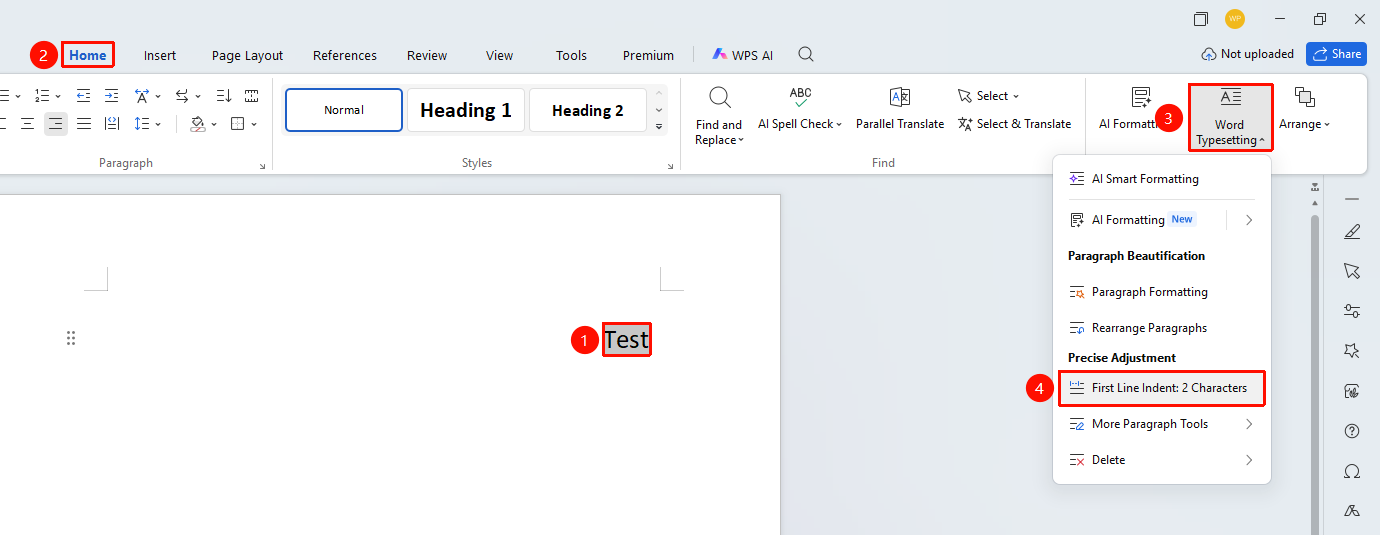
"Home" tab → "Typesetting" dropdown menu → "First-Line Indent by 2 Characters" option
- Select the paragraph(s) to be set
- Click the Home tab → Typesetting dropdown menu → select the "First-Line Indent by 2 Characters" option in sequence
- The system automatically sets the first-line indent of the paragraph to 2 characters
More Paragraph Processing
Feature Entry
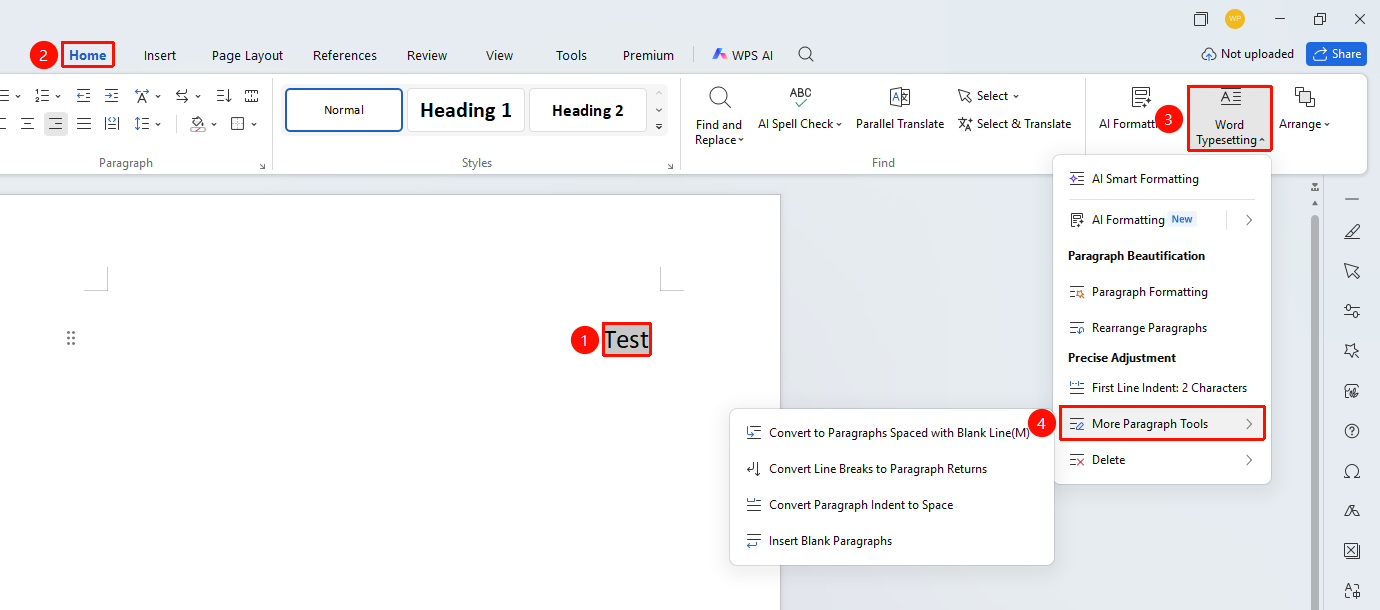
"Home" tab → "Typesetting" dropdown menu → "More Paragraph Processing" dropdown menu
- Select the paragraph(s) to be operated on
- Click the Home tab → Typesetting dropdown menu → select the "More Paragraph Processing" dropdown menu in sequence
- Select the desired function from the dropdown menu:
- Convert to Empty Paragraph Separation Style: Set the separation between paragraphs to empty paragraph form
- Convert Line Breaks to Carriage Returns: Batch convert line breaks in the document to carriage returns
- Convert First-Line Indent to Spaces: Convert the first-line indent of paragraphs to spaces with one click
- Add Empty Paragraphs: Batch add empty lines between paragraphs
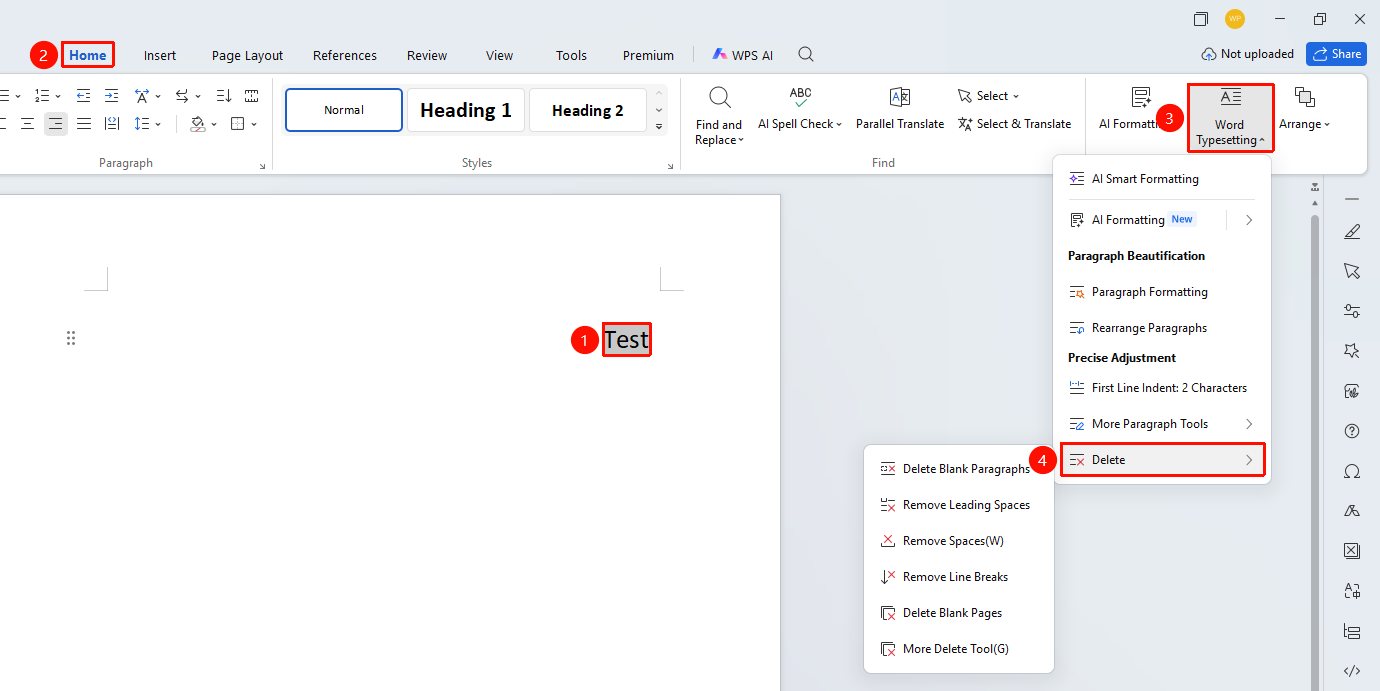
Delete
Feature Entry
"Home" tab → "Typesetting" dropdown menu → "Delete" dropdown menu
- Select the paragraph(s) to be operated on
- Click the Home tab → Typesetting dropdown menu → select the "Delete" dropdown menu in sequence
- Select the desired function from the dropdown menu:
- Delete Empty Paragraphs: Batch delete empty paragraphs in the document
- Delete Leading Spaces: Delete spaces at the beginning of paragraphs
- Delete Spaces: Batch delete spaces in the document
- Delete Line Breaks: Batch delete line breaks in the document
- Delete Blank Pages: Delete blank pages in the document
Click More Delete Tools to use more batch deletion functions
Arrangement Features
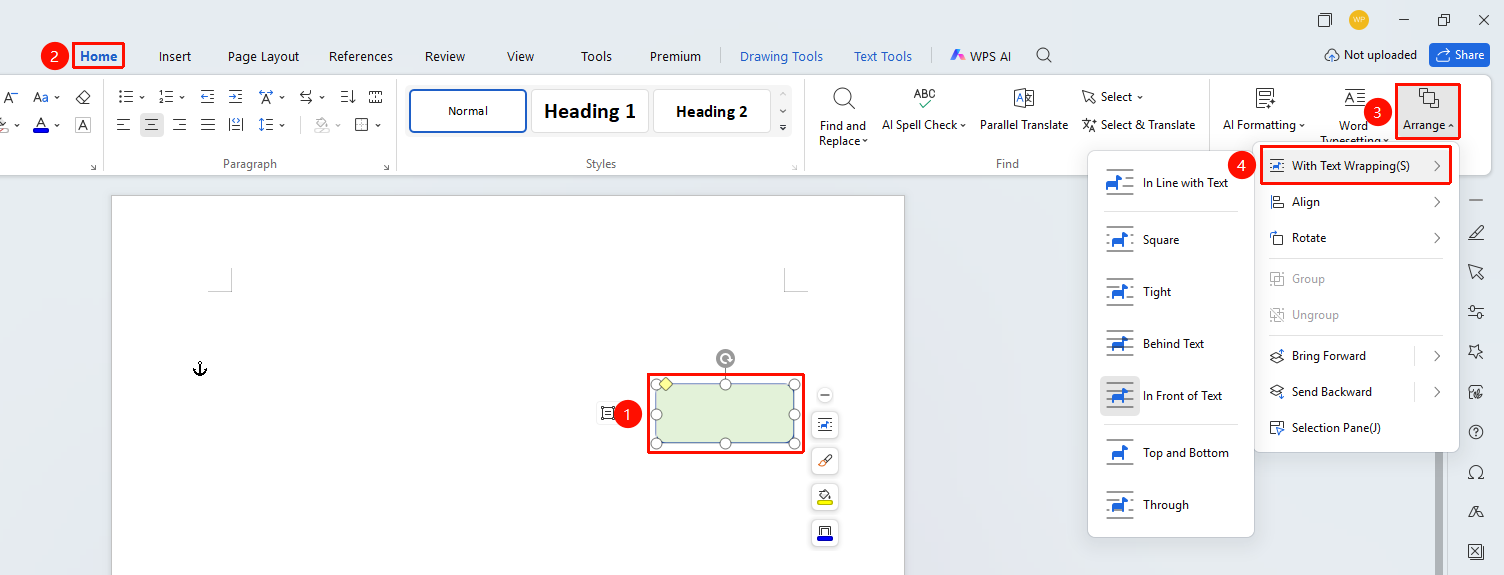
Text Wrapping
Feature Entry
"Home" tab → "Arrangement" dropdown menu → "Text Wrapping" dropdown menu
- Select the picture or shape object to be set2. Click the Home tab → Arrange dropdown menu
- In the dropdown menu, click "Text Wrapping" and select a wrapping style to apply wrapping
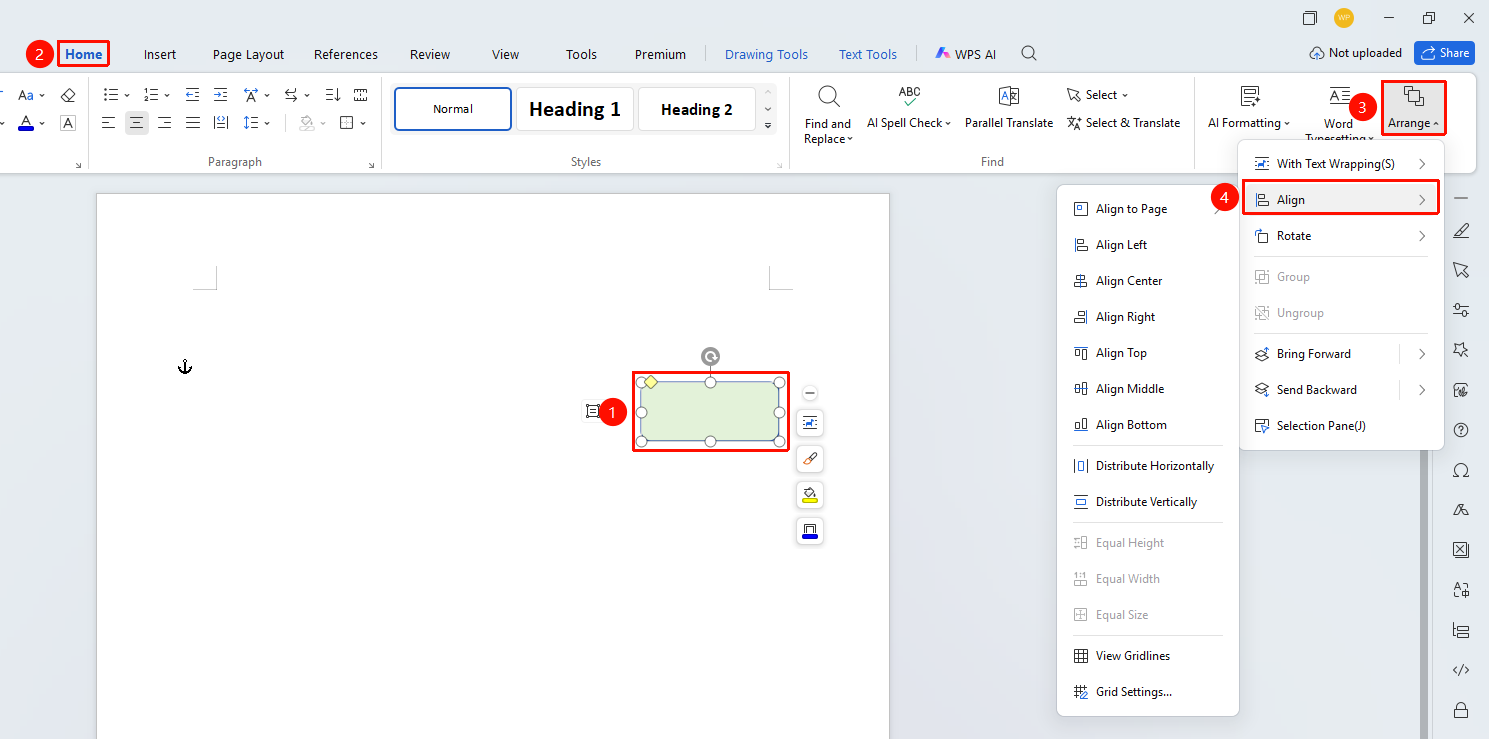
Align
Feature Entry
"Home" tab → "Arrange" dropdown menu → "Align" dropdown menu
- Select multiple objects to be aligned in order
- Click the Home tab → Arrange dropdown menu
- In the dropdown menu, click "Align" and select an alignment method
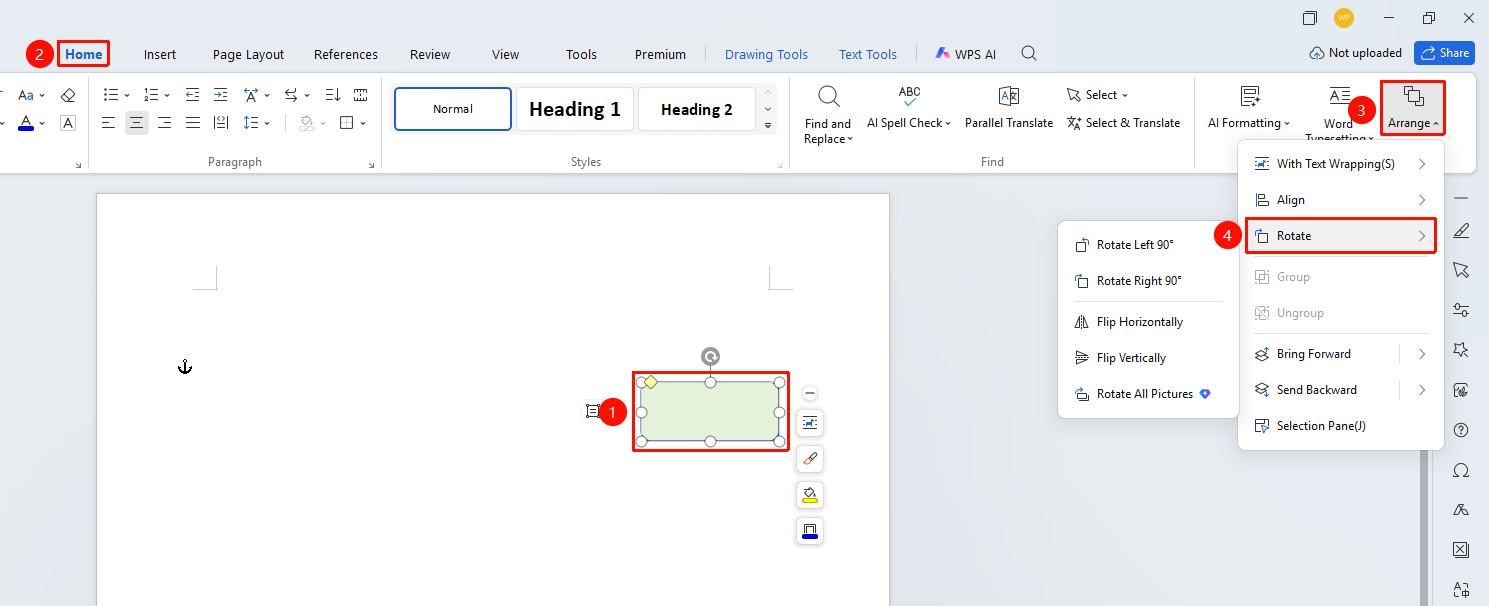
Rotate
Feature Entry
"Home" tab → "Arrange" dropdown menu → "Rotate" dropdown menu
- Select multiple objects to be aligned in order
- Click the Home tab → Arrange dropdown menu
- In the dropdown menu, click "Rotate" and select a rotation method
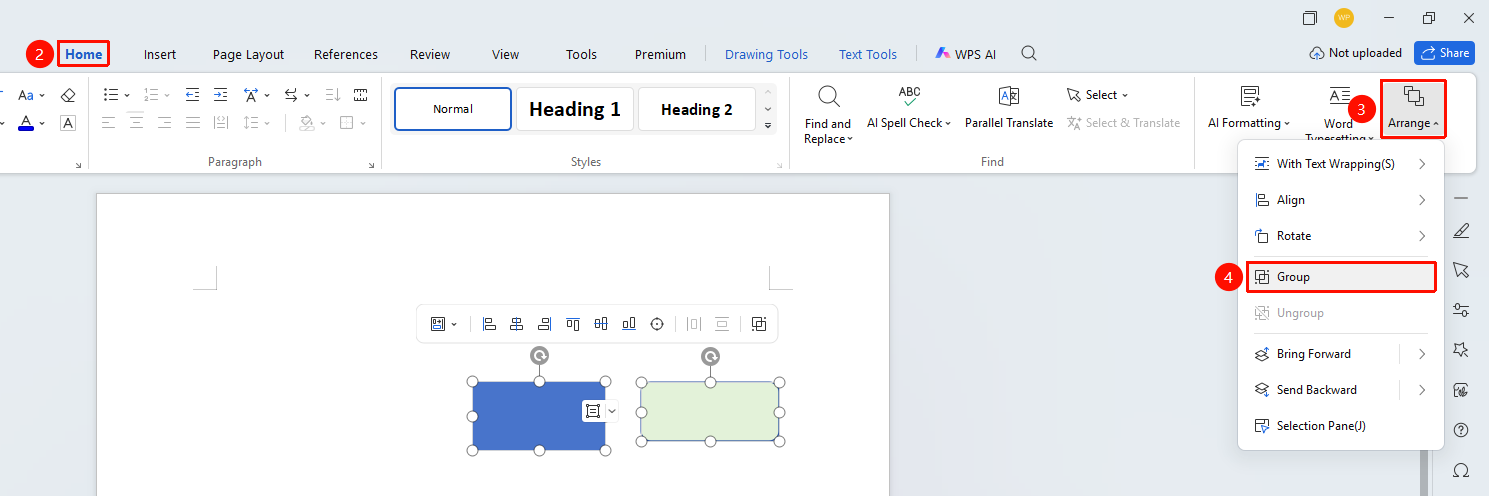
Group
Feature Entry
Select multiple objects to be grouped, "Home" tab → "Arrange" dropdown menu → "Group" option
- Select multiple objects to be grouped in order
- Click the Home tab → Arrange dropdown menu
- In the dropdown menu, click the "Group" button to complete grouping
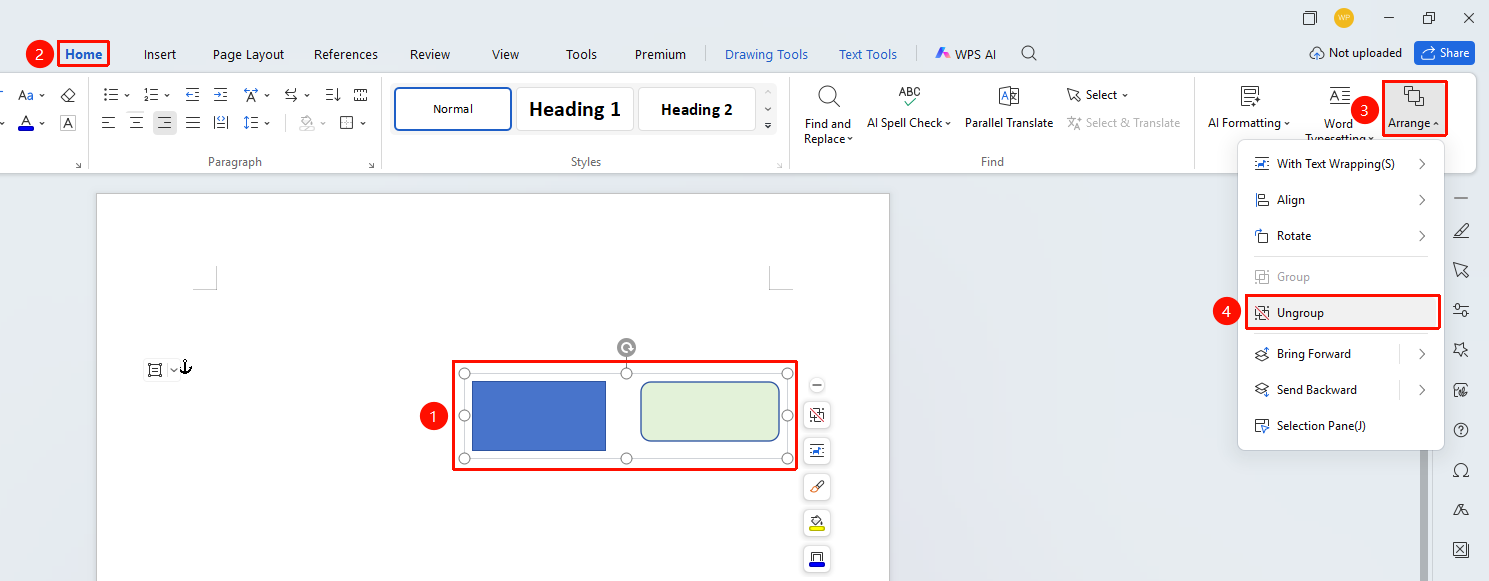
Ungroup
Feature Entry
Select the grouped object → "Home" tab → "Arrange" dropdown menu → "Group" option
- Select the grouped object
- Click the Home tab → Arrange dropdown menu
- In the dropdown menu, click the "Ungroup" button
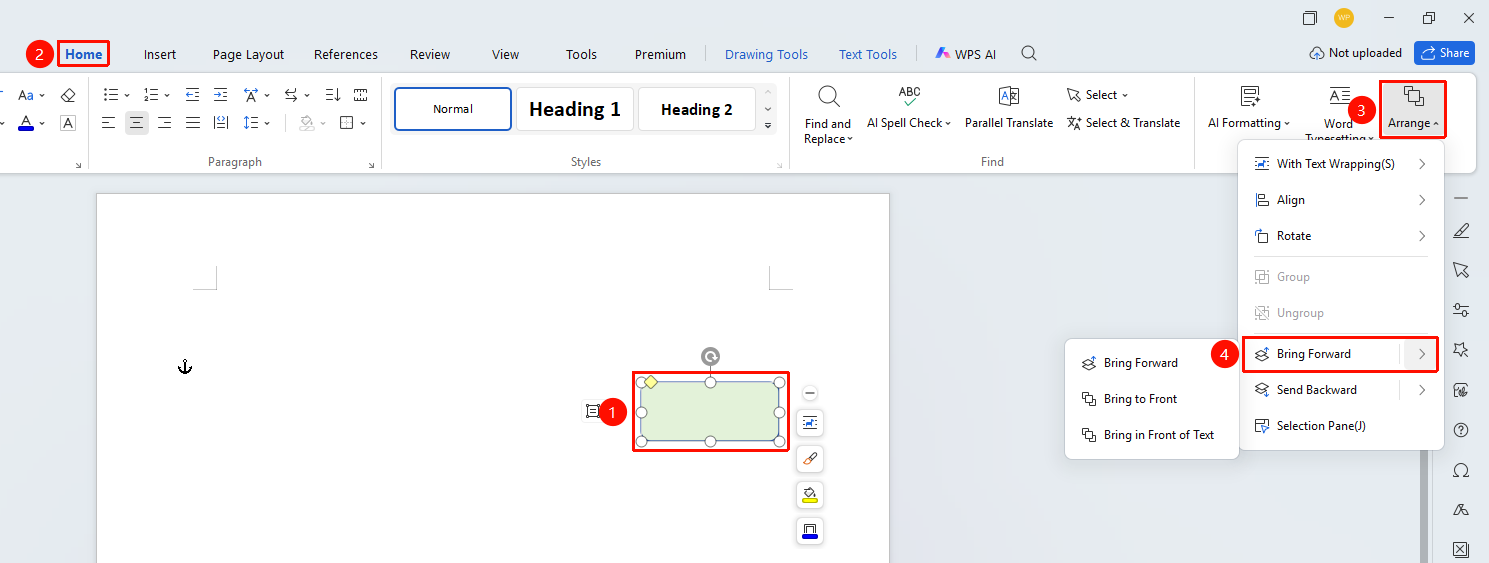
Bring Forward
Feature Entry
"Home" tab → "Arrange" dropdown menu → "Bring Forward" dropdown menu
- Select the object whose layer order needs to be adjusted
- Click the Home tab → Arrange dropdown menu
- In the dropdown menu, click the "Bring Forward" dropdown list
- Bring Forward: Move the object up one layer
- Bring to Front: Move the object to the top of all objects
- Float Above Text: Display the object above the text content
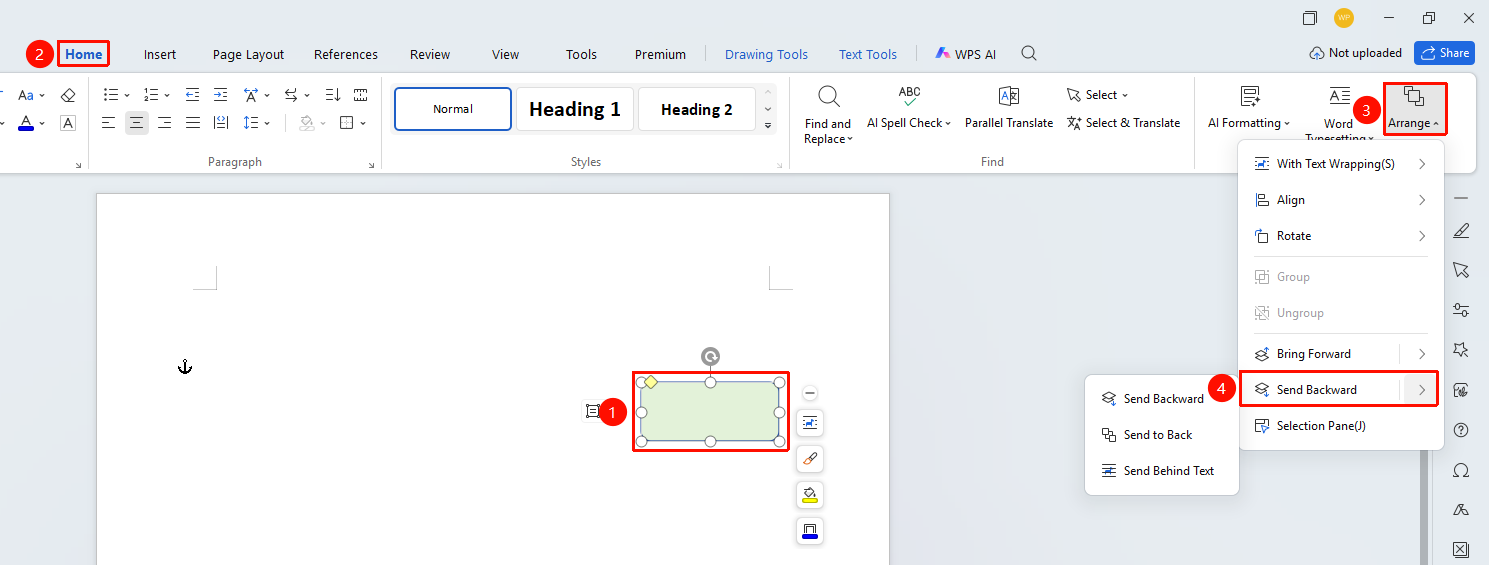
Send Backward
Feature Entry
"Home" tab → "Arrange" dropdown menu → "Send Backward" dropdown menu
- Select the object whose layer order needs to be adjusted
- Click the Home tab → Arrange dropdown menu
- In the dropdown menu, click the "Send Backward" dropdown list
- Send Backward: Move the object down one layer
- Send to Back: Move the object to the bottom of all objects
- Place Behind Text: Display the object below the text content
FAQ
Q1: What is the difference between paragraph tidying and paragraph rearrangement?
- Solution: Paragraph tidying is mainly used to clean up excess empty paragraphs and blank lines and optimize paragraph spacing; paragraph rearrangement automatically adjusts paragraph formatting based on the document content and re-typesets the entire paragraph structure. If a document copied from a web page has many blank lines, it is recommended to use paragraph tidying first for cleanup.
Notes
- Grouping Object Limitations: Inline objects cannot be grouped with other objects. You need to change the wrapping style to non-inline first.2. Layer Adjustment: The "Move Up" and "Move Down" functions are only meaningful when multiple objects overlap, and are used to adjust the display order of objects.