Feature Summary
WPS Writer Mail Merge supports switching records, allowing you to quickly browse different data records during merge preview.
Feature Description
| Feature Dimension | Description |
|---|---|
| Member Restrictions | None |
| Version Restrictions | None |
Steps
Switch Records via the Mail Merge Tab
Feature Entry
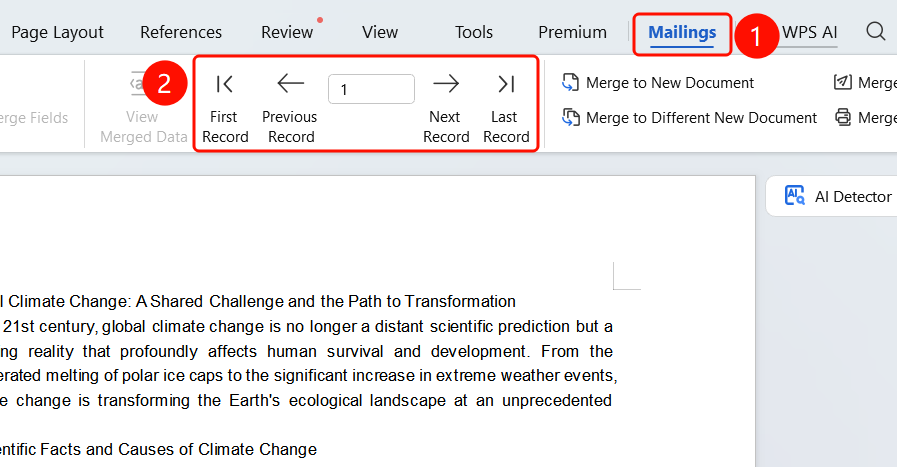
Mail Merge tab > View Merged Data button
Click the Mail Merge tab in the top menu bar.
Click the View Merged Data button.
The record navigation toolbar will be displayed, including:
- First Record button: Jump to the first record
- Previous Record button: Switch to the previous record
- Current record number input box: Enter a record number directly to jump to it
- Next Record button: Switch to the next record
- Last Record button: Jump to the last record
Click the navigation buttons to switch records.
FAQ
Q1: Will the document update when switching records?
- Solution: Yes. Once you switch records, the merge fields in the document will automatically update to the data of the current record.
Q2: How do I quickly jump to a specific record?
- Solution: Enter the record number directly in the record number input box and press Enter to jump to it.
Q3: Where is the switch record feature?
- Solution: Click the View Merged Data button on the Mail Merge tab to display the navigation toolbar.
Notes
- You need to connect to a data source before switching records.
- The record navigation toolbar is only displayed in the View Merged Data mode.