Feature Summary
Mail Merge in WPS Docs supports merging to different new documents, generating a separate document for each record.
Feature Details
| Feature Dimension | Description |
|---|---|
| Premium Restrictions | No premium restrictions |
| Version Restrictions | No version restrictions |
Steps
Merge to Different New Documents via the Mail Merge Tab
Feature Entry
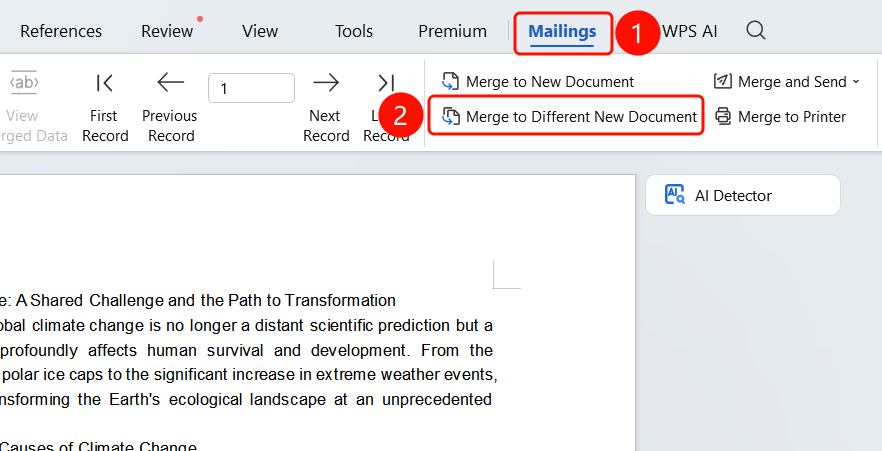
Mail Merge tab > Merge to Different New Documents button
Click the Mail Merge tab in the top menu bar.
Click the Merge to Different New Documents button.
Set the merge range in the dialog box that appears:
- All records
- Current record
- Custom record range
Click OK to start merging.
A separate new document will be generated for each record.
FAQ
Q1: How many documents will be generated after merging?
- Solution: The number of new documents generated will be the same as the number of data records.
Q2: How do I merge only some of the records?
- Solution: Select Custom record range in the merge settings and enter the start and end record numbers.
Q3: Where are the merged documents?
- Solution: Merged documents open automatically and can be saved to your specified locations.
Notes
- Merging to different new documents is suitable for scenarios where you need to process each record separately.
- Merging a large number of records may take some time.