Feature Summary
WPS Docs Mail Merge supports merging to a printer, allowing you to send merge results directly to a printer.
Feature Details
| Feature Dimension | Description |
|---|---|
| Premium restrictions | None |
| Version restrictions | None |
Steps
Merging to Printer via the Mail Merge Tab
Feature Entry
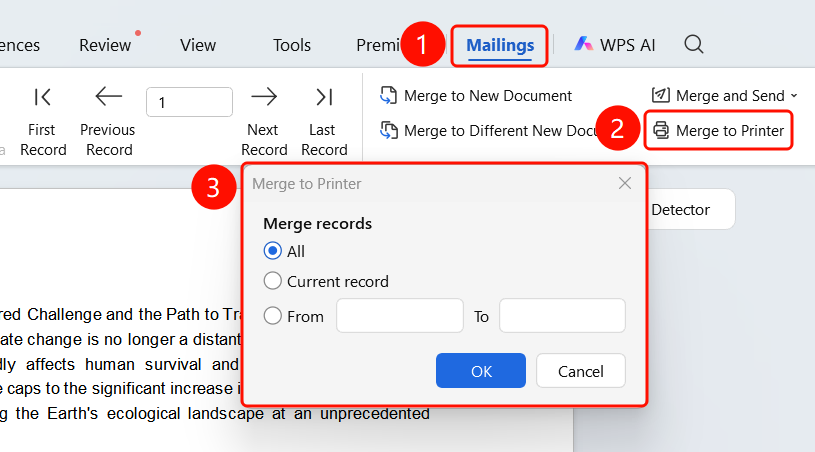
Mail Merge tab > Merge to Printer button
Click the Mail Merge tab in the top menu bar.
Click the Merge to Printer button.
In the Merge to Printer dialog box, configure the following:
- Print all records
- Print current record
- Print a specific range of records
Click OK to continue.
Select a printer and configure print settings in the Print dialog box.
Click OK to start printing.
FAQ
Q1: Can I preview before printing?
- Solution: Yes. Click View Merged Data to preview the merge results before printing.
Q2: Can I print only some of the records?
- Solution: Yes. Select Print a specific range of records in the merge settings.
Q3: Will merge field codes be printed?
- Solution: No. The actual merged data will be printed.
Notes
- It is recommended to preview the merge results before printing.
- Ensure that the printer is properly connected when printing a large number of records.