Feature Summary
Mail Merge in WPS Docs supports merging to a new document, which merges all records to generate a new document.
Feature Details
| Feature Dimension | Description |
|---|---|
| Premium Restrictions | None |
| Version Restrictions | None |
Steps
Merge to a New Document via the Mail Merge Tab
Feature Entry
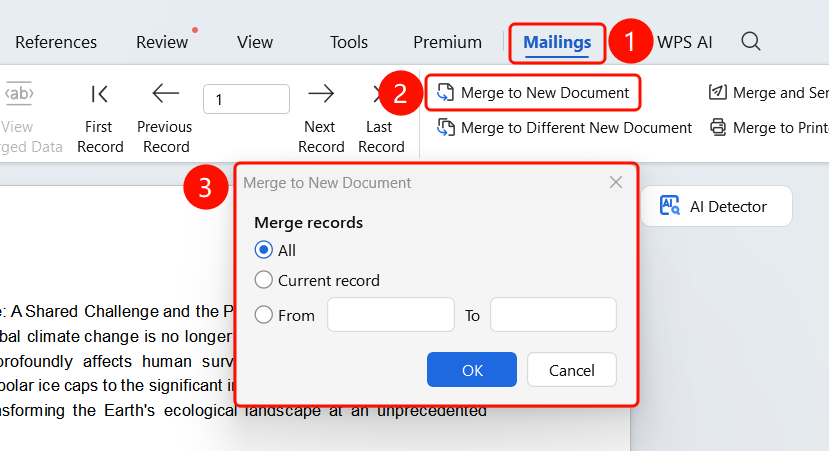
Mail Merge tab > Merge to New Document button
Click the Mail Merge tab in the top menu bar.
Click the Merge to New Document button.
In the pop-up Merge to New Document dialog box, set the range of records to merge:
- All: Merge all records
- Current Record: Merge only the currently selected record
- From... To...: Specify the range of records to merge
Click OK to start merging.
The merged result will be displayed in a new document.
FAQ
Q1: Will a new document be generated after merging?
- Solution: Yes. The merged result will be displayed in a new document, and the original template document will remain unaffected.
Q2: How do I merge only some of the records?
- Solution: In the merge settings, select "From... To..." and enter the start and end record numbers.
Q3: Can the merged document be edited?
- Solution: Yes. The merged document is an independent document and can be edited freely.
Notes
- Merging to a new document is suitable for scenarios where you need to edit or save the merged results.
- The merged document needs to be saved separately.