Feature Summary
Mail Merge in WPS Docs supports Merge and Send, allowing you to send merged documents to recipients via email.
Feature Details
| Feature Dimension | Description |
|---|---|
| Premium Restrictions | No premium restrictions |
| Version Restrictions | No version restrictions |
Steps
Merge and Send via the Mail Merge Tab
Feature Entry
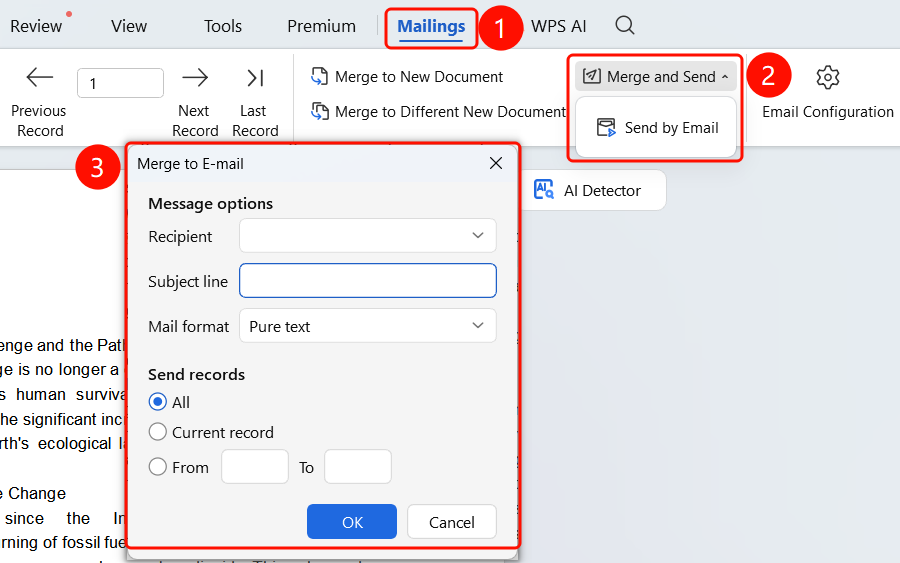
Mail Merge tab > Merge and Send button
Click the Mail Merge tab in the top menu bar.
Click the Merge and Send button.
In the Merge to Email dialog box that appears, configure the following settings:
- Recipient field: Select the field containing the email addresses.
- Subject line: Enter the email subject.
- Mail format: HTML or Plain Text.
Click OK to start merging and sending.
FAQ
Q1: Do I need to configure an email account for Merge and Send?
- Solution: Yes, you need to configure your email account settings when using this feature for the first time.
Q2: Can I send emails to multiple recipients in batches?
- Solution: Yes, the system will send emails one by one based on the email addresses in the data source.
Q3: What should I do if sending fails?
- Solution: Check your network connection and email configuration, and make sure the recipient email addresses are formatted correctly.
Notes
- We recommend sending a test email before using Merge and Send.
- Pay attention to email sending limits when sending in bulk.