Feature Summary
Mail Merge in WPS Docs supports field mapping, which maps data source fields to merge fields in the document.
Feature Details
| Feature Dimension | Description |
|---|---|
| Premium Restrictions | No premium restrictions |
| Version Restrictions | No version restrictions |
Steps
Set Up Field Mapping via the Mail Merge Tab
Feature Entry
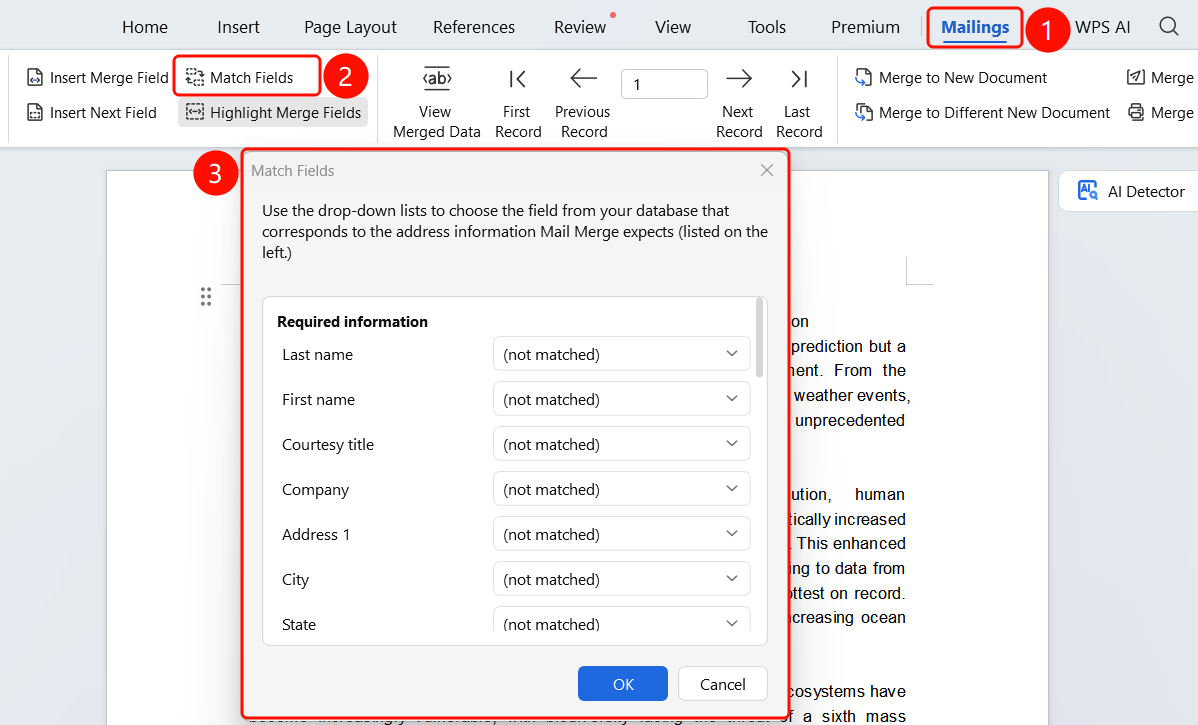
Mail Merge tab > Field Mapping button
Click the Mail Merge tab in the top menu bar.
Click the Field Mapping button.
In the Field Mapping dialog that appears:
- The left side displays the merge fields in the document.
- The right side displays the fields in the data source.
Select the merge fields and their corresponding fields to map them.
Click OK to complete the mapping settings.
FAQ
Question 1: What is the purpose of field mapping?
- Solution: Field mapping is used to map data source fields to merge fields in the document, ensuring that data is populated correctly.
Question 2: What should I do if field names do not match?
- Solution: You can manually select and map the corresponding fields via field mapping.
Question 3: Can fields be mapped automatically?
- Solution: If the field names match exactly, the system will map them automatically.
Notes
- Field mapping is an important step in Mail Merge.
- Ensure that each merge field is correctly mapped to its corresponding field.