Feature Summary
Mail Merge in WPS Docs allows you to insert merge fields to add fields from a data source into your document.
Feature Details
| Feature Dimension | Description |
|---|---|
| Premium Restrictions | None |
| Version Restrictions | None |
Steps
Insert Merge Fields via the Mail Merge Tab
Entry
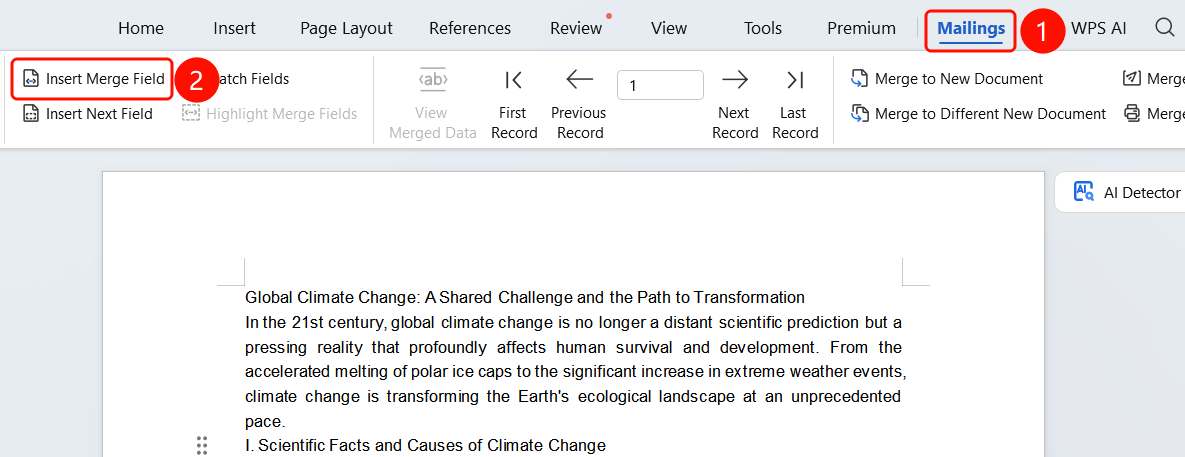
Mail Merge tab > Insert Merge Field option
- Place the cursor where you want to insert the merge field.
- Click the Mail Merge tab in the top menu bar.
- Click Insert Merge Field.
- In the pop-up window, select the fields you want to insert.
- The fields will be automatically replaced with actual data during the merge.
FAQ
Q1: What do merge fields look like?
- Solution: Merge fields are displayed in a "Field Name" format, such as "Name" or "Address".
Q2: Can I insert multiple merge fields?
- Solution: Yes, you can insert multiple merge fields anywhere in the document as needed.
Q3: Can merge fields be edited?
- Solution: Yes, merge fields can be formatted just like regular text.
Notes
- Connect to a data source before inserting merge fields.
- The position of a merge field determines where the data will appear in the document.