Feature Summary
Mail Merge in WPS Docs supports viewing merged data to preview the actual effect after merging.
Feature Details
| Feature Dimension | Description |
|---|---|
| Premium Restrictions | None |
| Version Restrictions | None |
Steps
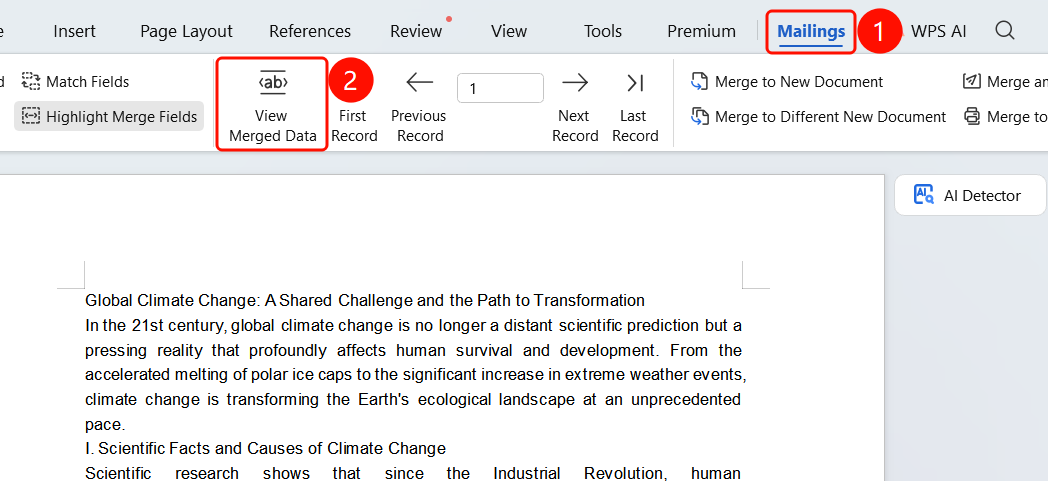
View Merged Data via the Mail Merge Tab
Feature Entry
Mail Merge tab > View Merged Data button
- Click the Mail Merge tab in the top menu bar.
- Click the View Merged Data button.
- The merge fields in the document will be replaced with actual data.
- The record navigation toolbar will be displayed, allowing you to switch records to view different data.
- Click the View Merged Data button again to return to Edit Mode.
FAQ
Q1: What is the purpose of viewing merged data?
- Solution: It allows you to preview the actual effect after merging, ensuring that the data is filled correctly.
Q2: Does switching records affect the original document?
- Solution: No. Viewing merged data is only for previewing and will not modify the original template.
Q3: How do I return to Edit Mode?
- Solution: Click the View Merged Data button again to return to Edit Mode.
Notes
- It is recommended to view merged data to confirm the effect before merging.
- When viewing merged data, you can use the record navigation to switch between different records.