Guide to Using Web Layout View in WPS Docs
Feature Summary
Web Layout view simulates the browsing experience of a web page. Document content automatically wraps according to the window size, making it suitable for previewing how a document will appear when published online.
Feature Description
| Feature Dimension | Description |
|---|---|
| Membership Restrictions | No membership restrictions; available to all users |
| Version Restrictions | WPS Office 2019 and later versions |
Operation Steps
I. Switching to Web Layout View
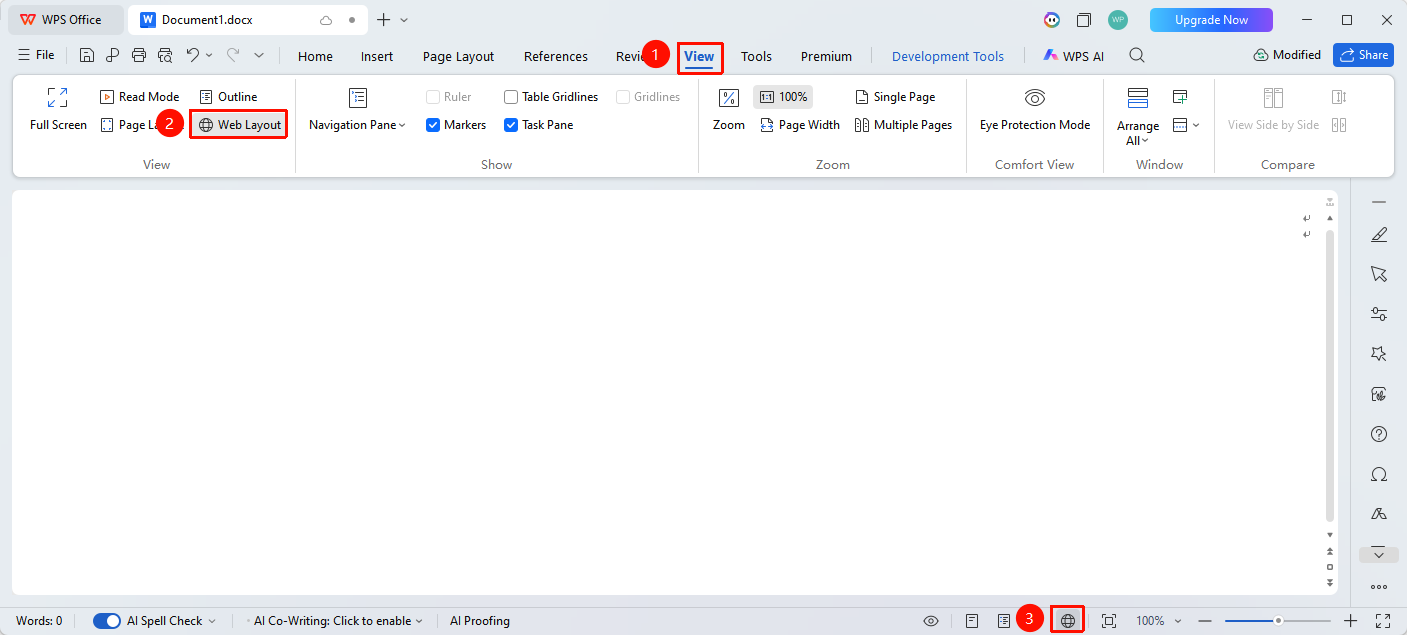
- Click the "View" tab in the top menu bar
- In the "Layout" group, click the "Web Layout" button
- Alternatively, click the "Web Layout View" icon in the bottom-right corner of the status bar
II. Web Layout Features
- Adaptive Width: Content automatically adjusts to the window width
- No Page Breaks: All content is displayed continuously without page breaks
- Suitable for Web Preview: View how the document will look after being published as a web page
Frequently Asked Questions
Question 1: The page layout differs from Page View
- Solution: This is normal; Web Layout automatically adapts to the window width
Notes
- Web Layout does not display actual page boundaries
- Suitable for editing documents intended for web publishing
- It is recommended to switch back to Page View when printing