Feature Summary
The Asian Layout feature provides tools specifically designed for Chinese typesetting, such as Combine in Two Lines and Combine Characters, to meet the special layout requirements of Chinese content.
Feature Description
| Feature Dimension | Description |
|---|---|
| Membership Restriction | No membership restriction; available to all users |
| Version Restriction | No version restriction; supported across all WPS client versions |
Operation Steps
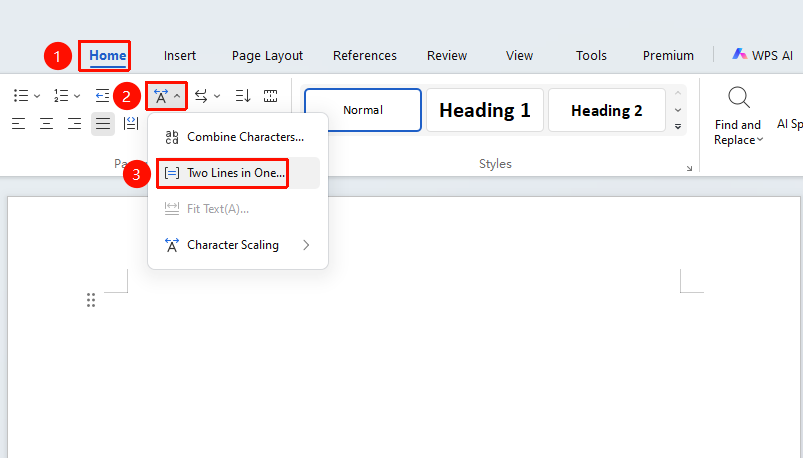
Two Lines in one
Feature Entry
"Home" tab → "Asian Layout" dropdown list → "Two Lines in one" option
- Select the text to be combined into two lines for display
- Click the Home tab
- Select the Asian Layout dropdown list
- Click the "Two Lines in one" option to open the Combine in Two Lines dialog box
- In the pop-up dialog, confirm the content to be combined
- You can check Enclose in brackets and select a bracket style
- Click OK to complete the setting
Combine Characters
Feature Entry
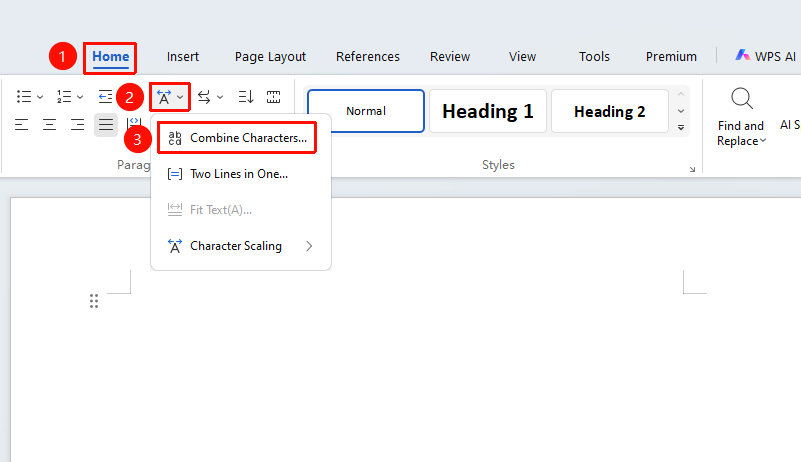
"Home" tab → "Asian Layout" dropdown list → "Combine Characters" option
- Select the text to be combined for display
- Click the Home tab
- Select the Asian Layout dropdown list
- Click the "Combine Characters" option to open the Combine Characters dialog box
- In the pop-up dialog, confirm the content to be combined
A maximum of 6 characters can be selected at a time for combining
- Click OK to complete the setting
Fix Test
Feature Entry
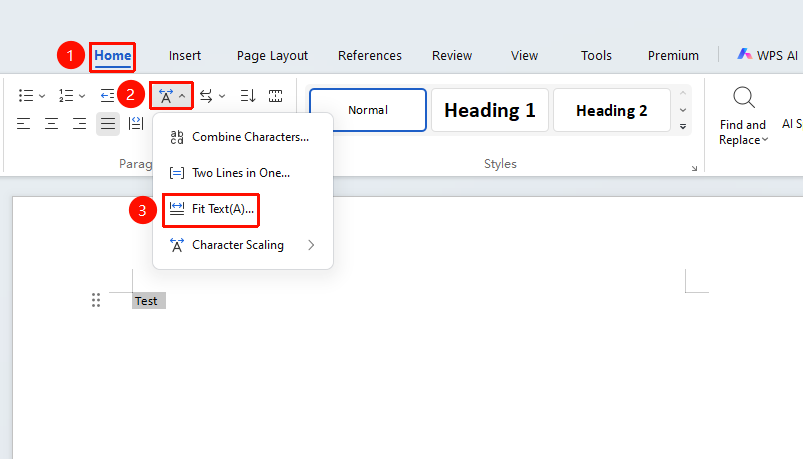
"Home" tab → "Asian Layout" dropdown list → "Fix Test" option
- Select the text whose character spacing needs to be narrowed/widened
- Click the Home tab
- Select the Asian Layout dropdown list
- Click the "Fix Test" option to open the Adjust Width dialog box
- In the pop-up dialog, enter the desired text width value
- The Delete option can remove the set text width and restore it to the original width
For text with a set text width, the "Character Scaling" feature and the "Character Spacing" feature will have no effect on that text
- Click OK to complete the setting
Character Scaling
Feature Entry
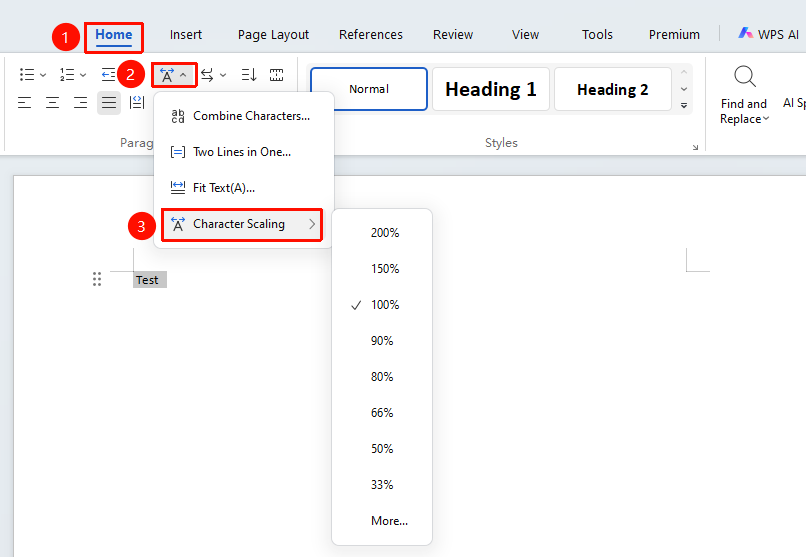
"Home" tab → "Asian Layout" dropdown list → "Character Scaling" dropdown list
- Select the text whose scaling ratio needs to be adjusted
- Click the Home tab
- Select the Asian Layout dropdown list
- Click the "Character Scaling" dropdown list
- In the pop-up dropdown list, select the corresponding scaling ratio to complete the setting
FAQ
Q1: Why does adjusting character spacing or setting character scaling have no effect on some text?
- Solution: The text width of this text has been set using the Adjust Width feature, which renders the Character Spacing or Character Scaling feature ineffective. Select this portion of text, click the Delete button in the Adjust Width option, and then click OK to remove the set text width.