Feature Summary
The column feature allows you to display document content in multiple columns, commonly used in newspaper and magazine layouts, with support for custom column count and column width.
Feature Description
| Feature Dimension | Description |
|---|---|
| Membership Restrictions | No membership restrictions; available to all users |
| Version Restrictions | No version restrictions; supported in all versions of WPS Docs |
Operation Steps
Setting Columns
Feature Entry
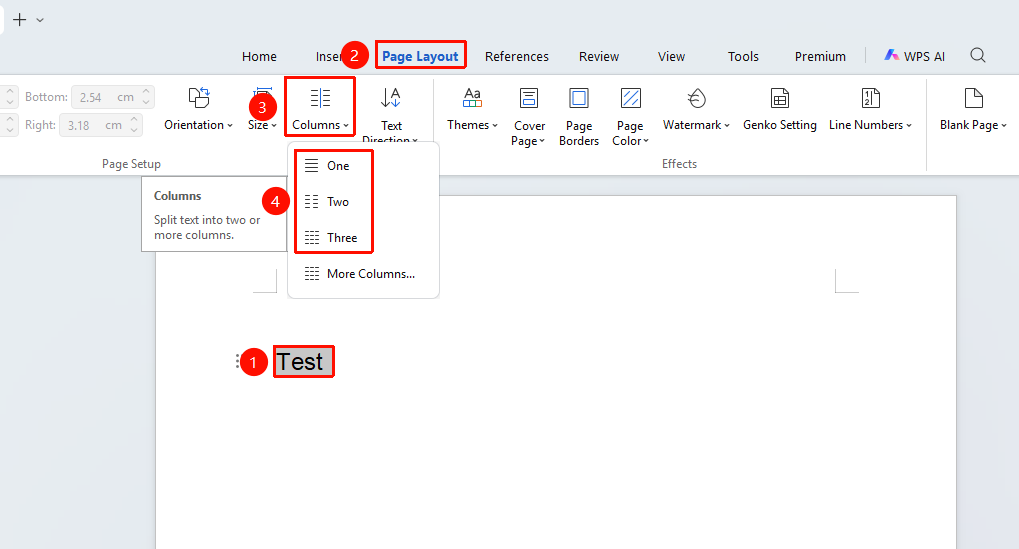
"Page" tab → "Columns" dropdown menu
- Select the text you want to format into columns
- Click the "Columns" dropdown menu in the Page tab
- Choose a preset style to apply columns
Custom Columns
Feature Entry
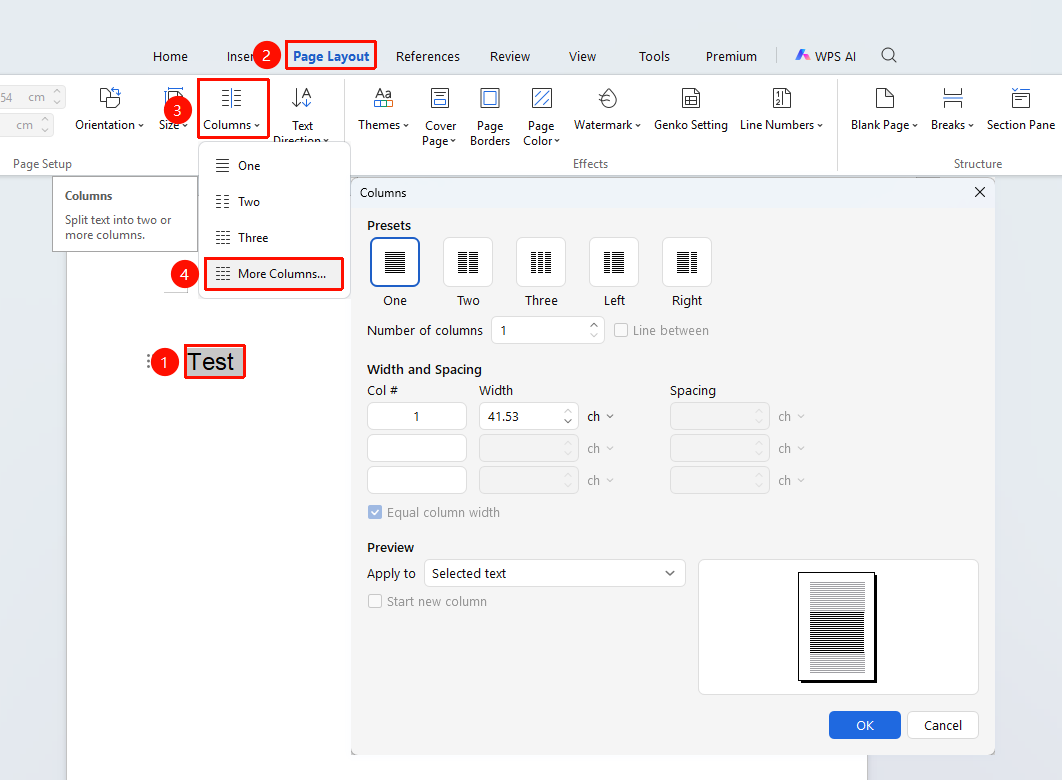
"Page" tab → "Columns" dropdown menu → "More Columns" option
- Select the text you want to format into columns
- Click the Columns dropdown menu in the Page tab
- In the dropdown menu, select the "More Columns" option
- Set the number of columns (up to 11 columns supported)
- You can set whether each column has equal width
- You can add a separator line
- After selecting the apply-to range, click the OK button to finish
Frequently Asked Questions
Q1: How to insert page numbers on both sides after applying columns
- Solution: Use field codes in the footer. Use {={page}*2-1} for the left column and {={page}*2} for the right column.
Notes
- Column effects must be viewed in Page Layout view
- Different column settings can be applied to different sections of the document
- Column breaks can be manually inserted where needed