Feature Summary
The section break feature is used to insert markers such as page breaks and section breaks into a document, enabling page separation and different page formatting settings.
Feature Description
| Feature Dimension | Description |
|---|---|
| Membership Restriction | No membership restriction; available to all users |
| Version Restriction | No version restriction; supported in all versions of WPS Docs |
Operation Steps
Insert a Page Break
Feature Entry
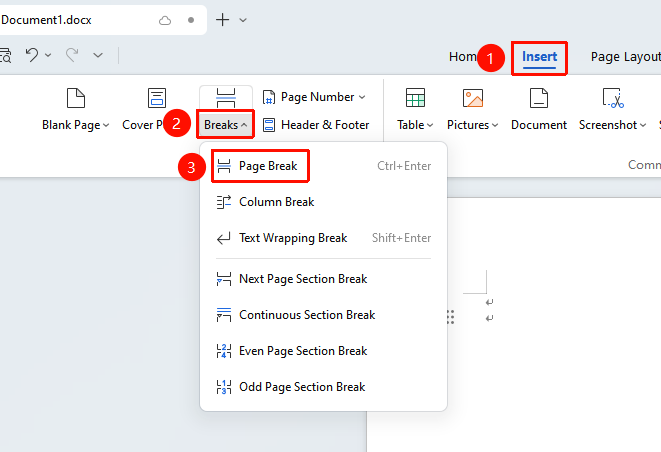
"Insert" tab → Arrow below the "Page Break" option → "Page Break" option
- Place the cursor where you want to break the page
- Click the Insert tab
- Click the arrow below the Page Break button
- In the drop-down menu that appears, select "Page Break" to insert it
Insert a Section Break
Feature Entry
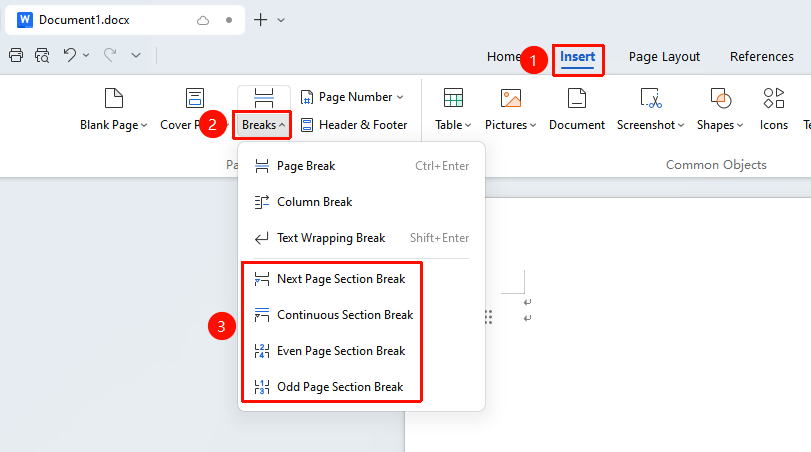
"Insert" tab → Arrow below the "Page Break" option
- Place the cursor where you want to break the section
- Click the Insert tab
- Click the arrow below the Page Break button
- In the drop-down menu that appears
- Select the section break type:
- Next Page Section Break: The new section starts on the next page
- Continuous Section Break: The new section starts on the current page
- Even Page Section Break: The new section starts on the next even-numbered page
- Odd Page Section Break: The new section starts on the next odd-numbered page
Frequently Asked Questions
Q1: How to delete a section break
- Solution: Turn on "Show/Hide Editing Marks", select the section break, and press the Delete key to remove it.
Q2: How to set different headers and footers for different pages
- Solution: By inserting section breaks and unlinking "Link to Previous", you can set different headers and footers.
Notes
- Section breaks enable different formatting settings for different pages
- Deleting a section break will cause the formatting of the preceding and following sections to merge
- It is recommended to turn on editing marks to view the positions of section breaks