Feature Summary
The Outline View is primarily used to organize the structural logic of long documents (such as papers, reports, and books), making it easy to adjust chapter hierarchy and framework, helping users quickly organize document structure.
Feature Description
| Feature Dimension | Description |
|---|---|
| Membership Restrictions | No membership restrictions; available to all users |
| Version Restrictions | No version restrictions; supported across all WPS client versions |
Operation Steps
Feature Entry
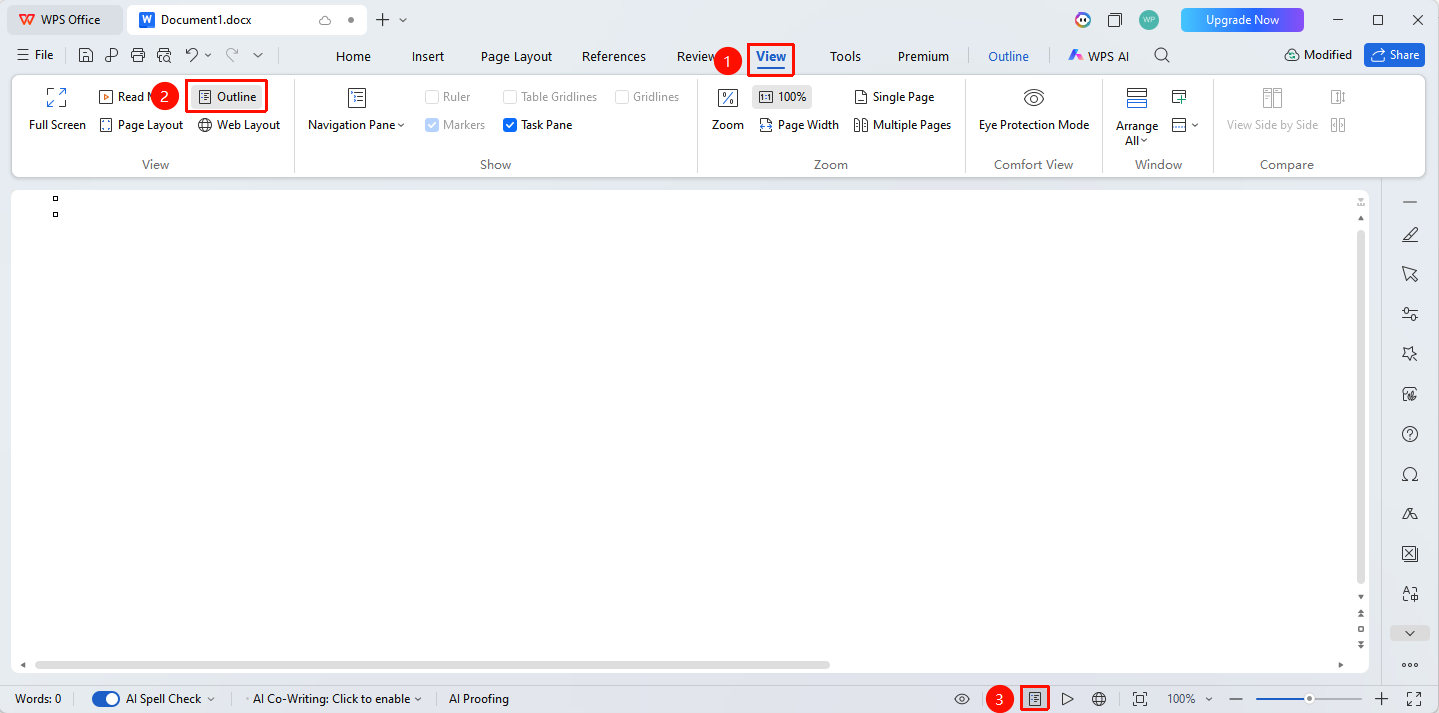
"View" tab → "Outline View"
- Open a WPS Writer document
- Click the "View" tab in the top menu bar
- Select "Outline View" from the view modes to enter
- You can also directly switch by clicking the "Outline" button in the status bar at the bottom right of the interface
Frequently Asked Questions
Question 1: How to adjust heading levels?
- Solution: Select the heading you need to modify, and click the "Promote" / "Demote" buttons on the toolbar (or use the shortcut keys Tab to demote, Shift+Tab to promote) to adjust the heading level.
Question 2: How to quickly adjust chapter order?
- Solution: Select the heading/chapter you want to move, and click the "Move Up" / "Move Down" buttons to quickly adjust the sequence of chapters without repetitive copying and pasting.
Notes
- After entering Outline View, the outline toolbar appears at the top, allowing you to adjust document hierarchy
- Double-click the 「+」 sign before a heading to collapse all sub-content under that heading; click again to expand
- In the "Show Level" dropdown option on the outline toolbar, you can choose to display only headings of a specified level
- After adjustments are complete, click the "View" tab in the top menu bar and select to switch back to "Page" view, or click the "Page" button in the status bar to exit