Feature Summary
Eye Protection Mode adjusts the background color to a soft mung bean green, reducing blue light stimulation from the screen and protecting the eye health of users who work long hours.
Feature Description
| Feature Dimension | Description |
|---|---|
| Membership Restriction | No membership restriction; available to all users |
| Version Restriction | No version restriction; supported in all WPS versions |
Steps
I. Enabling Eye Protection Mode
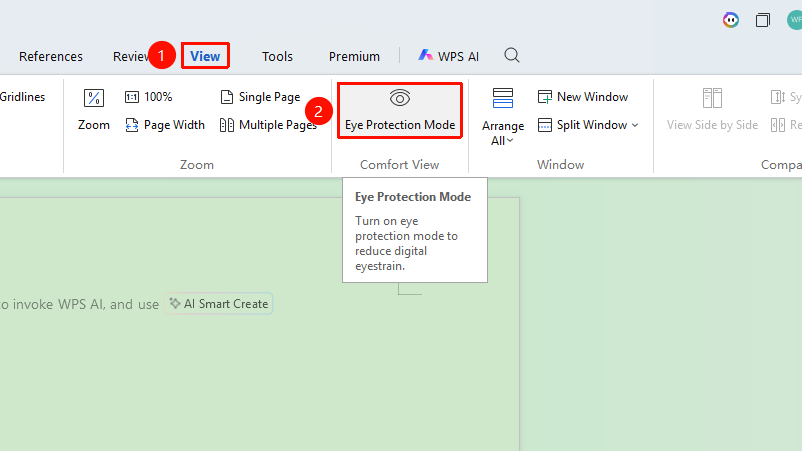
- Click the "View" tab on the top menu bar
- Click the "Eye Protection Mode" button
- The document background will change to a soft mung bean green
II. Disabling Eye Protection Mode
- Click the "View" tab → "Eye Protection Mode" again
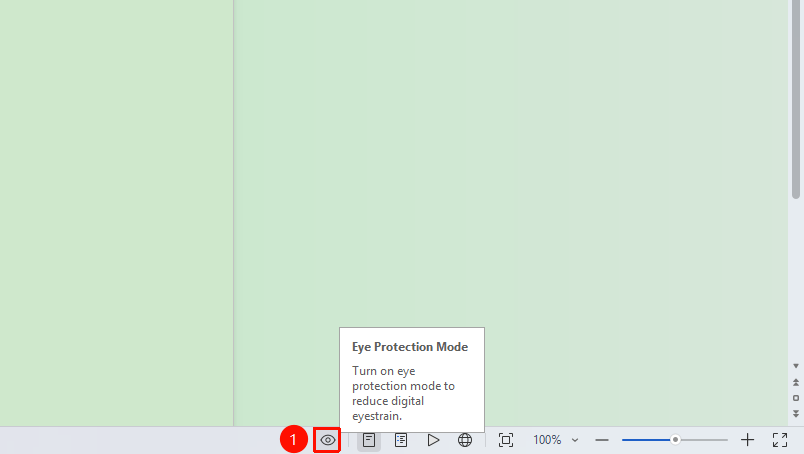
- Or click the Eye Protection Mode icon on the status bar
III. Quick Toggle
- Click the "Eye Protection Mode" icon at the bottom right of the status bar to quickly toggle on/off
FAQ
Q1: The Eye Protection Mode color is too dark/too light
Solution: Customizing the Eye Protection Mode color is currently not supported
Q2: Eye Protection Mode affects printing results
Solution: Eye Protection Mode only affects the screen display and does not affect printing
Notes
- Eye Protection Mode only changes the screen display and does not affect the actual document content
- It is recommended to enable Eye Protection Mode when using the computer for extended periods
- Eye Protection Mode is different from the dark mode in appearance settings