Feature Summary
The Split Window feature allows you to view different parts of the same document simultaneously, supporting both horizontal and vertical splitting. It is ideal for cross-referencing content in long documents and data verification scenarios.
Feature Description
| Feature Dimension | Description |
|---|---|
| Membership Restrictions | No membership restrictions; available to all users |
| Version Restrictions | Supported in all versions of WPS Office |
Steps
Feature Entry
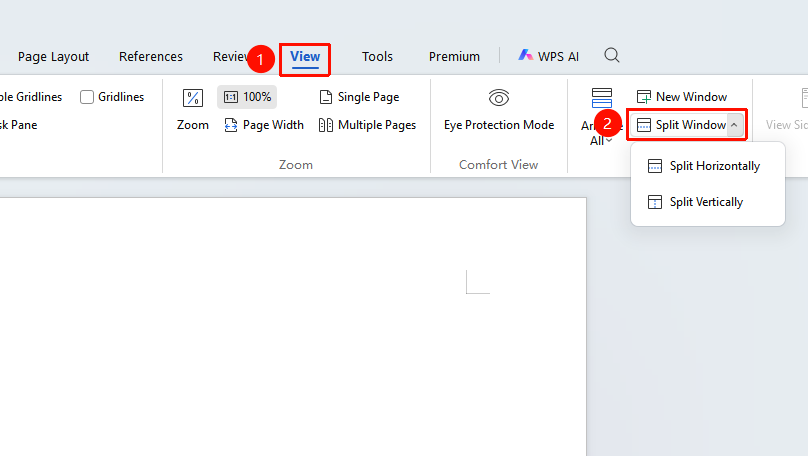
"View" → "Split Window"
- Open a WPS Writer document
- Click the "View" tab in the top menu bar
- Locate the "Split Window" feature and click the dropdown arrow to its right
- Select a split mode:
- Horizontal Split: Splits the document into two independent upper and lower windows, suitable for cross-referencing content in long documents
- Vertical Split: Splits the document into two independent left and right windows, suitable for comparing content in wide documents
- The split will be applied once selected
FAQ
Q1: How do I cancel the split window?
- Solution: Go back to the "View" tab and click "Cancel Split" in the original location to restore.
Q2: Is the content synchronized between the two split windows?
- Solution: Yes, the content in the two split windows is synchronized. Modifying content in either window will update the other window simultaneously.
Notes
- After splitting, the two windows can be scrolled independently for convenient cross-referencing
- You can also access this feature via the file menu: Click the small downward arrow to the right of "File" in the upper-left corner, select "Window Settings", and click "Split Window"
- The Split Window feature is highly suitable for scenarios such as long-form writing and data verification where you need to view different parts of a document at the same time