Feature Summary
When you need to insert beautiful icons into a document to enhance visual expression, the icon feature provides a rich library of icon assets, helping you quickly beautify documents, create infographics, or improve content readability. Core capabilities include:
- Provides a rich categorized icon library
- Supports keyword search for icons
- Icons can be customized with color and size
- Supports direct insertion into documents for use
Feature Description
| Feature Dimension | Description |
|---|---|
| Membership Restriction | The icon insertion feature is free to use; some icon assets require a membership subscription |
| Version Restriction | No version restrictions |
Operation Steps
Some icon assets require a membership subscription to use. Please check the membership label on icons before use.
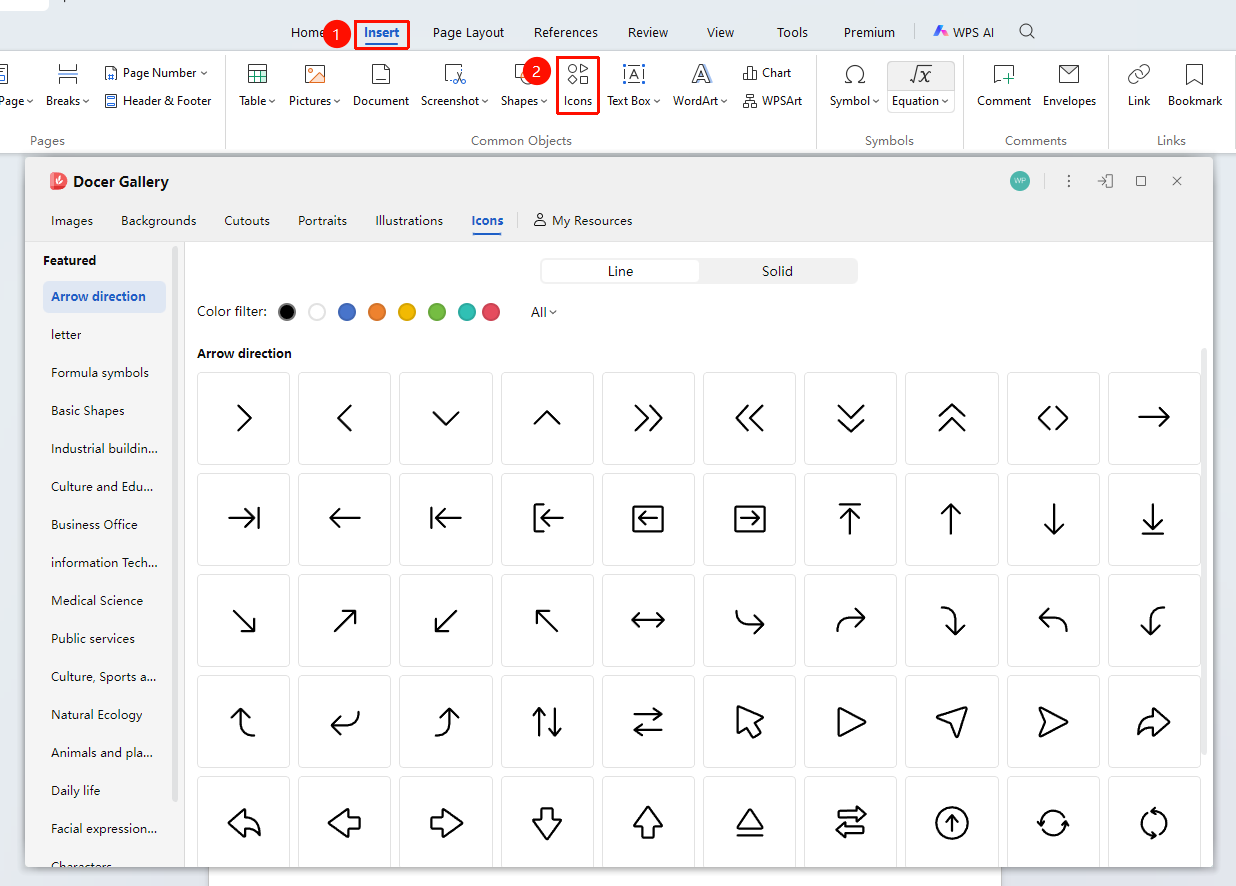
Feature entry path: "Insert" → "Icon"
- Position the cursor where you want to insert the icon
- Click the "Insert" tab in the top menu bar
- Click the "Icon" button to open the icon library panel
- Browse by category to find the desired icon
- Click an icon to insert it into the document
- After selecting the icon, you can adjust its size and color
Frequently Asked Questions
Question 1: How do I change the color of an inserted icon?
- Solution: After selecting the icon, click the "Color" option in the graphics toolbar and choose the desired color to change the icon's fill color.
Question 2: What should I do if I cannot find the desired icon in the icon library?
- Solution: Try searching with different keywords, or browse related categories. You can also use the shape feature to draw the desired graphic yourself.
Notes
- Icons are vector graphics after insertion and will not lose quality when scaled up or down.
- Some icons are protected by copyright. Please check the icon usage license for commercial use.