Feature Summary
The New Window feature allows you to split the same document into multiple independent windows, making it easy to view and edit different parts of the same document simultaneously. Changes made in either window are synchronized back to the original document.
Feature Description
| Feature Dimension | Description |
|---|---|
| Membership Restriction | No membership restriction; available to all users |
| Version Restriction | Supported in all versions of WPS Office |
Steps
Feature Entry
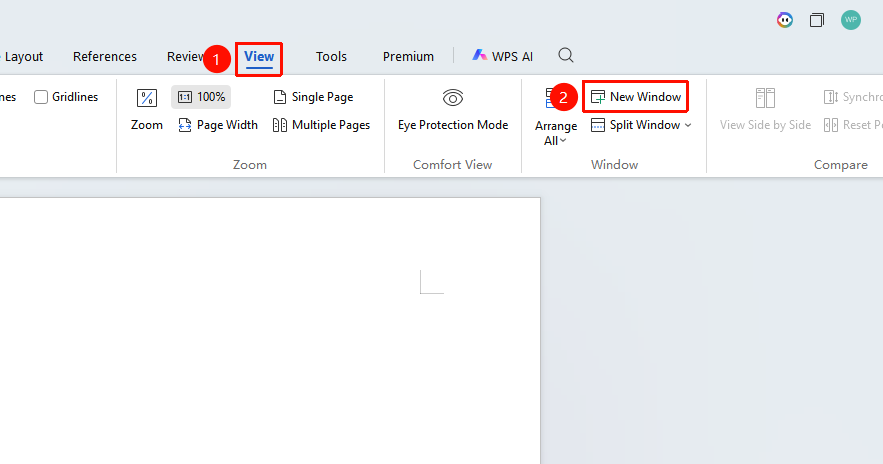
"View" → "New Window"
- Open the WPS Writer document you want to work with
- Click the "View" tab in the top menu bar
- In the "Window" group, locate and click the "New Window" button
- Once completed, two independent windows of the same document will be created
FAQ
Q1: How can I view both windows simultaneously after creating a new window?
- Solution: You can continue by clicking "Arrange Windows" in the "View" tab, and choose to arrange them horizontally, vertically, or in a cascaded layout.
Q2: Are changes synchronized between the two windows?
- Solution: Yes, changes made in either window are synchronized back to the original document. You can scroll to different positions in the document in each window, making it convenient for cross-reference editing.
Notes
- The New Window feature is suitable for scenarios where you need to view different parts of the same document simultaneously
- It can be used in conjunction with the "Arrange Windows" feature to achieve more flexible window layouts
- There is no limit to the number of new windows; you can create multiple windows as needed
- Closing any single window will not affect other windows or the original document