Feature Summary
The ruler is an auxiliary layout tool in WPS Docs, displayed at the top and left of the document editing area. It can be used to precisely set layout parameters such as paragraph indentation, tab stops, and page margins.
Feature Description
| Feature Dimension | Description |
|---|---|
| Membership Restriction | No membership restriction; available to all users |
| Version Restriction | No version restriction; supported across all WPS client versions |
Operation Steps
Show/Hide Ruler
Feature Entry
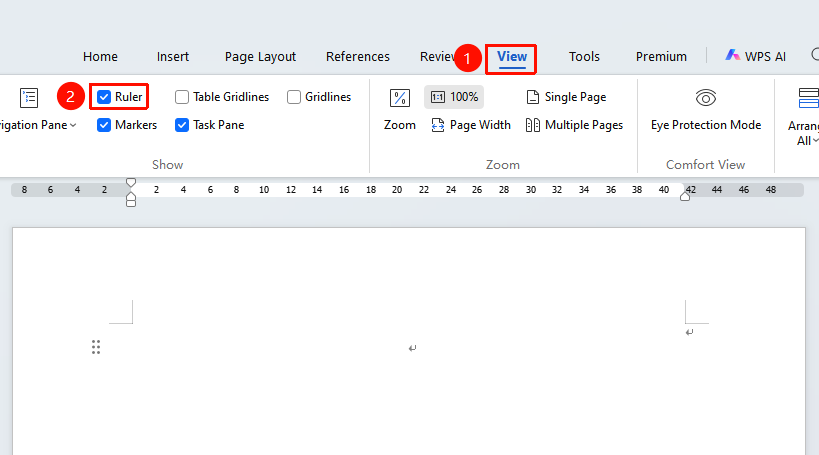
"View" tab → "Ruler"
- Open a WPS Writer document
- Click the "View" tab in the top menu bar
- Check the "Ruler" checkbox to display the ruler
- Uncheck it to hide the ruler
Using the Ruler to Set Paragraph Indentation
Feature Entry
Horizontal ruler at the top of the document
- Select the paragraph(s) you want to indent
- Drag the indentation markers on the ruler:
- First-line indent: Drag the upper triangle marker
- Hanging indent: Drag the lower triangle marker
- Left indent: Drag the lower rectangle marker
- Right indent: Drag the triangle marker on the right side of the ruler
Using the Ruler to Set Tab Stops
Feature Entry
Left side of the horizontal ruler at the top of the document
- Click the tab stop type button on the left side of the ruler to switch alignment types
- Click on the ruler where you want to add a tab stop
Using the Ruler to Adjust Page Margins
Feature Entry
Gray areas on the top and left rulers of the document
- Move the mouse to the boundary between the gray and white areas on the ruler
- When the cursor changes to a double-headed arrow, drag to adjust the page margins
- Release the mouse to complete the adjustment
Frequently Asked Questions
Q1: What should I do if the ruler is not displayed?
- Solution: Click the "View" tab and check the "Ruler" checkbox. If it still does not display, check if you are in Web Layout view and switch to Page Layout view.
Q2: How do I change the units on the ruler?
- Solution: Click "File" → "Options" → "General & Save", and select the desired unit (centimeters, inches, millimeters, etc.) under "Measurement units".
Notes
- The ruler is only fully displayed in Page Layout view
- The scale on the ruler changes according to the set measurement unit
- A shortcut entry for the ruler can also be found in the upper right corner of the editing area / left side of the task pane