Feature Summary
The watermark feature allows you to add semi-transparent text or image identifiers to the background of document pages. It is commonly used to indicate document status (e.g., "Draft," "Confidential") or for branding purposes.
Feature Description
| Feature Dimension | Description |
|---|---|
| Membership Restriction | No membership restriction; available to all users |
| Version Restriction | No version restriction; supported in all versions of WPS Docs |
Operation Steps
Adding a Preset Text Watermark
Feature Entry
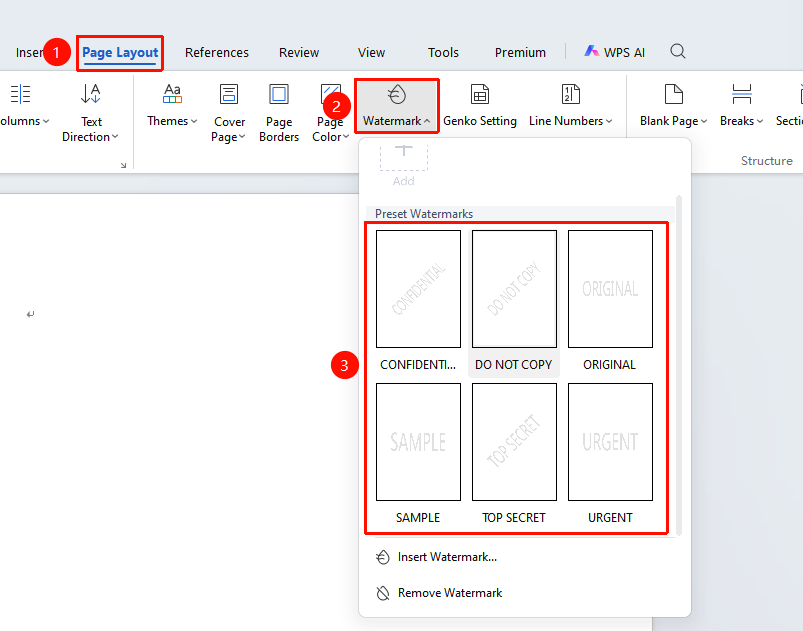
"Page" tab → "Watermark" drop-down menu
- Click the Watermark drop-down menu in the Page tab
- Select a preset watermark style from the drop-down menu
- Examples: Confidential, Do Not Copy, Draft, Sample, etc.
- Click to apply it to all pages of the document
Custom Text Watermark
Feature Entry
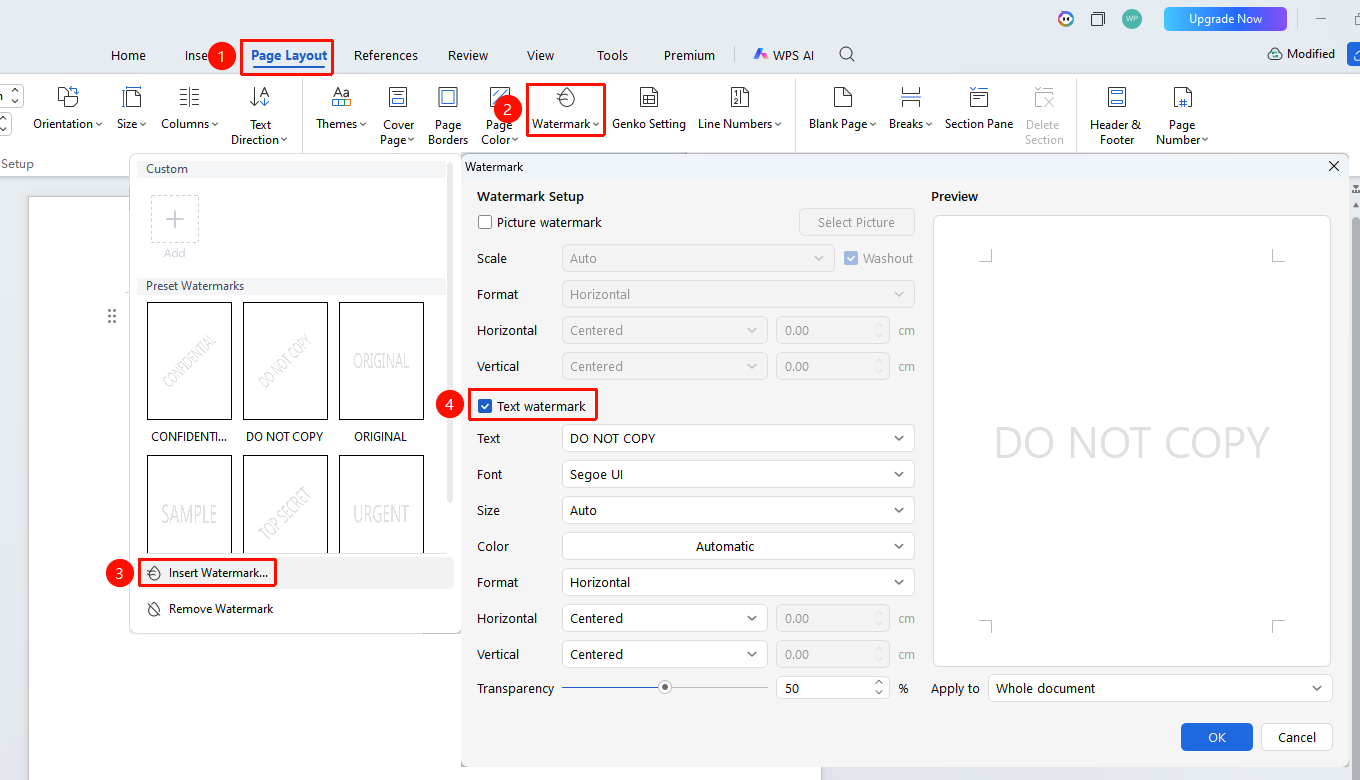
"Page" tab → "Watermark" drop-down menu → "Insert Watermark" option
- Click the Watermark drop-down menu in the Page tab
- Select the Insert Watermark option from the drop-down menu
- Select "Text watermark"
- Enter the watermark text content
- Set the font, font size, color, and layout (Diagonal/Horizontal)
- Click OK to apply
Adding an Image Watermark
Feature Entry
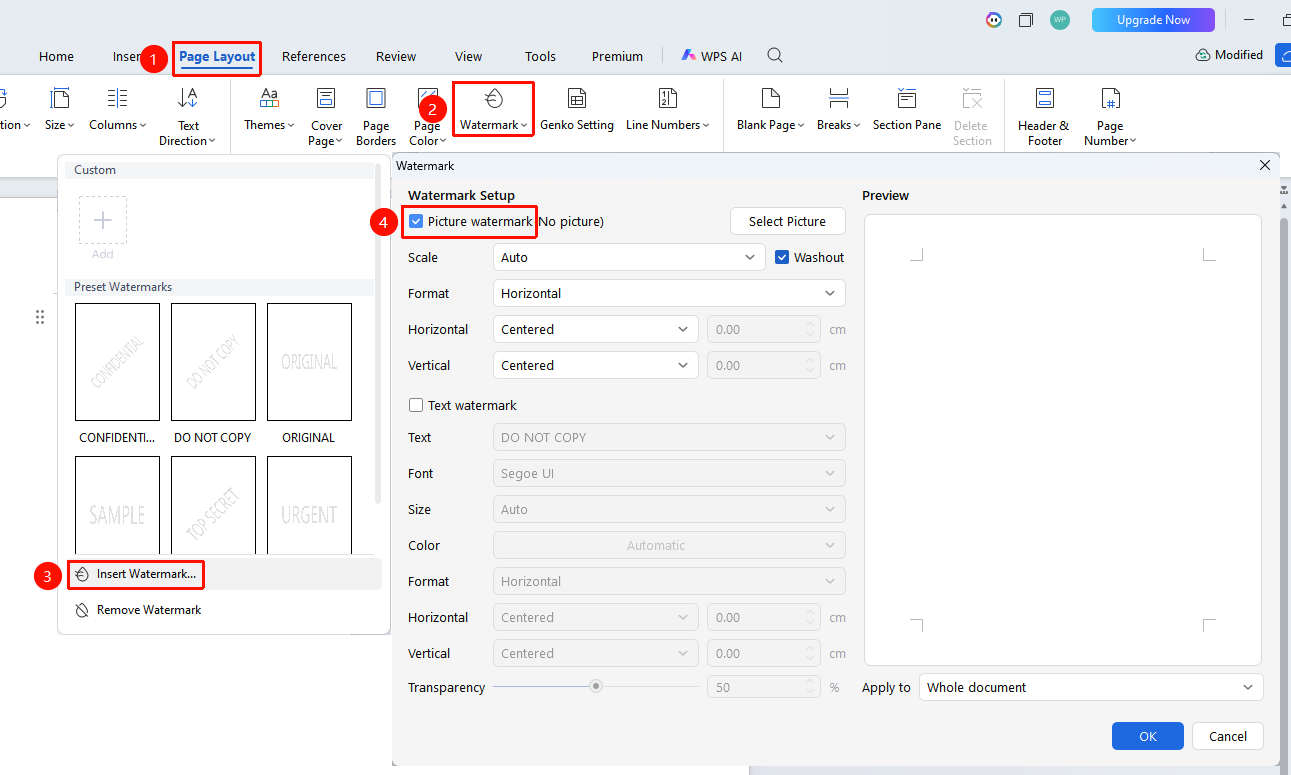
"Page" tab → "Watermark" drop-down menu → "Insert Watermark" option
- Click the Watermark drop-down menu in the Page tab
- Select the Insert Watermark option from the drop-down menu
- In the pop-up dialog box, check the Image watermark option
- Click Select Picture to upload a local image
- Set the image scaling ratio
- Optionally choose whether to wash out (fade effect)
- Click OK to apply
Frequently Asked Questions
Q1: How to remove a watermark
- Solution: Click "Watermark" and select "Remove Watermark" to delete it.
Q2: How to set different watermarks for different pages
- Solution: Insert section breaks, unlink the header from the previous section, and then set the watermarks separately.