Feature Summary
The chapter navigation feature displays a chapter structure tree on the left side of the document, supporting quick jumps and chapter management for easier browsing and editing of long documents.
Feature Description
| Feature Dimension | Description |
|---|---|
| Membership Restriction | No membership restriction; available to all users |
| Version Restriction | No version restriction; supported in all versions of WPS Docs |
Operation Steps
Enabling Chapter Navigation
Feature Entry
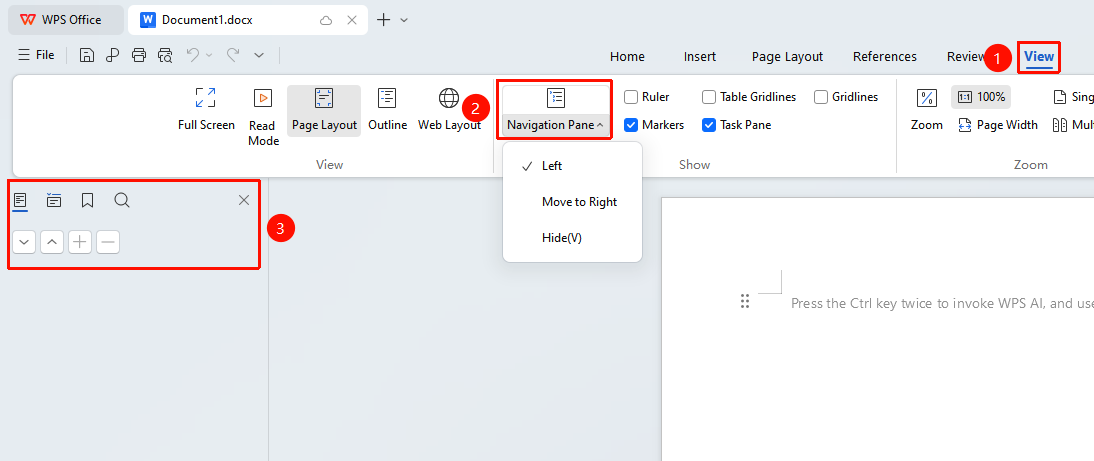
"View" tab → "Navigation Pane" option
- Click the View tab
- Click the "Navigation Pane" option
- The chapter navigation panel will appear
- Click a chapter title to quickly jump to the corresponding location
Frequently Asked Questions
Question 1: The navigation pane does not display chapter content
- Solution: Confirm that headings in the document have heading styles applied (Heading 1, Heading 2, etc.). Content without heading styles will not appear in the navigation.
Notes
- Chapter navigation is generated based on heading styles
- Use the navigation pane to quickly locate sections in long documents
- Supports dragging in the navigation pane to rearrange chapter order