Feature Summary
When you need to enhance the visual appeal of a document, differentiate document purposes, or protect document copyright, the background feature in WPS Docs offers a variety of background styles including solid colors, gradients, textures, patterns, and images, as well as text/image watermark capabilities, helping you quickly create professional and attractive documents.
- Solid Color Background: Set a uniform background color for the document with one click, suitable for eye-friendly reading or distinguishing document types
- Gradient/Texture/Pattern Background: Provides rich visual effects, suitable for covers, promotional pages, and similar scenarios
- Image Background: Supports local images as full-page backgrounds, suitable for brand displays, event posters, etc.
- Text Watermark: Add status indicators such as "Confidential," "Draft," or "Sample" to protect document security
- Image Watermark: Supports image watermarks such as corporate logos to enhance brand recognition
Feature Description
| Feature Dimension | Description |
|---|---|
| Membership Restriction | Some background images and fill options require a membership to use |
| Version Restriction | No version restriction; supported across all WPS client versions |
Operation Steps
I. Setting a Solid Color Background
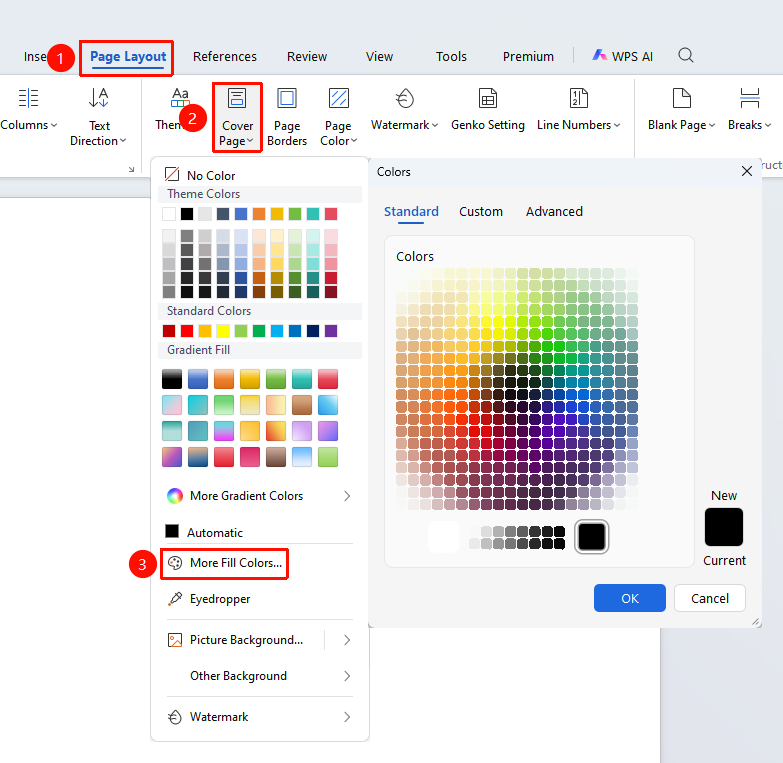
Feature Entry: "Page" tab → "Background" → "Theme Colors"
- Open the target WPS Docs document and click the "Page" tab in the top menu bar
- In the tools group, find and click "Background" → "Theme Colors"
- Directly select a preset theme color or standard color from the palette; click to apply immediately
- To customize a color, click "More Fill Colors", where you can precisely mix colors via the color panel, enter RGB/HEX color values,
and use the eyedropper tool to automatically pick a color - Once confirmed, the selected background color will be applied to the entire document
II. Setting a Gradient Background
Some preset gradient colors require a membership to use
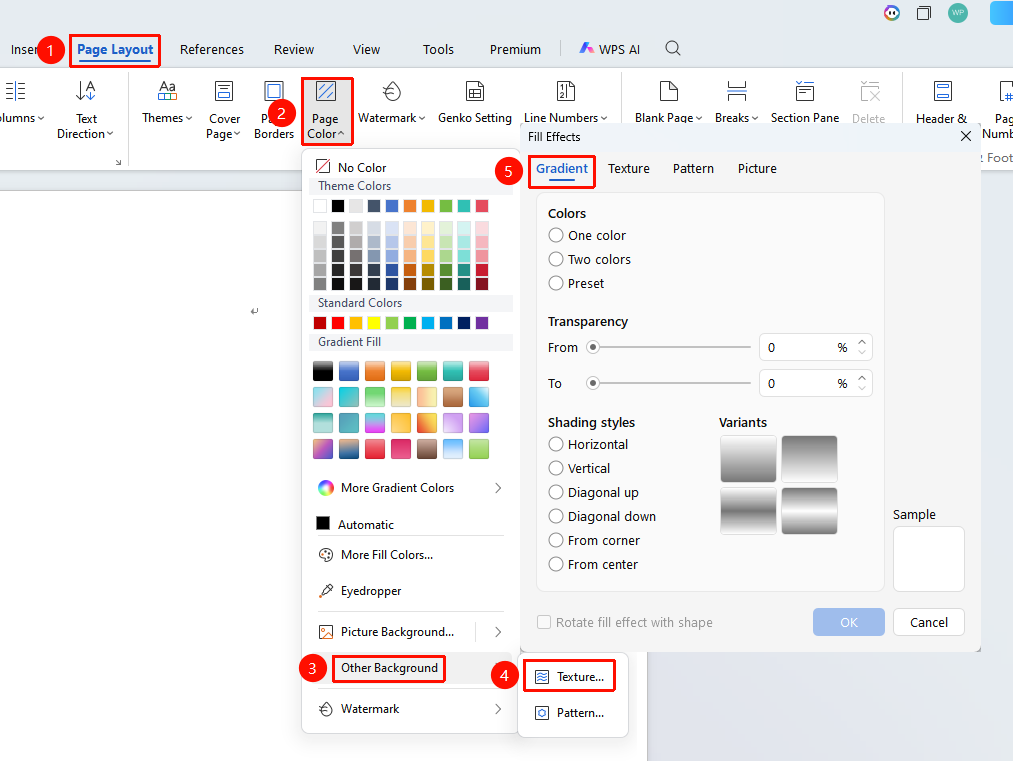
Feature Entry: "Page" tab → "Background" → "Gradient Fill"
- Click the "Page" tab, select "Background" → "Gradient Fill"
- Select the gradient type
- Set the transition colors, gradient angle, and transparency
- Click "OK" to apply the gradient background
- Click the "Page" tab → "Other Backgrounds" → "Texture/Pattern" → "Gradient"
- Customize the desired gradient type
III. Setting a Texture/Pattern Background
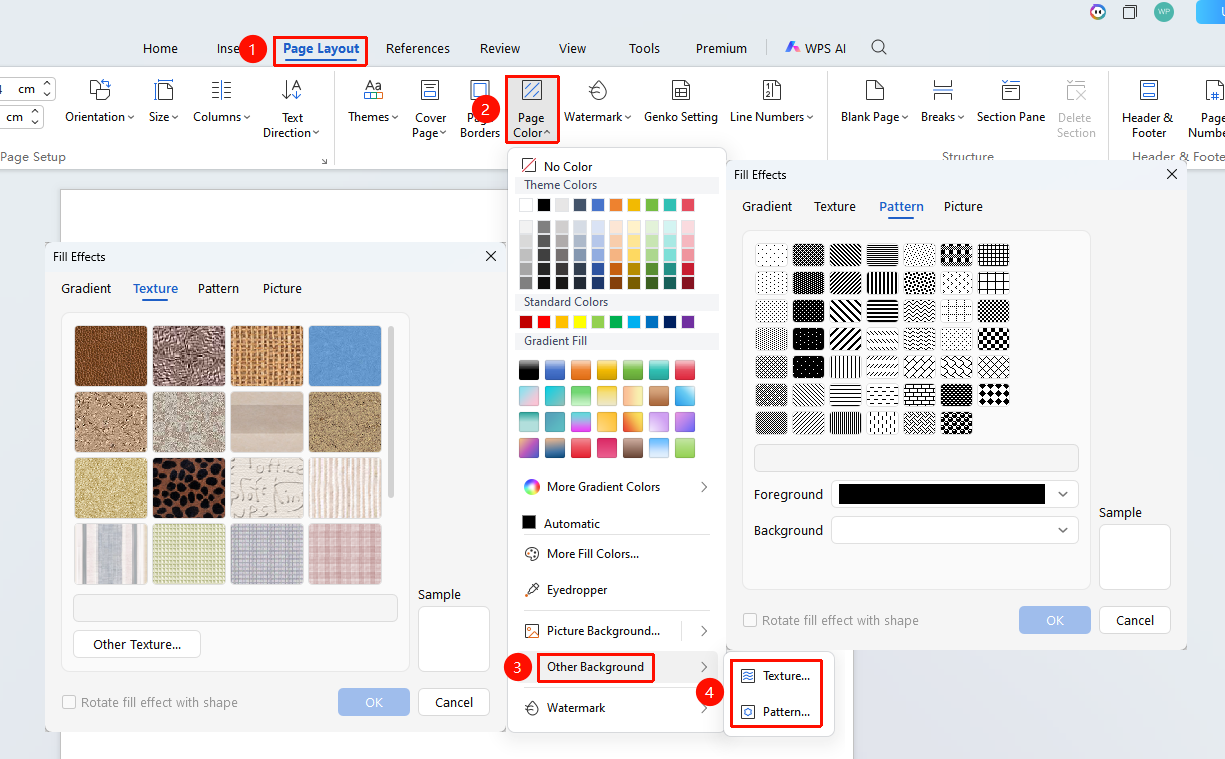
Feature Entry: "Page" tab → "Other Backgrounds" → "Texture/Pattern"
- Click the "Page" tab → "Other Backgrounds"
- Switch to the "Texture" option to select built-in texture effects such as parchment or rice paper; you can also click "Other Textures" to upload a custom one
- Or switch to the "Pattern" option, select a preset pattern, and adjust the foreground and background colors
- Click "OK" to apply
IV. Setting an Image Background
Includes some paid background images
Method 1: Insert Directly via the Background Feature
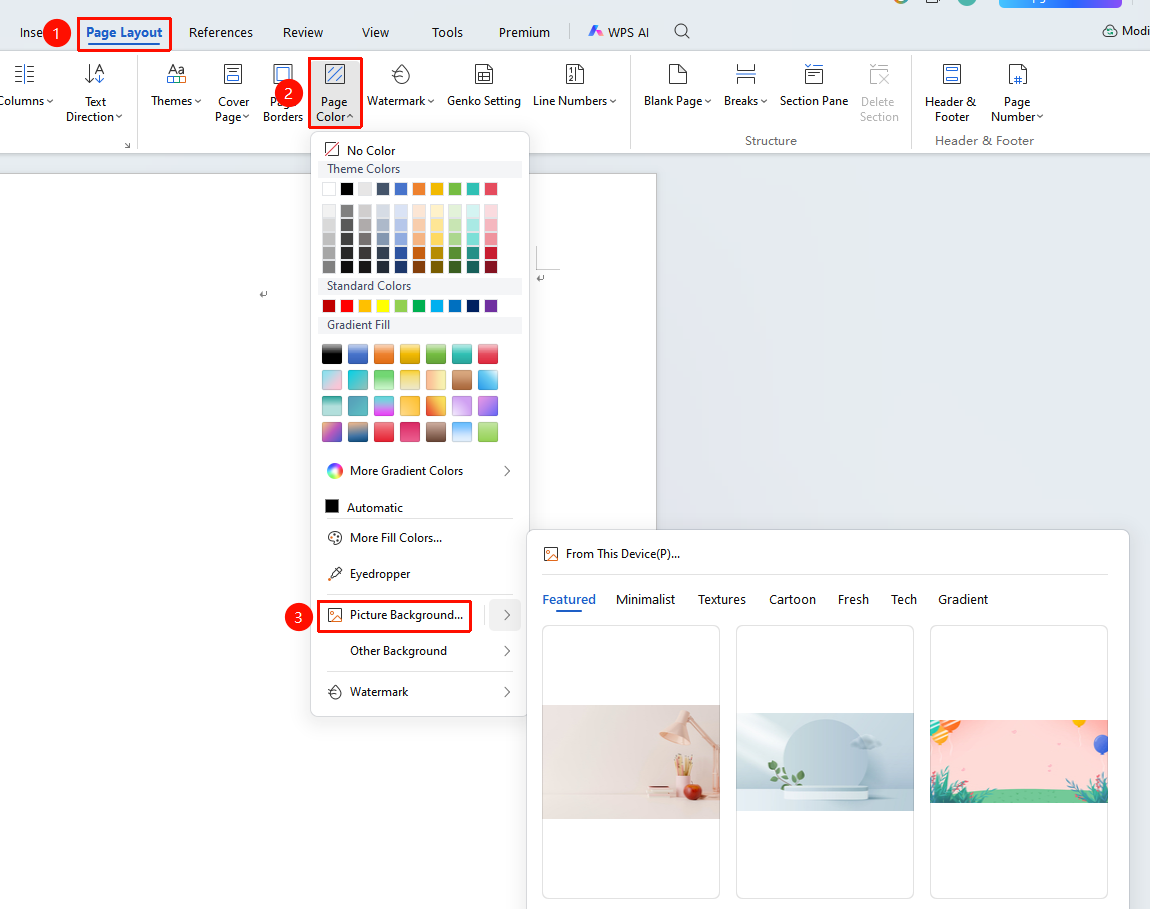
Feature Entry: "Page" tab → "Background" → "Image Background"
- Click the "Page" tab, then click "Background" → "Image Background"
- Click "Select Image" to import the target image from your local device
- Select the fill method:
- Stretch Fill: The image automatically adapts to the page size (Recommended)
- Tile Display: Small patterns are repeated and arranged to fill the page
- Check "Lock Aspect Ratio" to prevent image distortion
- Click "OK" to complete the setup
Method 2: Achieve a Custom Background by Inserting an Image
Feature Entry: "Insert" → "Image"
- Click the top "Insert" tab → "Image" to import the target image
- Adjust the image size to cover the entire page
- Right-click the image → select "More Layout Options" → "Text Wrapping" → set to "Behind Text"
- To adjust transparency, adjust the transparency slider in the Picture Tools tab
- Lock the image position to prevent accidental movement> Optimization Tip: It is recommended to use a background image with low saturation, blurring, or 80%–90% transparency to avoid distracting from the main text.
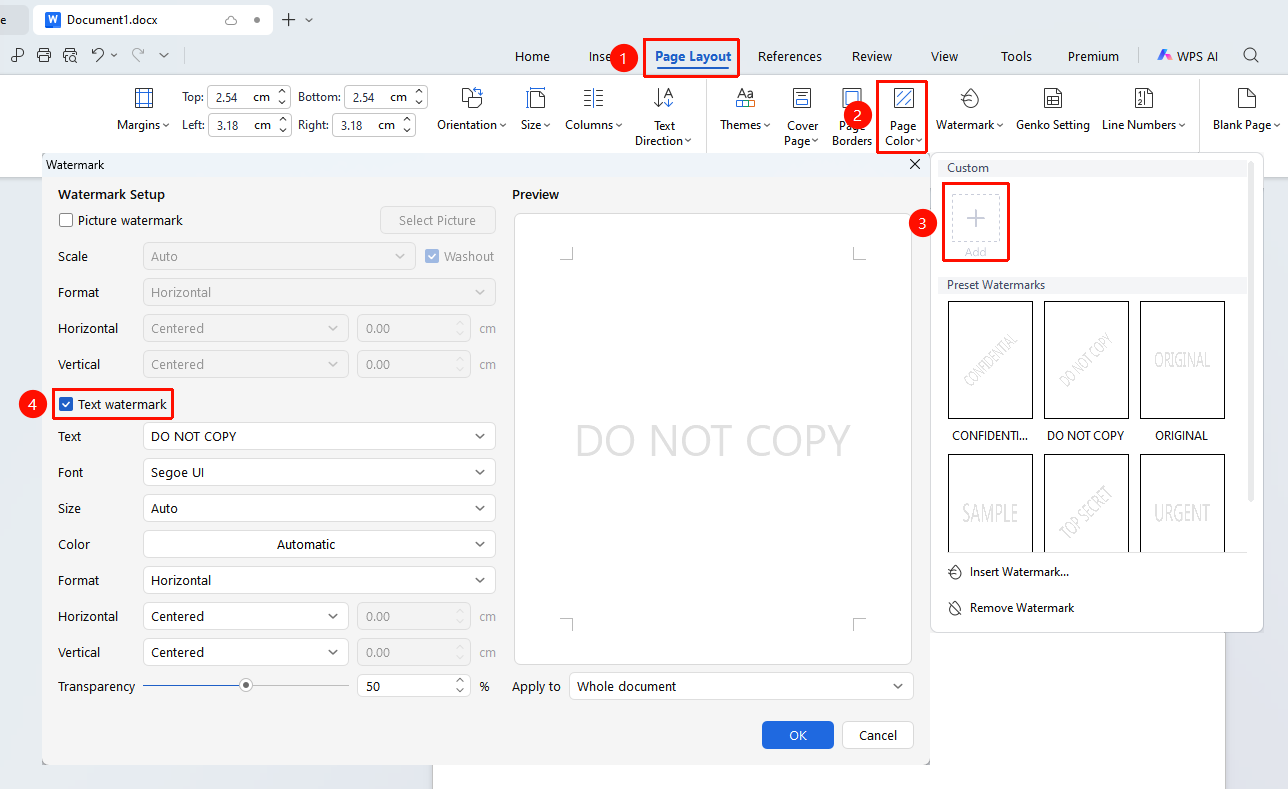
5. Adding a Text Watermark
Feature Path: "Page Layout" → "Watermark" → "Custom Watermark"
- Click the "Page Layout" tab and locate the "Watermark" button.
- WPS provides common preset watermarks (such as "Confidential", "Do Not Copy", "Sample", etc.); click to apply them quickly.
- For customization, click "Custom Watermark".
- Select "Text Watermark" and enter the watermark text.
- Set the font, font size, color, layout (Diagonal/Horizontal), and transparency.
- Click "Apply" to take effect.
[Screenshot placeholder: Watermark → Custom Watermark → Text Watermark Settings]
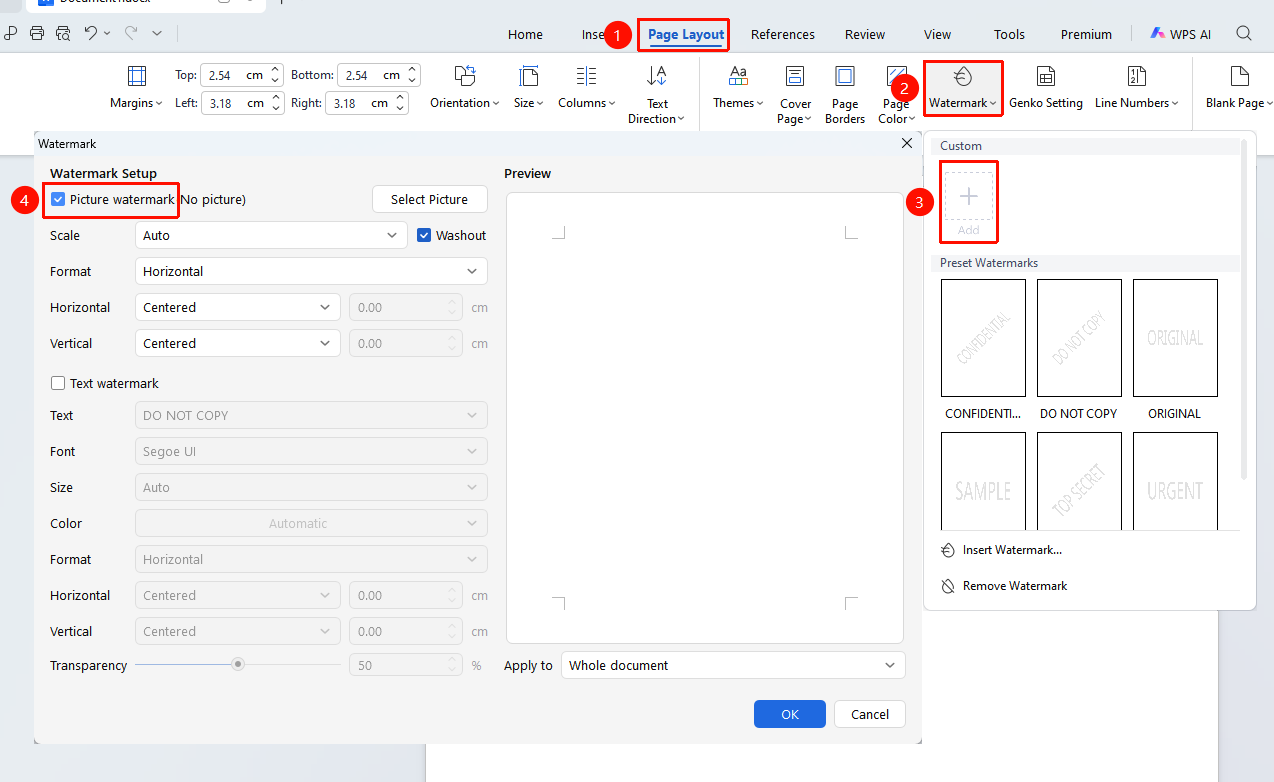
6. Adding a Picture Watermark
Feature Path: "Page Layout" → "Watermark" → "Custom Watermark"
- Click "Page Layout" → "Watermark" → "Custom Watermark".
- Select "Picture Watermark".
- Click "Select Picture" to import a local image (e.g., a company logo).
- Select "Washout" to achieve a semi-transparent effect.
- Adjust the picture scaling.
- Click "Apply", and the watermark will automatically tile across all pages.
Tip: Right-click on an existing watermark to edit it again and choose its application scope (Entire Document / This Section / Specified Pages).
7. Deleting / Removing the Background
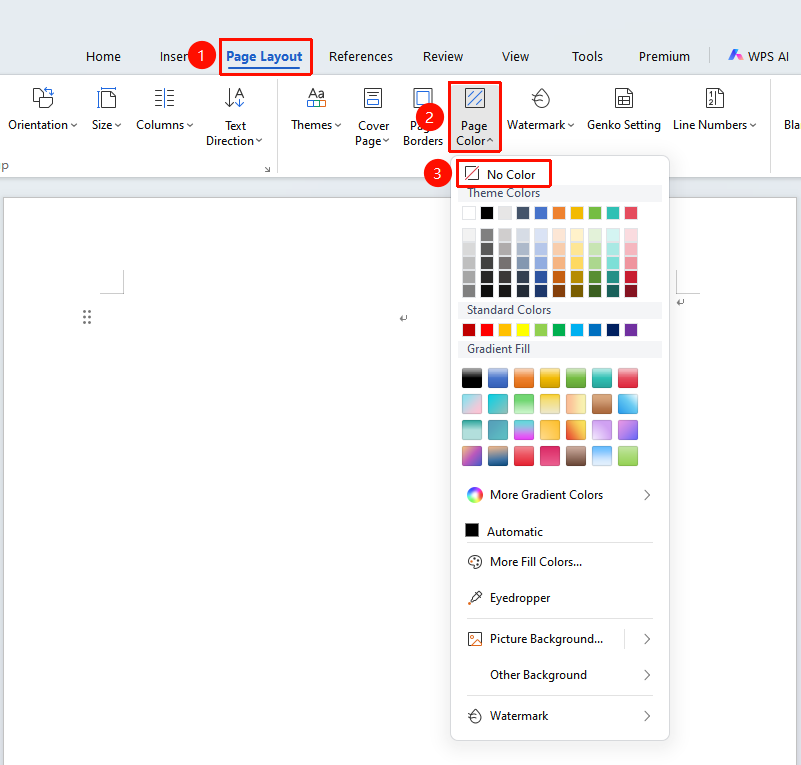
Feature Path: "Page" → "Background" → "Remove Page Background"
- Remove Color/Picture Background: Click the "Page" tab → "Background" → "Remove Page Background" (or "Theme Colors" → "No Fill Color").
- Remove Watermark: Click "Watermark" → "Remove Watermark from Document".
FAQ
Q1: The background image does not display in full and appears cropped.
- Solution: This is caused by a mismatch between the image size and the paper size.
- Method 1: Use an image editing tool to resize the image to match the paper dimensions before inserting it;
- Method 2: After inserting the image, hold Shift and drag to scale it proportionally to fit the page, then set it to "Behind Text".
Q2: The background does not print.
- Solution: WPS does not print page backgrounds by default.
- Click "File" → "Options" → "Print", check "Print background colors and images", and click OK to print the document with the background normally.
Q3: How to set a different background/watermark on only one specific page?
- Solution: Use section breaks. Insert a "Section Break" before the page that requires a different background, and then implement the different background via "Insert" → "Picture".
Notes
- Printing Defaults to No Background: WPS does not print page backgrounds and watermarks by default. You must manually check "Print background colors and images" in "File → Options → Print".
- Picture Background Recommendations: It is recommended to use low-saturation or blurred images as backgrounds to avoid affecting the readability of the main text.
- Watermark Removal Limitations: The "Watermark" function can only remove watermarks added through WPS; it cannot remove watermarks added manually by inserting pictures (those must be deleted manually).
- Online Version Differences: The background feature path in the online version of WPS Writer is "Page" → "Background". The functionality is largely consistent with the desktop version, but some advanced settings (such as detailed gradient adjustments) may be limited.
- Background and Watermark Overlay: Backgrounds and watermarks can be used simultaneously. The background sits at the bottom layer, with the watermark above the background but below the text.