Feature Summary
The line numbering feature displays the number of each line on the left side of the document, making it easy to reference and locate content. It is commonly used in legal documents, technical documentation, and similar materials.
Feature Description
| Feature Dimension | Description |
|---|---|
| Membership Restriction | No membership restriction; available to all users |
| Version Restriction | No version restriction; supported in all versions of WPS Docs |
Steps
Adding Line Numbers
Feature Entry
"Page" tab → "Line Numbers" drop-down menu
- Click the "Line Numbers" drop-down menu in the Page tab
- Select a line numbering style:
- Continuous: Continuous numbering throughout the entire document
- Restart Each Page: Numbering restarts from 1 on each page
- Restart Each Section: Numbering restarts from 1 in each section
- Click to apply line numbers
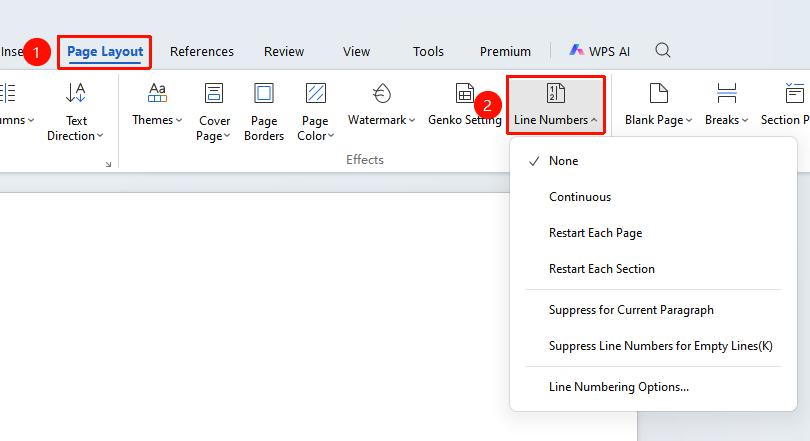
Custom Line Numbering Settings
Feature Entry
"Page" tab → "Line Numbers" drop-down menu → "Line Numbering Options" button
- Click the Page tab
- Click "Line Numbering Options" in the Line Numbers drop-down menu
- In the pop-up dialog, check Add line numbers
- Set the line number values as desired
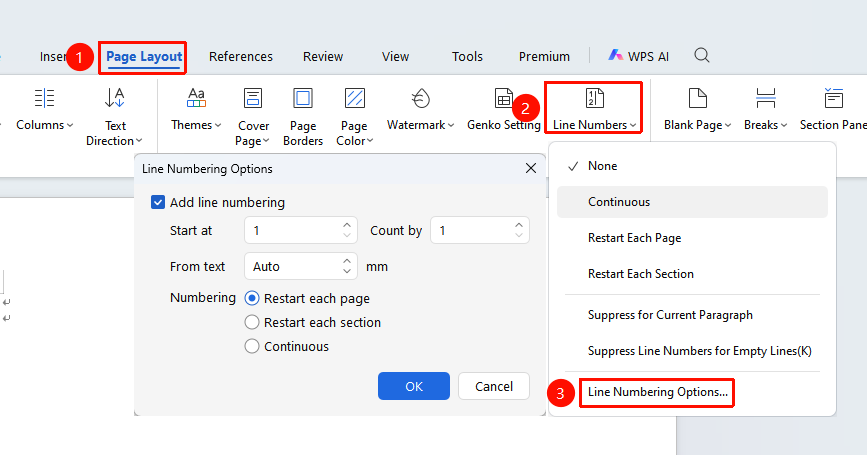
FAQ
Q1: How to remove line numbers from a specific paragraph
- Solution: Select the paragraph, open line number settings, and check "Suppress for current paragraph".
Notes
- Line numbers are displayed only in Page view
- Content inside tables and text boxes does not display line numbers