Feature Summary
The Table Gridlines feature is used to show or hide the dashed outlines of cells in a table where no borders have been set, helping users view and edit the table structure more clearly.
Feature Description
| Feature Dimension | Description |
|---|---|
| Membership Restriction | No membership restriction; available to all users |
| Version Restriction | No version restriction; supported across all WPS client versions |
Steps
Show/Hide Table Gridlines
Feature Entry
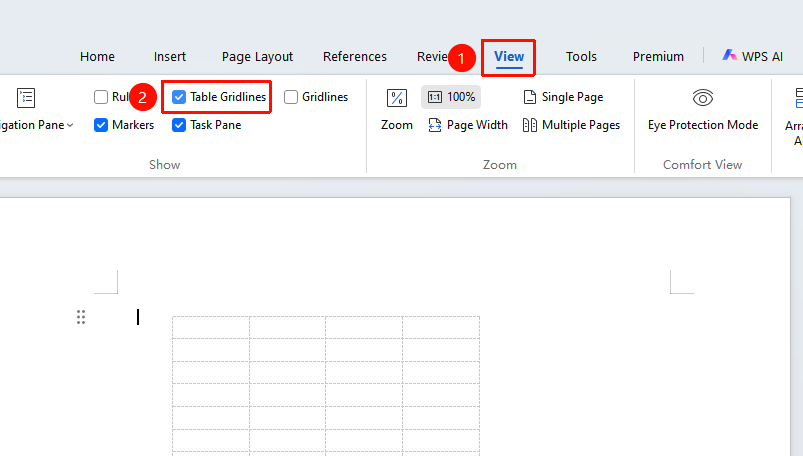
"View" tab → "Table Gridlines"
- Open a WPS Writer document containing a table
- Click the "View" tab in the top menu bar
- Check the "Table Gridlines" checkbox to display table gridlines
- Uncheck it to hide table gridlines
Difference Between Gridlines and Solid Borders
Feature Entry
"Table Tools" tab → "Borders" settings
- Gridlines: Visible only during editing; do not appear when printed
- Solid Borders: Added via border settings; visible when printed
- You can add solid borders to a table via the "Home" tab → "Borders"
FAQ
Q1: What should I do if a table copied from other software has no border lines?
- Solution: This is because the copied table may have no actual border lines. Click "View" and check "Table Gridlines" to display gridlines, or select the table and add solid borders via "Home" → "Borders".
Q2: What should I do if table gridlines are printed?
- Solution: Table gridlines are not printed by default. If gridlines appear when printing, check whether the table borders were mistakenly set to dashed lines, or uncheck "Table Gridlines" before printing.
Notes
- Table gridlines are for editing reference only and will not be printed
- Gridlines can help identify cell boundaries in tables without borders
- It is recommended to enable gridlines when editing complex tables
- After selecting a table range and entering "Table Tools", you can also find the "Table Gridlines" feature