Feature Summary
The Rearrange Windows feature allows you to arrange multiple open documents within the same interface, supporting three layout modes: Horizontal Tile, Vertical Tile, and Cascade, making it convenient to view or edit multiple documents simultaneously.
Feature Description
| Feature Dimension | Description |
|---|---|
| Membership Restriction | No membership restriction; available to all users |
| Version Restriction | Supported in all versions of WPS Office |
Steps
Feature Entry
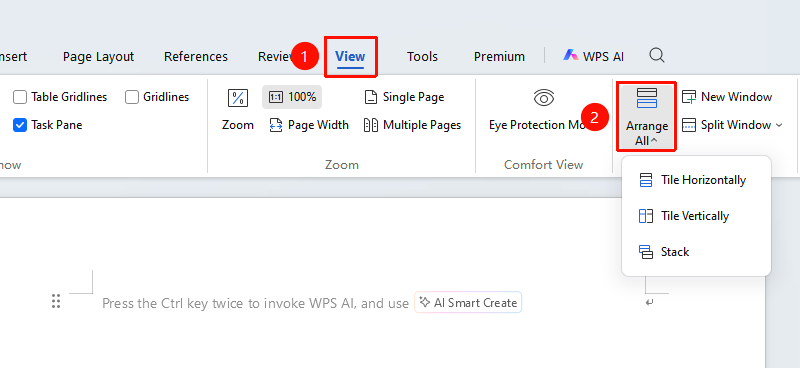
"View" → "Rearrange Windows"
- Open multiple WPS Writer documents that you need to work with simultaneously
- Click the "View" tab in the top menu bar
- Locate "Rearrange Windows" in the ribbon and click the dropdown arrow to expand the options
- Select the desired arrangement mode:
- Horizontal Tile: All document windows are spread out from top to bottom, suitable for comparing vertical content across documents
- Vertical Tile: All document windows are spread out from left to right, suitable for comparing horizontal content across documents
- Cascade: Multiple windows are stacked in sequence, suitable for quickly switching between multiple documents
FAQ
Q1: How do I cancel the window rearrangement?
- Solution: Select any window and click the "Maximize" button in the upper right corner of the window to restore the default display.
Q2: Can I resize the windows after rearranging them?
- Solution: Yes, after rearranging, you can manually drag the edges of a window to customize the size and position of each window.
Notes
- If you need to split the view of a single document, you can use "New Window" in advance to generate multiple windows of the same document
- Horizontal Tile is suitable for comparing data and cross-referencing context when writing a paper
- Vertical Tile is suitable for comparing and revising two similar documents side by side
- Cascade mode retains the accessibility of all windows, making it easy to switch between them quickly