Feature Summary
Reading Layout is a focused reading view mode provided by WPS Docs. It hides the editing toolbar and offers a more comfortable reading experience, making it suitable for reading and reviewing long documents.
Feature Description
| Feature Dimension | Description |
|---|---|
| Membership Restrictions | No membership restrictions; available to all users |
| Version Restrictions | No version restrictions; supported across all WPS client versions |
Steps
Entering Reading Layout
Feature Entry
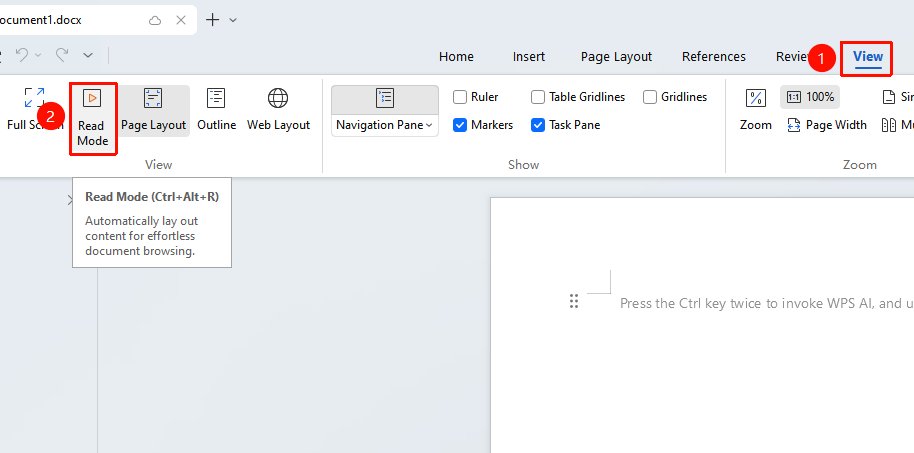
"View" tab → "Reading Layout"
- Open a WPS Docs document
- Click the "View" tab in the top menu bar
- In the "Layout" function group, click "Reading Layout"
- The document will switch to Reading Layout view
Exiting Reading Layout
Feature Entry
The "Close" button in the upper right corner of the Reading Layout interface
- In Reading Layout mode, click the "Close" button in the upper right corner
- Or press the
Esckey on the keyboard to exit Reading Layout - The document will return to the normal page view
Reading Layout Settings
Feature Entry
The top toolbar of the Reading Layout interface
- After entering Reading Layout, you can quickly jump to a document location via the table of contents pane
- You can select single-page, two-page, or adaptive (multi-page) display modes
- You can choose to view or hide comments
- You can select an area to add highlighting
- Use the arrow keys or scroll the mouse wheel to turn pages
FAQ
Q1: How do I edit a document in Reading Layout?
- Solution: Reading Layout is primarily for reading. If you need to edit, please exit Reading Layout first, return to the normal page view, and then perform editing operations.
Q2: What is the difference between Reading Layout and Reading Mode?
- Solution: Reading Layout is a type of view mode that hides the editing toolbar; Reading Mode (Reading View) is an independent reading window that provides a more immersive reading experience.
Notes
- Some editing functions are unavailable in Reading Layout
- Suitable for reading long documents, papers, reports, etc.
- A shortcut entry to Reading Layout can also be found on the right side of the bottom status bar