Feature Summary
The page margin feature is used to set the distance between document content and the paper edge. It supports preset styles and custom values to ensure the document printing results meet your requirements.
Feature Description
| Feature Dimension | Description |
|---|---|
| Membership Restriction | No membership restriction; available to all users |
| Version Restriction | No version restriction; supported in all versions of WPS Docs |
Operation Steps
Setting Preset Page Margins
Feature Entry
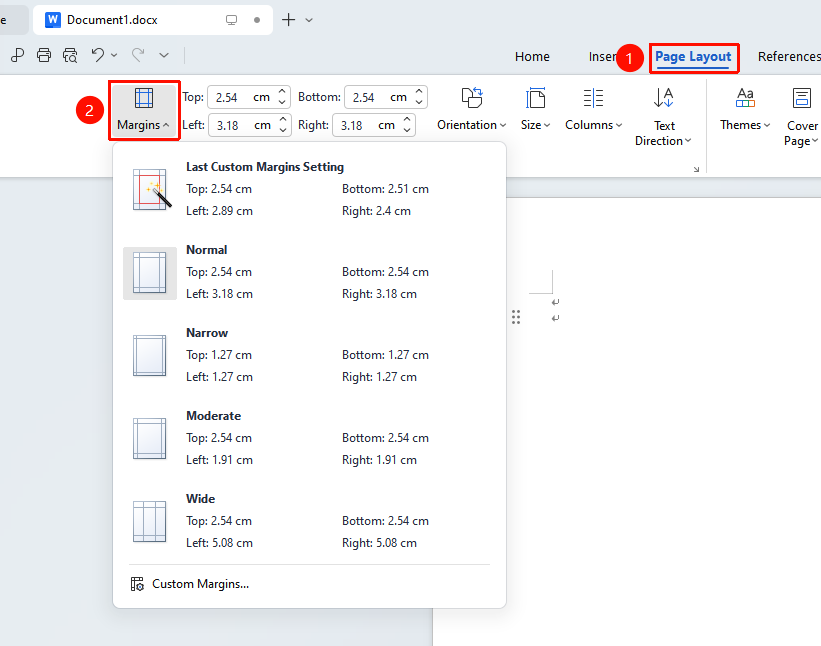
"Page" tab → "Margins" drop-down menu
- Click the "Margins" drop-down menu in the Page tab
- Select an existing margin option to apply the chosen style
Custom Page Margins
Feature Entry
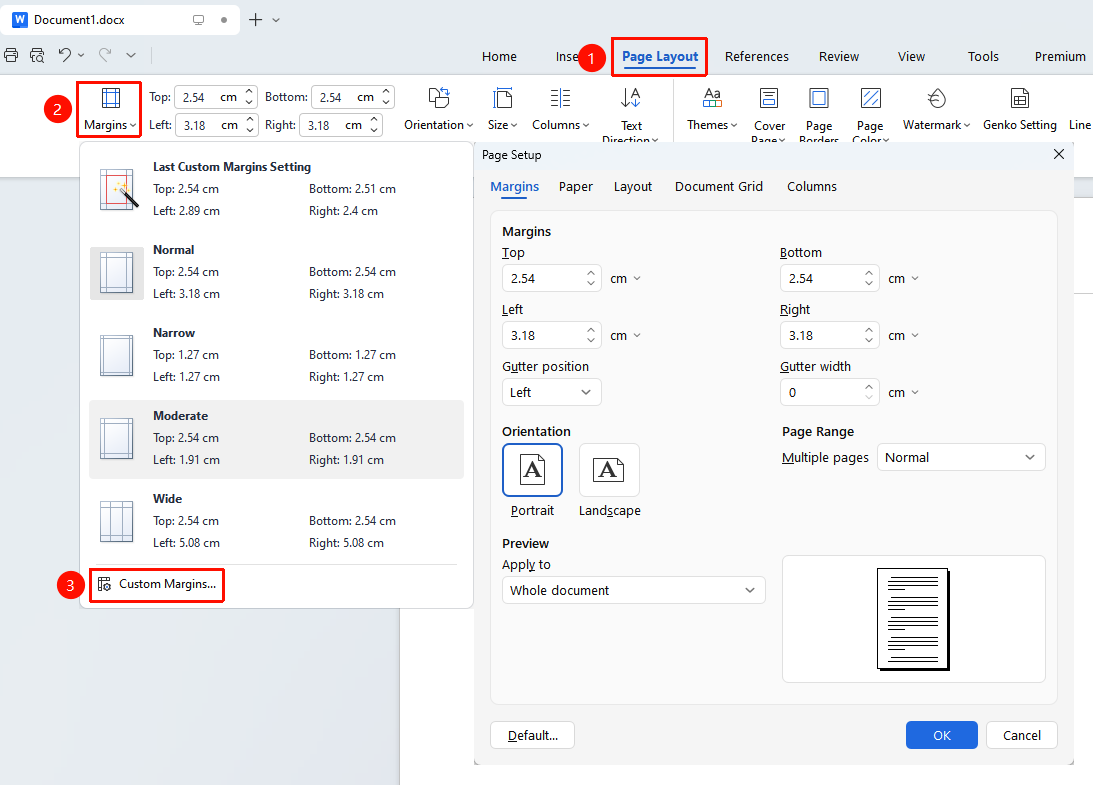
"Page" tab → "Margins" drop-down menu → "Custom Margins" option
- Click the "Margins" drop-down menu in the Page tab
- Select the "Custom Margins" option from the drop-down menu
- Set the top, bottom, left, and right margin values in the pop-up dialog box
- Set the gutter position and width
- Choose the apply scope: whole document or after insertion point
- Click OK to complete the settings
Frequently Asked Questions
Question 1: How to set the header to the top
- Solution: Click "Page" → "Margins" → "Custom Margins", and set the top margin to 0.
Question 2: How to set mirrored margins
- Solution: In the Custom Margins dialog box, select "Mirrored margins" in the page range to use for book binding format.
Notes
- Margins that are too small may cause incomplete content printing
- Different sections can have different page margins