Feature Summary
Page View is the core view mode of WPS Docs, which can truly reproduce the final printed effect of a document. It is suitable for layout editing and print preview, helping users preview the final output in real time during the editing process.
Feature Description
| Feature Dimension | Description |
|---|---|
| Membership Restriction | No membership restriction; available to all users |
| Version Restriction | Supported by all versions of WPS Office |
Operation Steps
Feature Entry
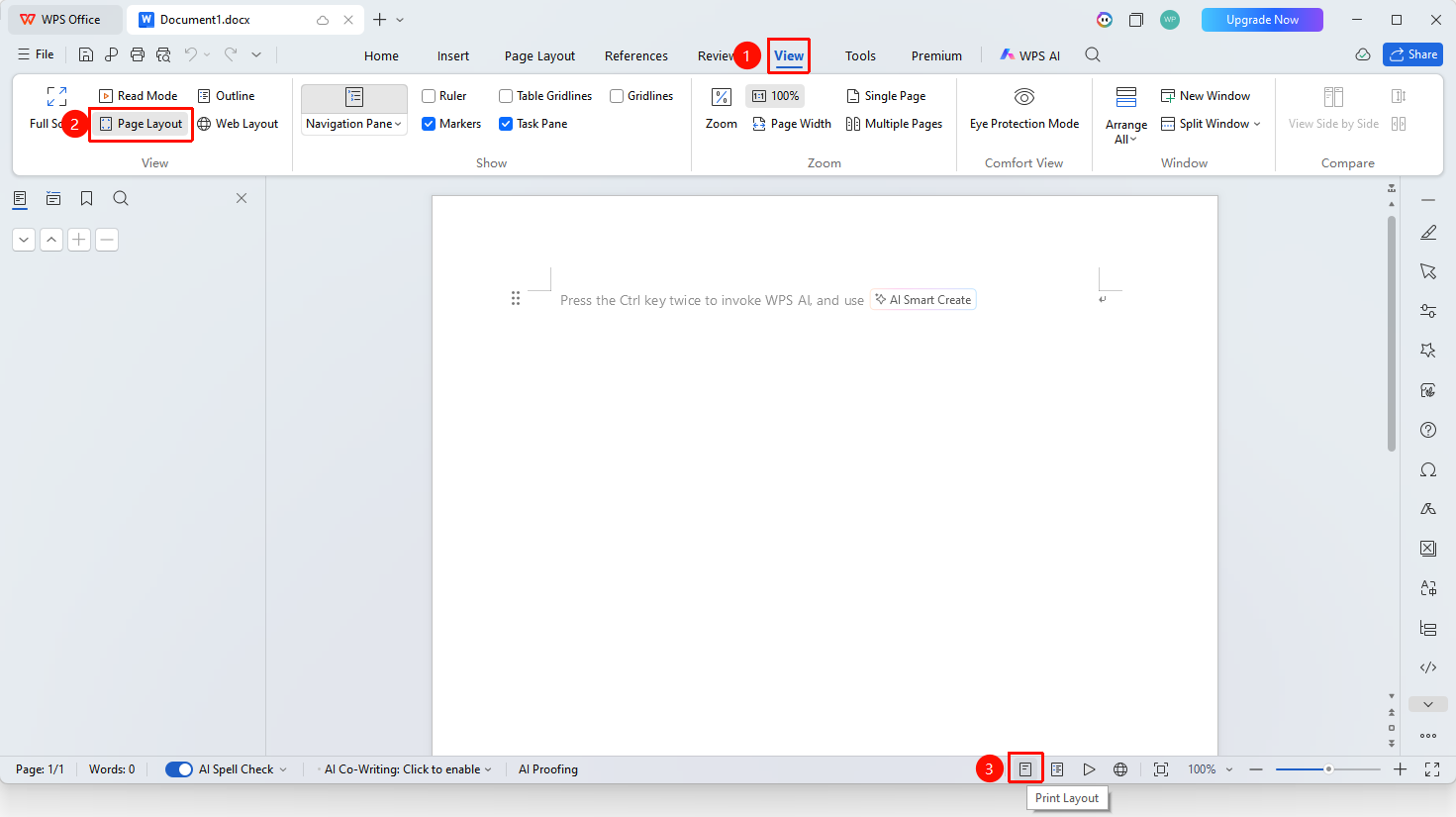
"View" → "Page View"
- Open a WPS Docs document
- Click the "View" option in the top menu bar
- Select "Page View" from the drop-down menu to switch to it
- You can also find the view switching area in the status bar at the bottom of the document and directly click the "Page View" icon to complete the switch
Frequently Asked Questions
Question 1: How to quickly switch to Page View?
- Solution: Find the view switching area in the status bar at the bottom of the document and directly click the "Page View" icon to switch quickly.
Question 2: What is the difference between Page View and other views?
- Solution: Page View fully displays the actual print layout of the document, including all page elements such as page size, margins, headers and footers, image positions, and column effects; whereas Outline View focuses on document structure, and Web Layout View simulates the web page display effect.
Notes
- WPS defaults new documents to Page View mode
- In Page View, you can double-click the header/footer area directly to enter editing mode
- To adjust the display scale, you can drag the zoom slider in the lower right corner of the document or directly enter a percentage
- Hiding page whitespace can expand the screen display area: move the mouse to the page break between two pages and click "Hide Whitespace"