Feature Summary
The page border feature allows you to add decorative borders around document pages, supporting various line styles, colors, and artistic border styles.
Feature Description
| Feature Dimension | Description |
|---|---|
| Membership Restriction | No membership restriction; available to all users |
| Version Restriction | No version restriction; supported in all versions of WPS Docs |
Operation Steps
Adding Page Borders
Feature Entry
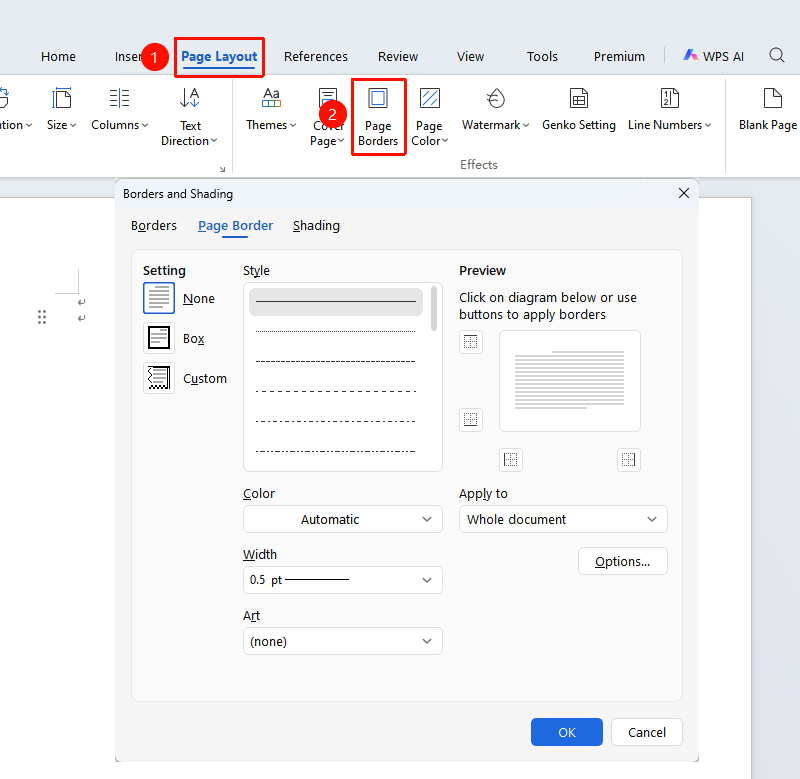
"Page" tab → "Page Borders" button
- Click the "Page Borders" button in the Page tab
- Select a border style in the pop-up dialog box
- You can choose the line style, color, and width
- Or select an artistic border style
- Click OK to complete the settings
Custom Border Settings
Feature Entry
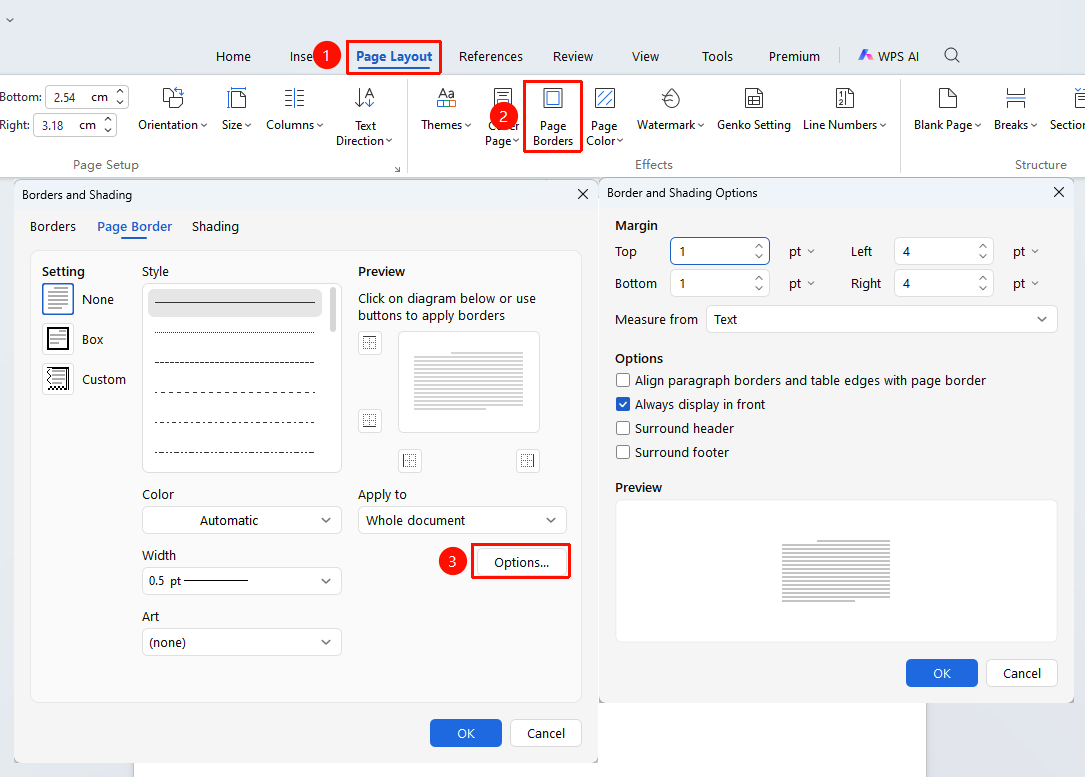
"Page" tab → "Page Borders" option → "Options" button
- Click the Page Borders button in the Page tab
- Click the "Options" button in the Page Borders dialog box
- Set the distance from the border to the page edge
- Choose the measurement basis: Text or Page Margin
- Click OK to apply the settings
Frequently Asked Questions
Question 1: How to remove page borders
- Solution: Open the Page Borders dialog box, select the "None" border style, and click OK to remove.
Notes
- Different sections can have different page borders