Feature Summary
When you need to output a WPS Docs document to PDF format for sharing, printing, or archiving, the "Output to PDF" feature helps you quickly complete the conversion, ensuring a fixed document format and consistent cross-platform display. Core capabilities include:
- Support one-click output of text documents to PDF format
- Support retaining document elements such as comments, bookmarks, and hyperlinks
- Support adding PDF watermarks to protect document security
- Support batch output of multiple documents to PDF files
Feature Description
| Feature Dimension | Description |
|---|---|
| Membership Restriction | Basic output to PDF feature is free to use; some advanced settings (such as custom watermarks, batch conversion, etc.) require membership activation |
| Version Restriction | No version restriction |
Operation Steps
Some features require membership activation to use. Before use, you can check the membership identifier of the feature.
Method 1: Output via the "Member Exclusive" Menu
Feature Entry
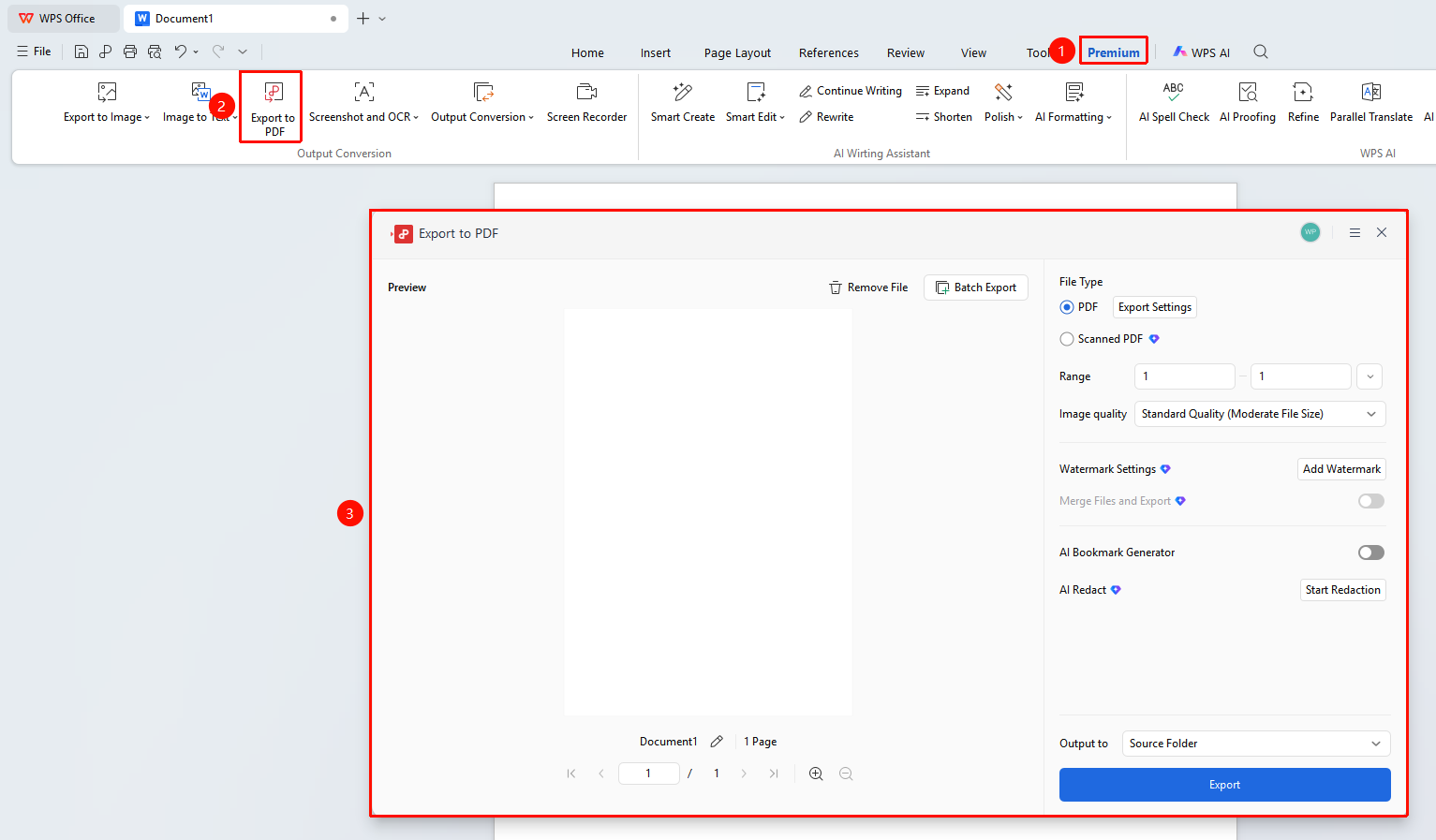
Open document → "Member Exclusive" tab → "Output to PDF"
- Use WPS Office to open the document you need to convert
- Click the "Member Exclusive" tab in the top menu bar
- Click "Output to PDF"
- In the pop-up dialog, you can set options such as output range, image quality, and save path
- Click "Start Output" to complete the output
Method 2: Output via the "File" Menu
Feature Entry
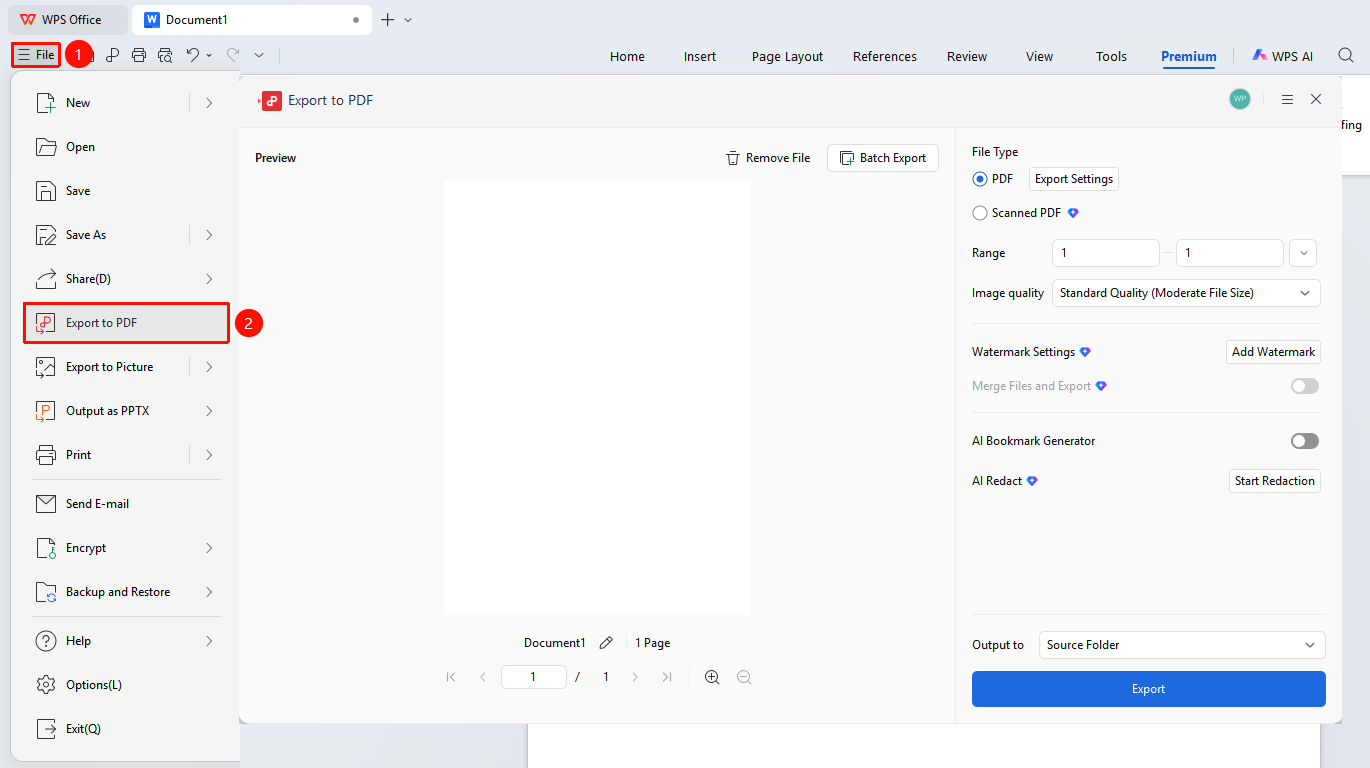
Open document → "File" menu in the upper left corner → "Output to PDF"
- Use WPS Office to open the document you need to convert
- Click the "File" menu in the upper left corner
- Select "Output to PDF"
- Set output parameters and click "Start Output"
Advanced Settings
Feature Entry
In the Output to PDF dialog, click the following settings to configure:
- Multi-file output (Membership required): Select to output multiple documents into one PDF
- Scanned PDF (Membership required): Select to convert the file into a scanned PDF, which helps protect document content
- Output range: Choose to output all pages or specify a page range
- Output settings: Set whether to output content such as comments and author information within the document, and encrypt the output PDF document
- Image quality: Choose from High/Standard/Low quality; higher quality results in a larger converted file size
- Watermark settings (Membership required): Set a watermark to be added to the generated file
FAQ
Q1: Output to PDF prompts a network error
- Solution: Verify the currently used WPS version. If the version differs significantly from the official website version, it is recommended to uninstall and then download and reinstall the latest version from the official website.
Q2: Output to PDF prompts "Unable to output due to font vendor restrictions"
- Solution: Some fonts do not support embedding in PDF files. It is recommended to change to another font and try outputting again.
Q3: How to retain comments when converting text to PDF?
- Solution: Click "Member Exclusive" → "Output to PDF", in the pop-up dialog click "Output Settings", and check the output content you want to retain.
Q4: What to do if the format is disordered after outputting to a PDF file?
- Solution:
- It is recommended to use "File" menu → "Print" → "Print Preview" to check the layout effect before outputting;
- For complex layouts, you can check the "Embed Fonts" option to ensure consistent font display in the PDF.
Notes
- After outputting as a scanned PDF file, the document format will be fixed and cannot be directly edited. If editing is needed, please keep the original document.
- When using non-standard fonts, it is recommended to check "Embed fonts" in advanced settings to ensure the PDF displays consistently on other devices.