Feature Summary
The cross-reference feature allows you to reference content from other locations in a document (such as headings, captions, bookmarks, etc.), supports automatic updates, and facilitates internal document linking.
Feature Description
| Feature Dimension | Description |
|---|---|
| Membership Restriction | No membership restriction; available to all users |
| Version Restriction | No version restriction; supported in all versions of WPS Writer |
Operation Steps
Insert a Cross-Reference
Feature Entry
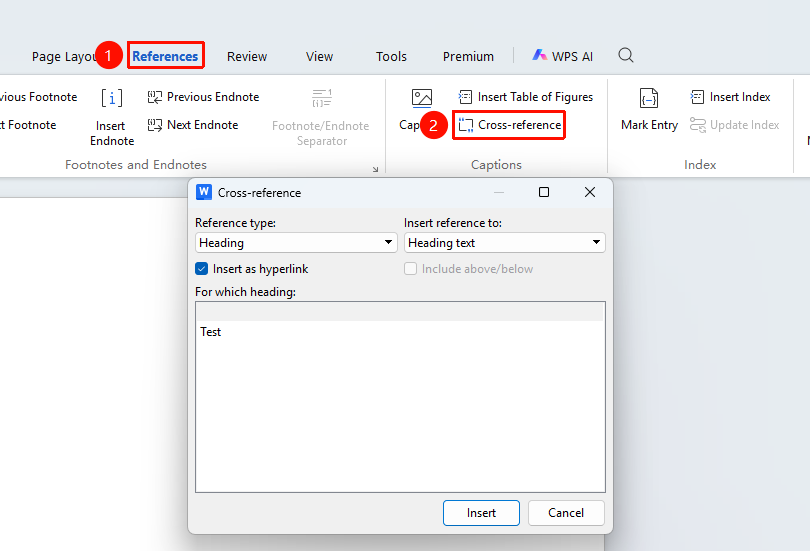
"References" tab → "Cross-reference" option
- Place the cursor where you want to insert the reference
- Click the Cross-reference button in the References tab
- Select the reference type: Heading, Caption, Bookmark, Footnote, etc.
- Select the reference content: Entire content, Only label and number, Page number, etc.
- Select the specific reference item
- Click Insert to finish
Update Cross-References
Feature Entry
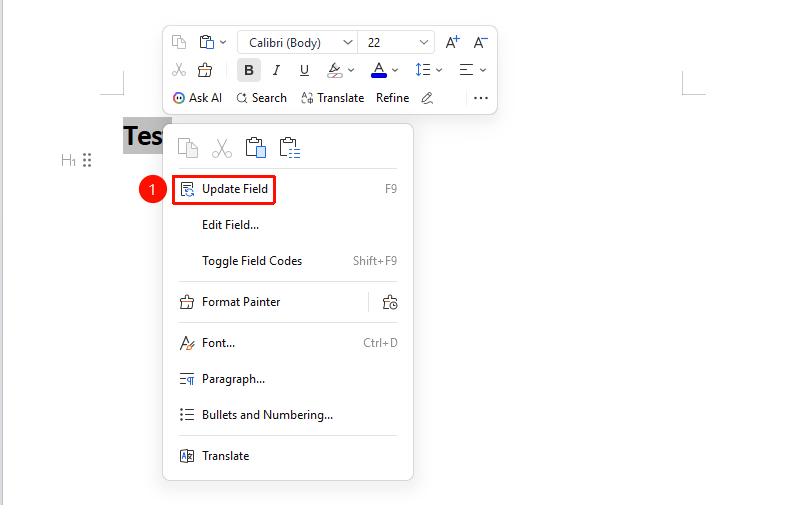
Right-click the referenced content → Click "Update Field" in the right-click menu
Batch update: Press Ctrl+A to select all, then press F9 to update all fields
Frequently Asked Questions
Q1: The cross-reference displays as code instead of content
- Solution: Right-click and select "Toggle Field Codes", or press Alt+F9 to switch the display mode.
Q2: The referenced page number is incorrect
- Solution: The page number will be automatically corrected after updating the field. Press F9 to update.
Notes
- Cross-references are dynamic links; fields must be updated after the source content is modified
- Reference types include headings, captions, bookmarks, footnotes, endnotes, etc.
- Deleting the referenced content will cause the reference to become invalid