Feature Summary
Feature Description
The endnote feature adds explanatory notes at the end of a document—commonly used in academic papers to identify bibliographic sources—and functions similarly to footnotes, except that notes appear at the document’s end rather than at the bottom of the page.
| Feature Dimension | Description |
|---|---|
| Membership Restriction | No membership restriction; available to all users |
| Version Restriction | No version restriction; supported in all versions of WPS Docs |
Steps
Insert Endnote
Feature Entry
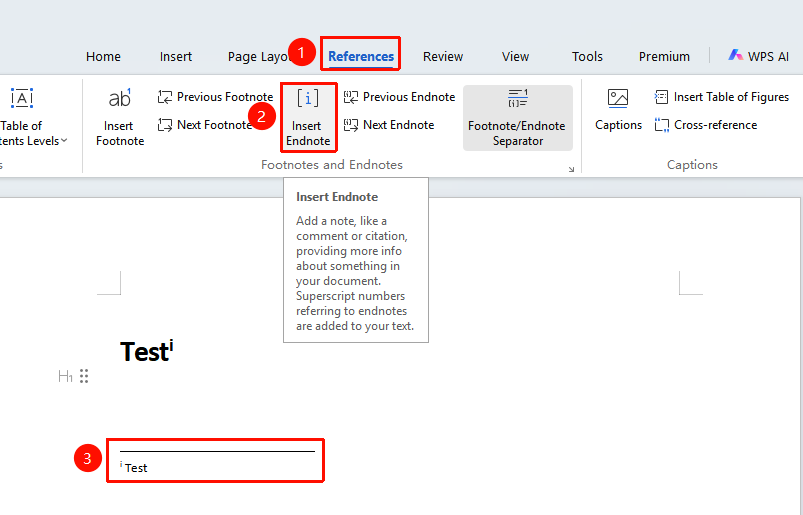
"References" tab → "Insert Endnote" button
- Place the cursor where you want to add the endnote
- Click the Insert Endnote button in the References tab
- The endnote editing area appears at the end of the document
- Enter the endnote content
- The endnote number is automatically added in the body
Endnote Settings
Feature Entry
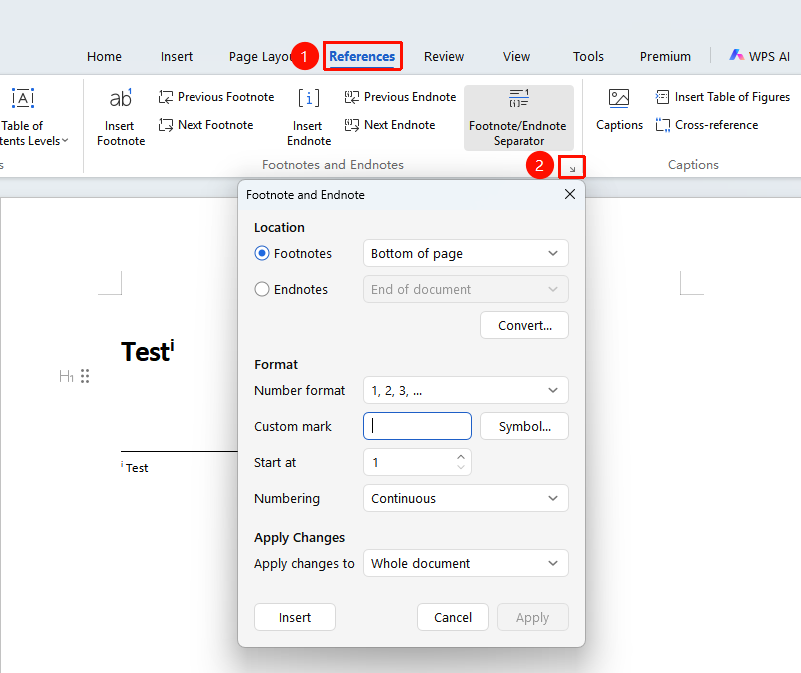
"References" tab → Click the arrow in the lower-right corner of the Footnotes & Endnotes area → "Footnotes and Endnotes" option
- Select the References tab
- Click the arrow in the lower-right corner of the Footnotes & Endnotes area to open the Footnotes and Endnotes dialog box
- Set the endnote position: End of document or End of section
- Set the number format: i, ii, iii or 1, 2, 3, etc.
- Set the starting number
- Select the scope of application and click the Apply button to complete the settings
FAQ
Q1: How to convert endnotes to footnotes
- Solution: Right-click the endnote and select "Convert to Footnote".
Q2: How to display endnotes by section
- Solution: Select "End of section" as the endnote position in the endnote settings.