Feature Summary
The Table of Contents feature can automatically generate a structured table of contents based on heading styles in the document, making it easy for readers to quickly locate content. It also supports clicking on TOC entries to jump to the corresponding sections, improving document reading efficiency.
Steps
Insert an Automatic Table of Contents
Feature Entry
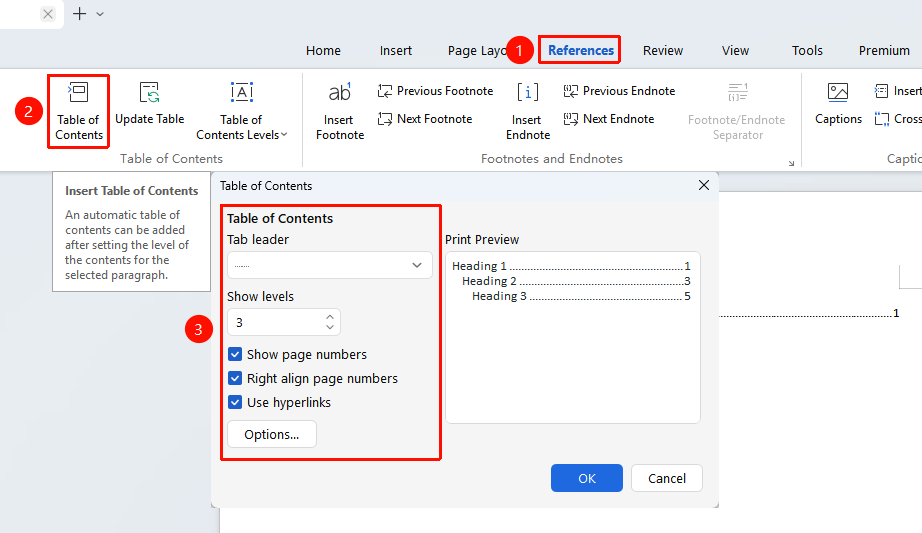
"References" tab → "Table of Contents"
- Place the cursor where you want to insert the table of contents (usually at the beginning of the document)
- Click the References tab
- Click the "Table of Contents" button
- In the pop-up dialog, you can set:
- Tab leader style
- Number of levels to show
- Whether to show page numbers
- Whether to right-align page numbers
- Whether to use hyperlinks
- Click OK to apply the settings
- The table of contents will be automatically generated based on the applied heading styles
FAQ
Q1: What should I do if the generated table of contents is incomplete?
- Solution: Check whether the content not shown in the table of contents uses heading styles. You can select the heading text, reapply the corresponding heading style in the style area of the "Home」 tab, and then update the table of contents.
Q2: How do I delete the table of contents?
- Solution: Click the table of contents area, and a 「Delete Table of Contents」 button will appear in the upper-left corner of the table of contents. Click it to delete. Alternatively, you can directly select the entire table of contents area and press the
Deletekey to remove it.
Q3: What should I do if the page numbers in the table of contents do not match the actual page numbers?
- Solution: Click the table of contents area, select 「Update Table of Contents」, and then select 「Update entire table of contents」 to synchronize the latest page number information.
Notes
- The table of contents is generated based on heading styles; you must first apply the correct styles to headings
- After modifying document content, you need to click Update Table of Contents to keep it synchronized
- You can hold the
Ctrlkey and click on page numbers in the table of contents to jump to the corresponding section - It is recommended to generate the final table of contents page after finishing the document to avoid frequently updating the table of contents content