Feature Summary
The index entry feature is used to mark keywords in a document and automatically generate an index, making it easier for readers to quickly find the location of specific topics within the document.
Feature Description
| Feature Dimension | Description |
|---|---|
| Membership Restriction | No membership restriction; available to all users |
| Version Restriction | No version restriction; supported in all versions of WPS Docs |
Operation Steps
Mark Index Entry
Feature Entry
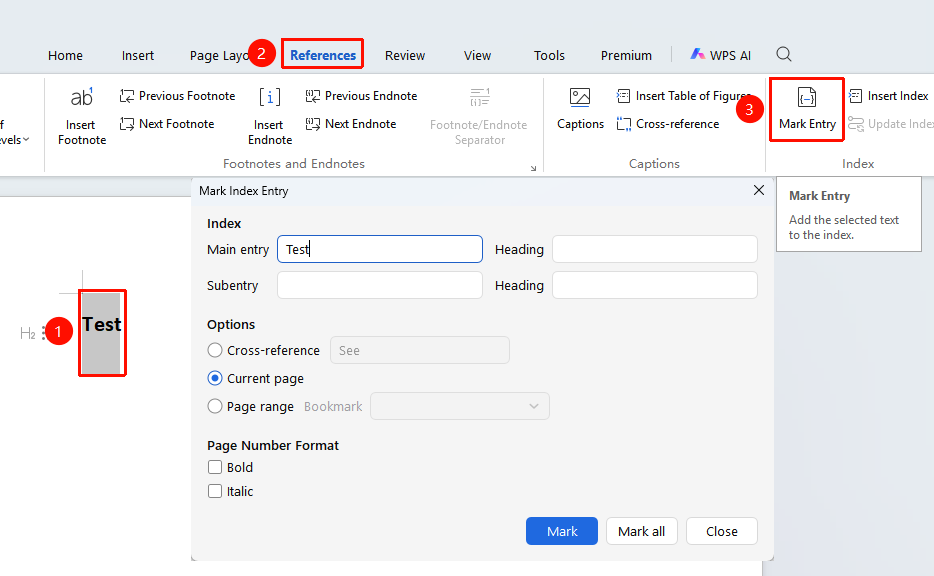
"References" tab → "Mark Entry" button
- Select the keyword to be marked as an index entry
- Click the "Mark Entry" button in the References tab
- Confirm the main index entry in the pop-up dialog box
- You can set a subentry
- Choose the page number format: Normal, Bold, or Italic
- Click Mark or Mark All
Insert Index
Feature Entry
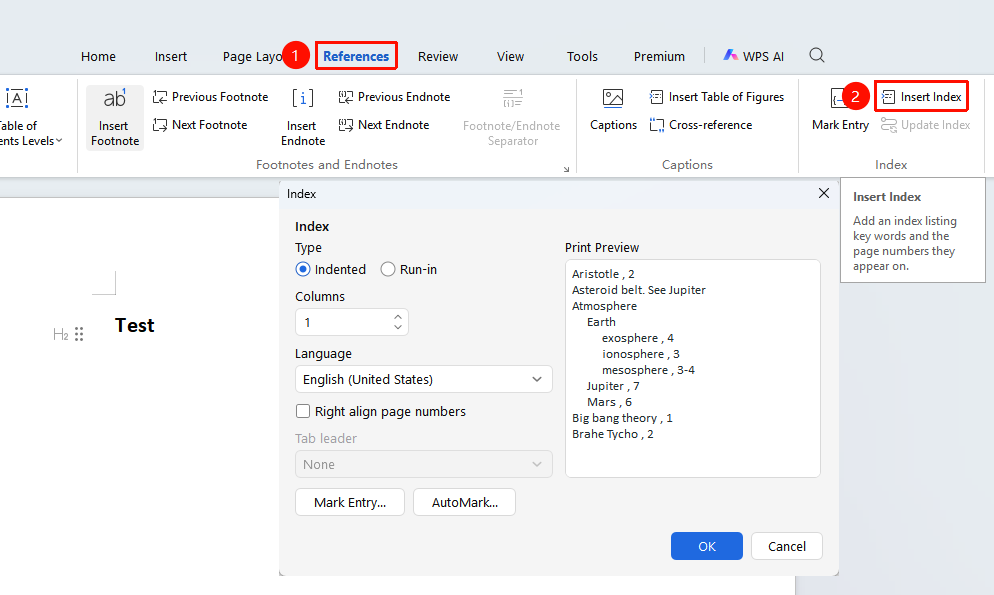
"References" tab → "Insert Index" button
- Place the cursor where you want to insert the index
- Click the "Insert Index" button in the References tab
- Set the index format: Indented or Run-in
- Set the number of columns, page number alignment, etc.
- Click OK to generate the index
FAQ
Q1: How to update the index
- Solution: Right-click the index, select "Update Field", or press F9 to update.
Q2: How to delete an index entry mark
- Solution: Delete the {XE} field code representing the index entry mark.
Notes
- Index entry marks are not displayed when printing
- You can mark multiple index entries and then generate the index all at once
- Indexes are suitable for long documents such as books and manuals