Feature Summary
The footnote feature is used to add annotations at the bottom of a page. It is commonly used in academic papers, books, and other documents to provide supplementary explanations or cite sources for the main text.
Feature Description
| Feature Dimension | Description |
|---|---|
| Membership Restrictions | No membership restrictions; available to all users |
| Version Restrictions | No version restrictions; supported in all versions of WPS Writer |
Operation Steps
Insert Footnote
Feature Entry
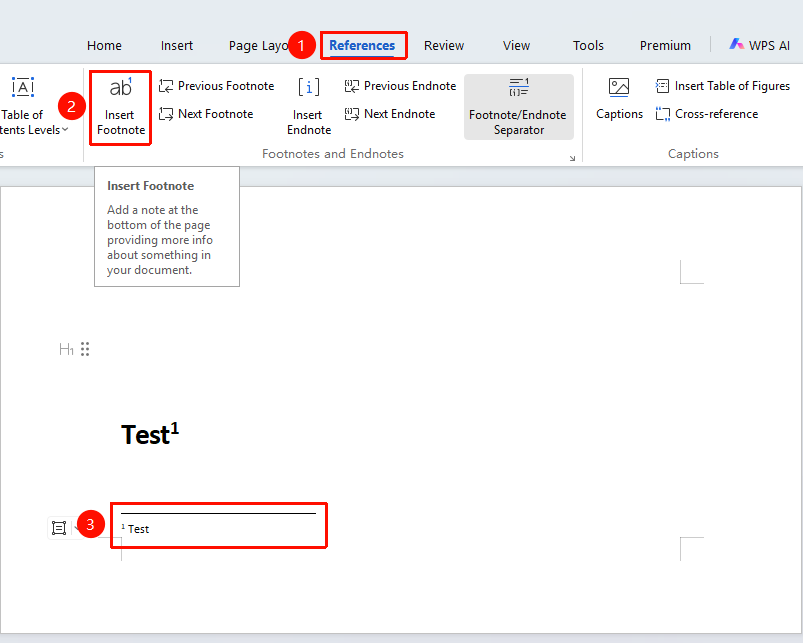
"References" tab → "Insert Footnote" button
- Place the cursor where you want to add the footnote
- Click the "Insert Footnote" button in the References tab
- The footnote editing area appears at the bottom of the page
- Enter the footnote content
- A footnote number is automatically added in the main text
Previous Footnote
Feature Entry
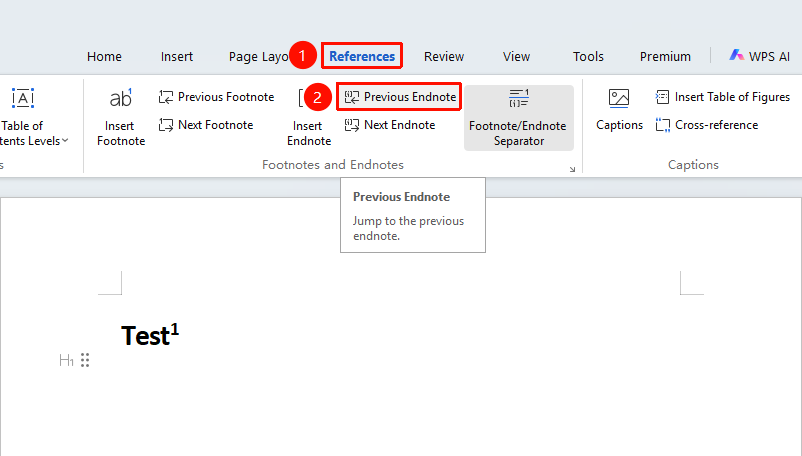
"References" tab → "Previous Footnote" button
- Click the References tab
- Click the "Previous Footnote" button to jump to the previous footnote content
Next Footnote
Feature Entry
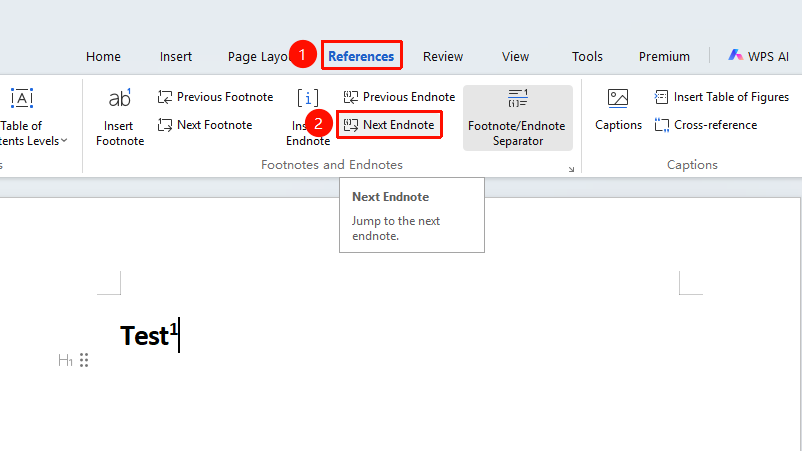
"References" tab → "Next Footnote" button
- Click the References tab
- Click the "Next Footnote" button to jump to the next footnote content
Footnote Settings
Feature Entry
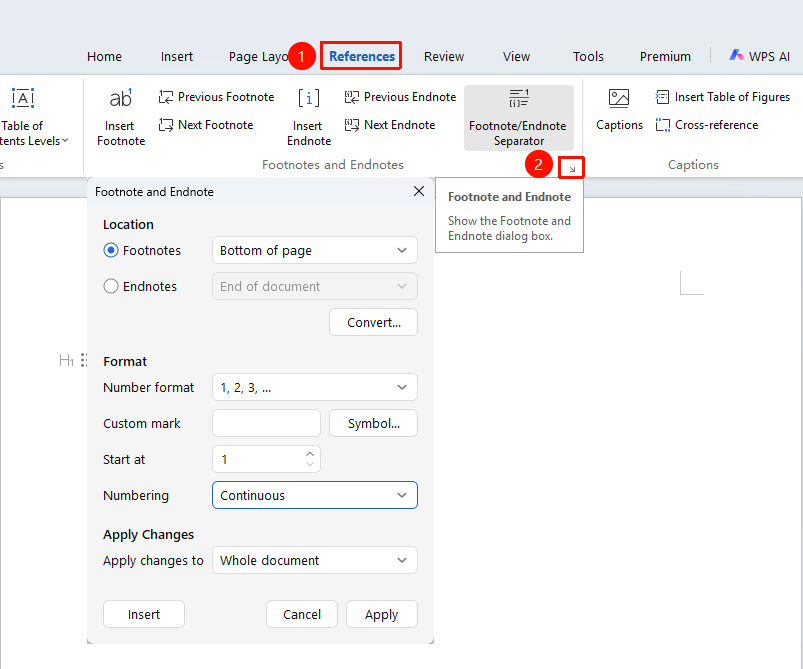
"References" tab → Click the arrow in the lower-right corner of the Footnotes & Endnotes function area → "Footnote and Endnote" option
- Select the References tab
- Click the arrow in the lower-right corner of the Footnotes & Endnotes function area to open the "Footnote and Endnote" dialog box
- Set the footnote position: Bottom of page or Below text
- Set the number format: 1,2,3 or a,b,c, etc.
- Set the starting number
- Select the application scope and click the Apply button to complete the settings
Frequently Asked Questions
Question 1: How to delete a footnote
- Solution: Delete the footnote number marker in the main text, and the corresponding footnote content will be automatically deleted.
Question 2: How to convert between footnotes and endnotes
- Solution: Right-click the footnote and select "Convert to Endnote".
Notes
- Footnote content supports multiple lines of text and formatting settings