Feature Summary
The caption feature is used to add numbered labels to objects such as images, tables, and equations. It supports automatic numbering and cross-references, facilitating document management and referencing.
Feature Description
| Feature Dimension | Description |
|---|---|
| Membership Restriction | No membership restriction; available to all users |
| Version Restriction | No version restriction; supported in all versions of WPS Docs |
Operation Steps
Insert Caption
Feature Entry
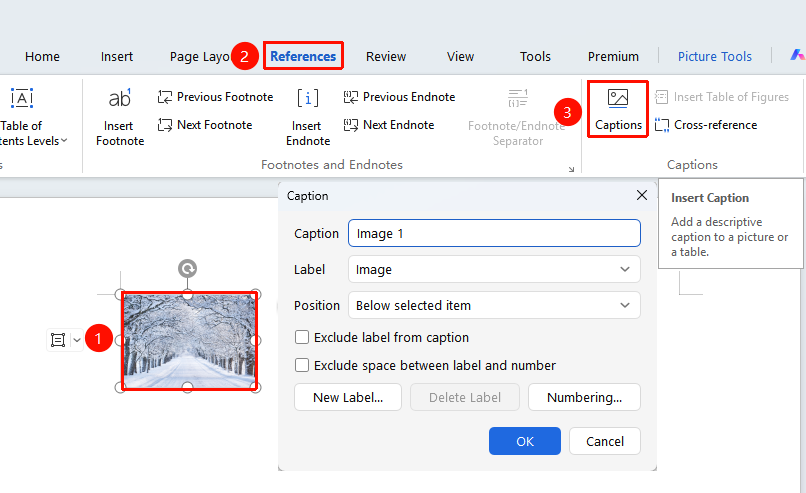
"References" tab → "Insert Caption" button
- Select the object you want to add a caption to (image, table, etc.)
- Click the "Insert Caption" button in the References tab
- In the pop-up dialog box, select a label: Figure, Table, Equation, etc.
- Enter the caption text
- Select the position: Below selected item or Above selected item
- Click OK to finish
Create New Caption Label
Feature Entry
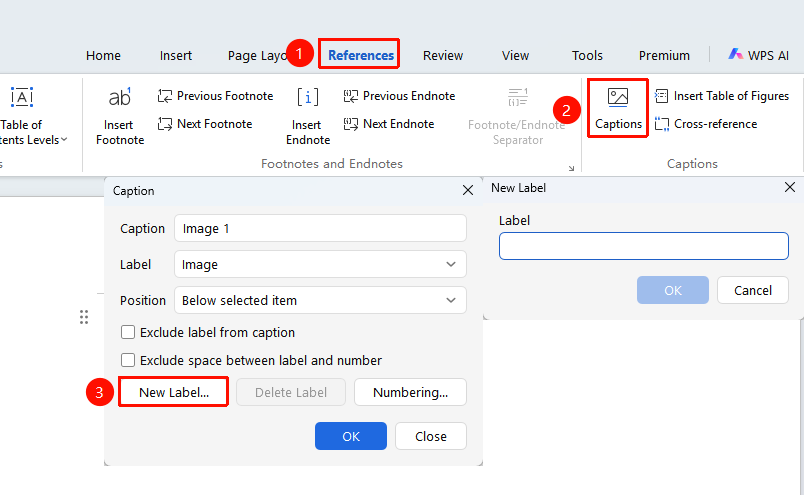
"References" tab → "Insert Caption" button → "New Label" option
- Open the Caption dialog box
- Click the "New Label" button
- Enter a custom label name
- Click OK to save
- The new label will appear in the label list
Caption Numbering Settings
Feature Entry
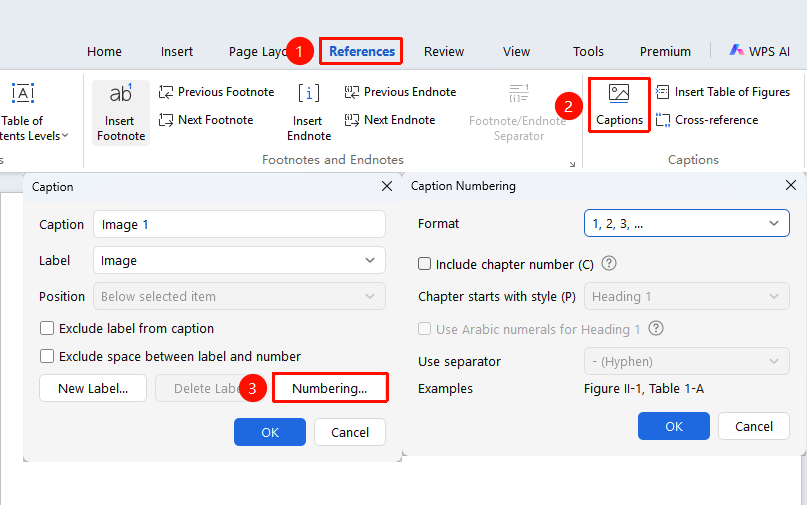
"References" tab → "Insert Caption" option → "Numbering" button
- Open the Caption dialog box
- Click the "Numbering" button
- Set the numbering format: 1, 2, 3 or a, b, c, etc.
- Optionally include chapter number
- Click OK to apply
Frequently Asked Questions
Question 1: How to update caption numbers
- Solution: Press Ctrl+A to select the entire document, then press F9 to update fields. Caption numbers will update automatically.
Notes
- Captions support automatic numbering; fields need to be updated after deleting or adding objects
- Captions can be used in conjunction with cross-references