Feature Summary
The AI Spell Check feature uses artificial intelligence technology to intelligently detect spelling errors, grammar issues, and improper word usage in documents, providing precise correction suggestions to improve document quality.
Feature Description
| Feature Dimension | Description |
|---|---|
| Membership Restriction | Requires activating WPS Premium |
| Version Restriction | No version restriction |
Operation Steps
Launching Spell Check
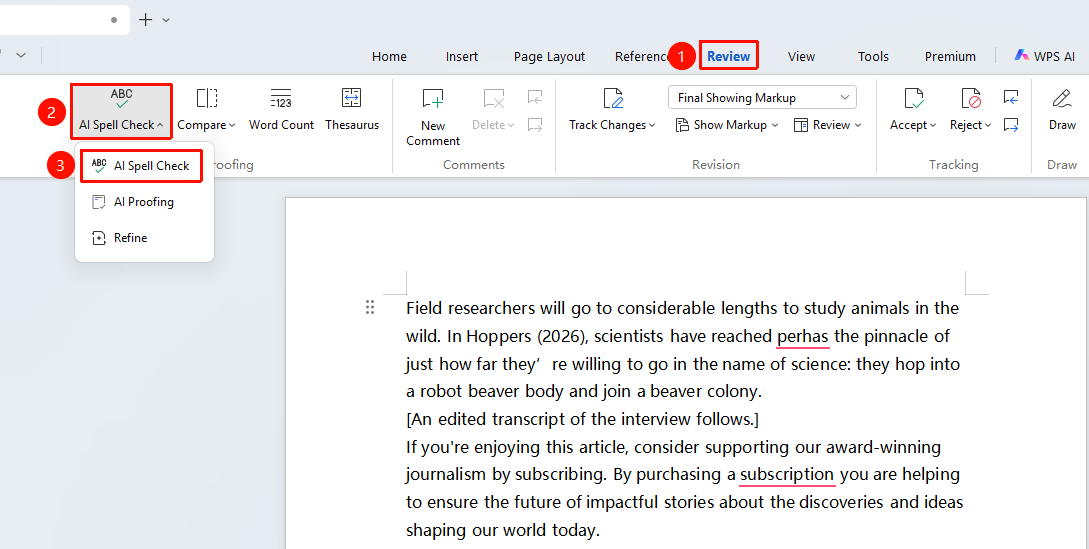
Feature Entry ①
"Review" tab → "AI Spell Check"
- Open a WPS Docs document
- Click the "Review" tab in the top menu bar
- Click the "AI Spell Check" button
- The system will automatically scan the document for spelling errors
Feature Entry ②
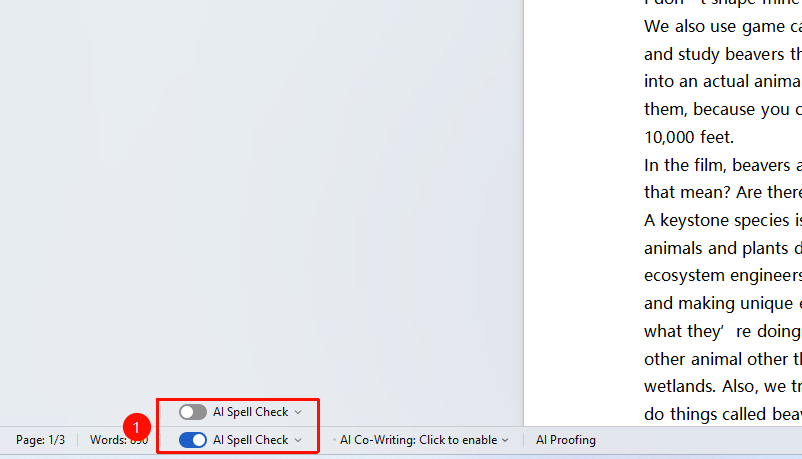
Bottom status bar → "AI Spell Check"
- Locate and click the toggle button in front of "AI Spell Check" on the bottom status bar
- Quickly enable/disable "AI Spell Check"
Viewing Check Results
Feature Entry
Spell check dialog box
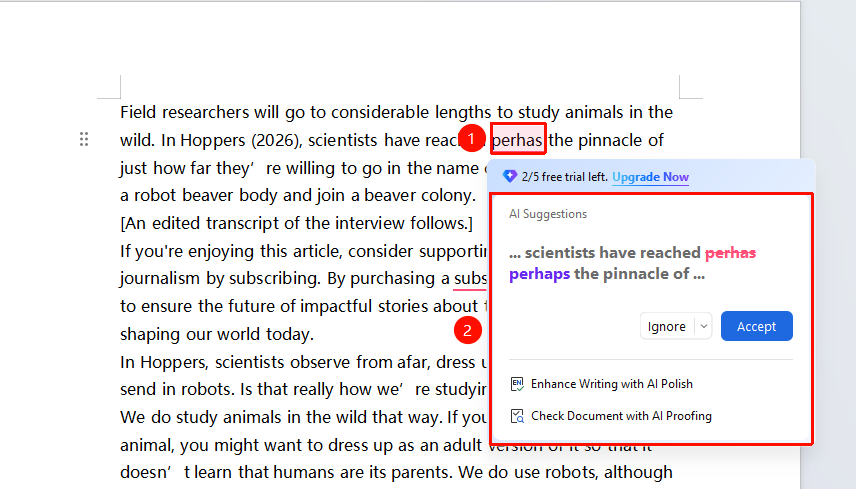
- After the check is complete, a red underline will be added beneath misspelled words
- Click on the error to view error details in the pop-up dialog box
- AI will provide correction suggestions
- You can choose to enable features such as AI Polish and AI Proofread in the spell check dialog box
Handling Spelling Errors
Feature Entry
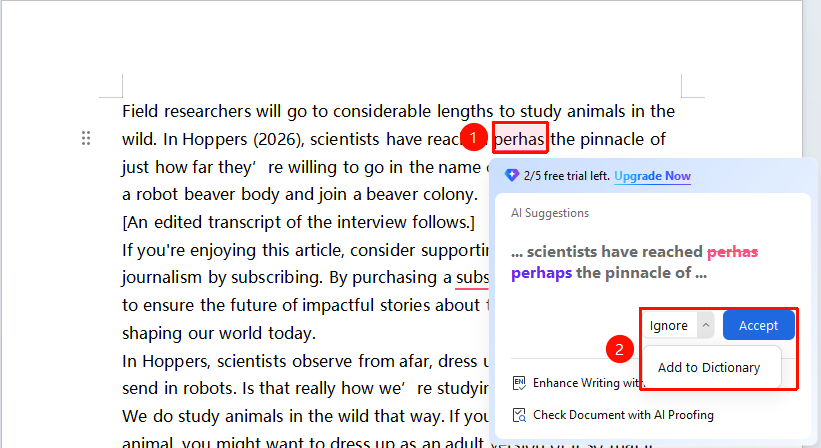
Spell check dialog box operation buttons
- Accept: After clicking to select a suggested word, the current error will be automatically corrected
- Ignore: Skip the current error without making changes
- Add to Dictionary: Add the correct word to the dictionary to avoid false positives next time
Spell Check Settings
Feature Entry
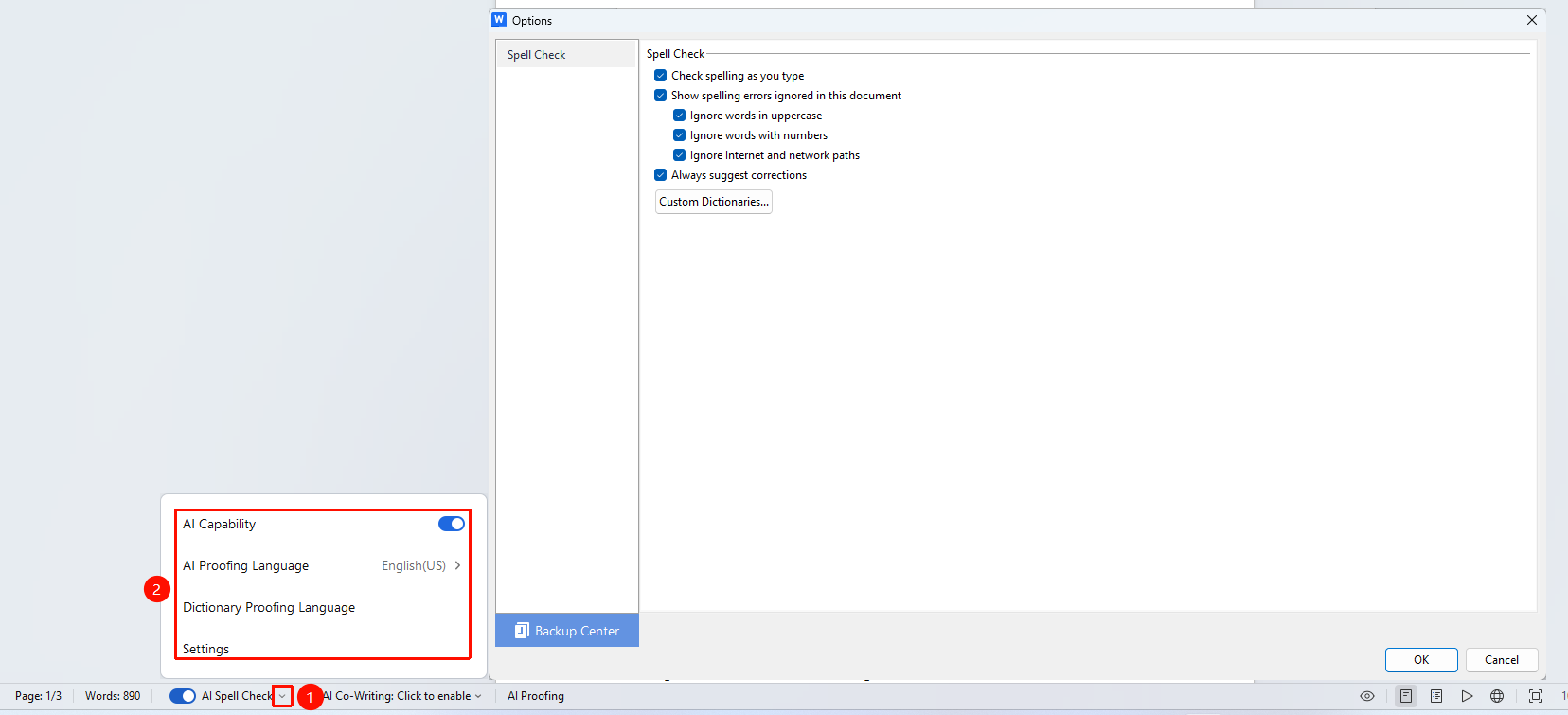
Bottom status bar → "AI Spell Check"
- Click the dropdown arrow of "AI Spell Check" on the bottom status bar to expand the AI Spell Check settings menu and configure the following options
- Enable/disable "AI Capability" (AI data will no longer be loaded after disabling)
- Set "AI Check Language"
- Add/remove "Dictionary Check Language"
- Click "Settings" to expand spell check options:
- Check spelling as you type: Check in real time while typing
- Show ignored spelling errors in the document: Whether to show ignored spelling errors in the document
- Ignore words in UPPERCASE: Skip checking uppercase words in the document
- Ignore words that contain numbers: Skip checking words with numbers in the document
- Ignore Internet and file path: Skip checking web addresses in the document
- Custom dictionary: Add a local dictionary to the spell check language
Notes
- Spell check is mainly applicable to foreign language documents
- You can add professional terms to the dictionary to avoid false positives
- It is recommended to perform a unified spell check after completing the document