Feature Summary
The revision feature is used to record all modification traces in a document, including insertions, deletions, and format changes, facilitating the tracking of modification content and reviewer information during multi-person collaboration.
Feature Description
| Feature Dimension | Description |
|---|---|
| Membership Restriction | No membership restriction |
| Version Restriction | No version restriction |
Operation Steps
Enabling Revision Mode
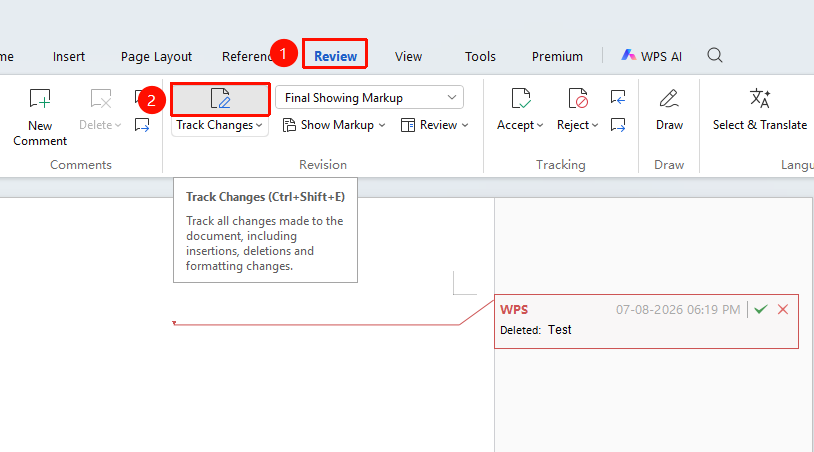
Feature Entry: "Review" tab → "Track Changes"
- Open a WPS Text document
- Click the "Review" tab on the top menu bar
- Click the "Track Changes" button to enable revision mode
- The button highlights to indicate revision mode is enabled
- All subsequent editing operations will be recorded
Disabling Revision Mode
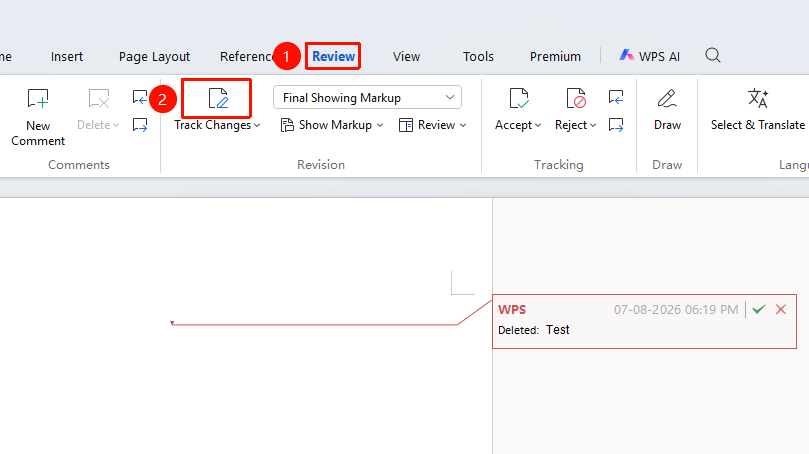
Feature Entry
"Review" → "Track Changes"
- Click the "Track Changes" button again
- The button returns to its normal state, indicating it is disabled
- New edits after disabling will no longer be recorded
Viewing Revision Content
Feature Entry
Revision marks in the document
- Inserted content is displayed with colored underlines
- Deleted content is shown with strikethrough in the revision balloons
- Format changes are displayed in the right-side revision area
- Reviewer information can be viewed at the revision location
Setting Revision Display Mode
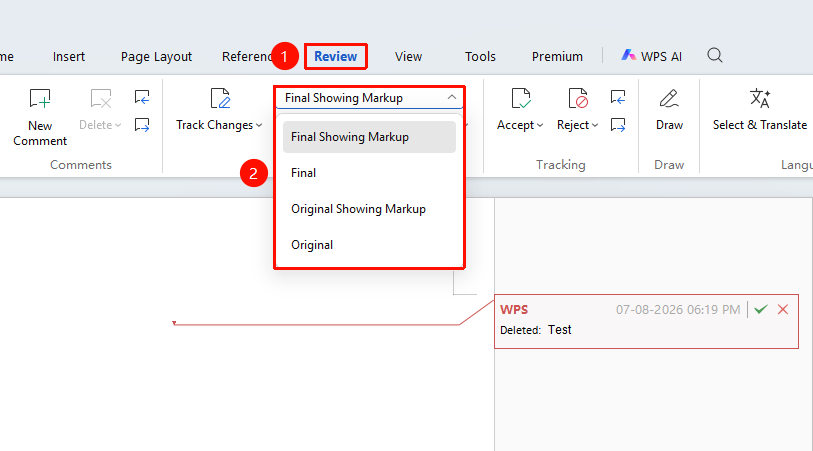
Feature Entry: "Review" → "Show for Review"
- Click the "Show for Review" dropdown menu
- Select a display mode:
- Show Markup Final State
- Show Markup Original State
- Final State
- Original State
Revision Options
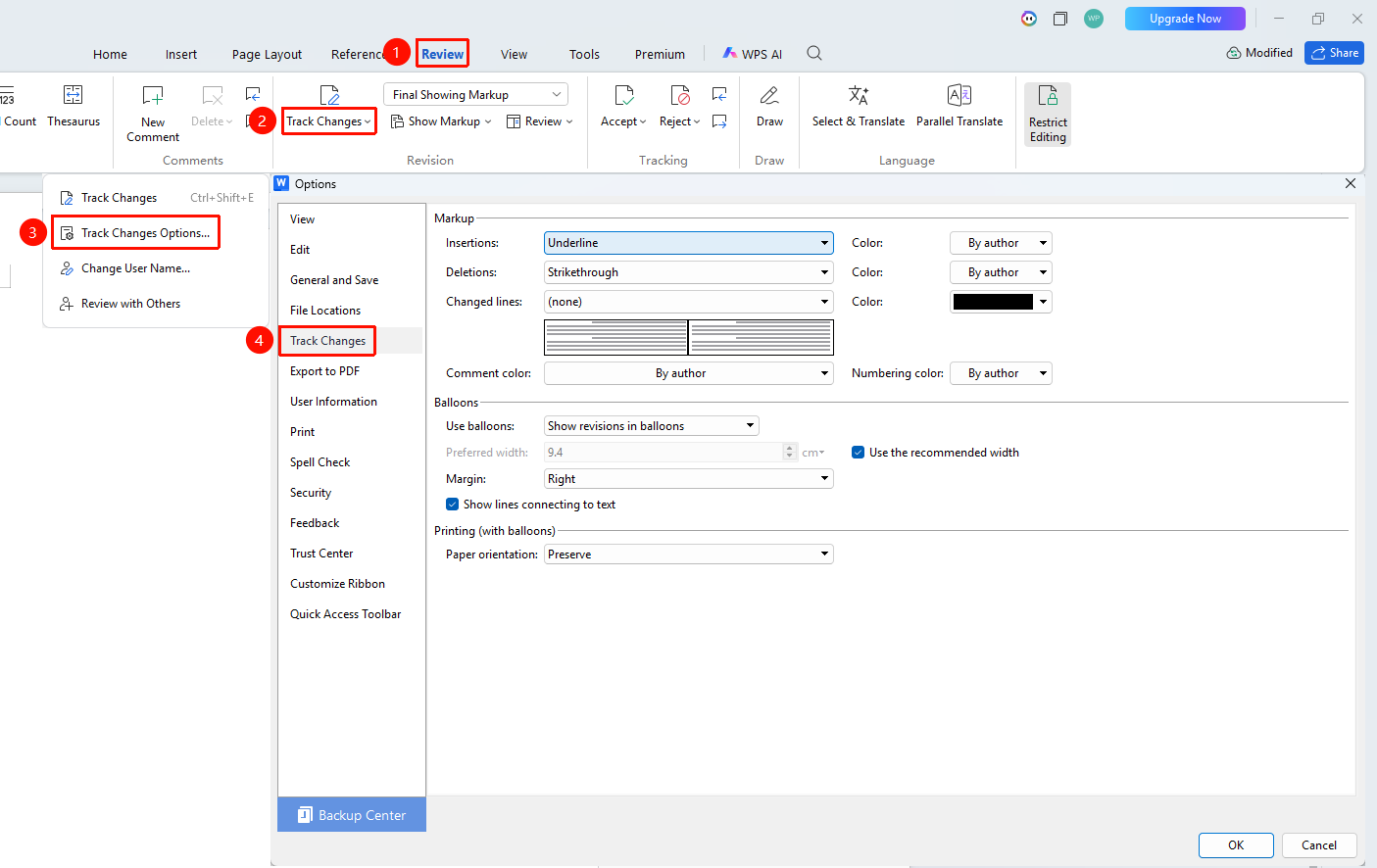
Feature Entry: "Review" tab → "Track Changes" dropdown menu → "Track Changes Options"
- Click the "Review" tab on the top menu bar
- Click the "Track Changes" dropdown menu, find "Track Changes Options" and open it
- Here you can set options such as revision display content and revision color differentiation
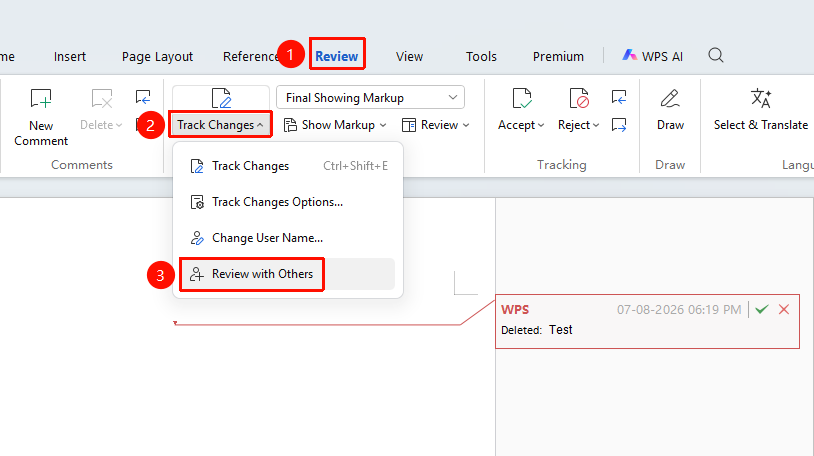
Collaborating on Revisions with Others
Feature Entry: "Review" tab → "Track Changes" dropdown menu → "Collaborate on Revisions with Others"
- Click the "Review" tab on the top menu bar
- Click the "Track Changes" dropdown menu, find "Collaborate on Revisions with Others" and click it
- WPS Text will switch to online mode, allowing you to share a document link to invite other users to join and revise the document together
Frequently Asked Questions
Question 1: What if revision marks are not displayed?
- Solution: Click "Review" → "Show for Review" and select "Show Markup Final State".
Question 2: How to view detailed revision information?
- Solution: Hover the mouse over a revision mark to display the reviewer's name, modification time, and specific content.
Question 3: How to display all revisions inline?
- Solution: Click the "Review" tab → dropdown menu within "Show Markup" → "Use Balloons" and check "Show All Revisions Inline".
Question 4: How to change the reviewer's information?
- Solution: Change it via "File" → "Options" → "User Information". Subsequent new revisions will reflect this name.
Notes
- It is recommended to save the document before enabling revision mode
- Revision marks can be shown or hidden by reviewer
- Revision information is saved together with the document when saving